
Ollama vs LM Studio on Mac: Which Should You Use in 2026?
Compare Ollama and LM Studio on a 16 GB M1 Pro using the same Qwen3 8B GGUF, including speed, memory, setup, model management, APIs, and best fit.
Choose LM Studio if you are still exploring local models and want a visual way to compare downloads, quantizations, runtimes, and load settings. Choose Ollama if you mostly want a model running as a simple local service for scripts, editors, agents, or another chat app.
On our 16 GB M1 Pro, neither runtime was meaningfully faster with the same Qwen3 8B Q4_K_M model file. The more useful differences were how each product helps you discover, inspect, load, and connect models.
| Your main job | Better starting point | Why |
|---|---|---|
| Browse and compare local models | LM Studio | Richer visual discovery, quantization choices, fit guidance, runtime visibility, and load controls |
| Run a settled model for other apps | Ollama | Simple named-model workflow, predictable local endpoint, and broad integration recognition |
| Chat directly without another app | Either | Both now include a Mac chat interface |
| Build against a local API | Either | Both provide local APIs, OpenAI-compatible endpoints, terminal workflows, and headless operation |
| Keep one chat workspace across runtimes | Either through Vinaa | Vinaa connects to both and lets you continue the same conversation after switching models |
What changed in 2026
Many older comparisons reduce this choice to “Ollama is command line, LM Studio is graphical.” That is no longer accurate.
Ollama now includes a Mac app for downloading models, chatting, adding files, and changing settings. Its command-line tools and local service remain central, but it is not a CLI-only product. Ollama also added an Apple Silicon MLX path in 2026 while continuing to improve its GGUF and llama.cpp support. See the current Ollama macOS documentation, MLX update, and GGUF update.
LM Studio is no longer limited to keeping a desktop window open. Version 0.4 introduced the standalone llmster daemon, terminal model downloads and chat, parallel llama.cpp inference, a stateful REST endpoint, and a refreshed app with split view. Its Mac product supports both llama.cpp and its own open-source MLX engine. See the LM Studio 0.4 release notes and current documentation.
The useful distinction is now GUI-first versus service-first, not GUI versus CLI.
How we tested Ollama and LM Studio
We ran the comparison on an older, constrained Apple Silicon Mac rather than a high-memory desktop.
| Test field | Value |
|---|---|
| Mac | 14-inch MacBook Pro with Apple M1 Pro |
| CPU and GPU | 8 CPU cores, 14 GPU cores |
| Unified memory | 16 GB |
| macOS | 26.3.1 |
| Ollama | 0.32.15 |
| LM Studio | App 0.4.21+2 |
| Model | Qwen3 8B, GGUF Q4_K_M |
| Model-layer size | 5,225,374,496 bytes |
| Context and output cap | 4,096 tokens and 256 output tokens |
| Measured requests | 24 per runtime, 48 total |
The model-layer SHA-256 began with a3de86cd1c13. The full digest is in the public test metadata. LM Studio used a symbolic link to the exact Ollama model-layer file, so both runtimes read the same 5.2 GB of model bytes rather than separate downloads that happened to share a model name.
The prompt set contained three synthetic jobs:
- A short explanation.
- Structured extraction from a 1,166-word document.
- A continuation request using a 1,773-word synthetic transcript.
For each job, we ran three cold requests with the model unloaded between runs. We then loaded the model, performed one uncounted warm-up, and recorded five warm requests. Temperature was 0, thinking was disabled, and the direct benchmark used no tools, files, retrieval, web access, or private conversation content.
The sanitized per-run CSV contains wall time, time to first token, token counts, and generation rate for all 48 measured requests. The separate metadata file preserves the hardware, runtime versions, exact model digest, settings, and repeat protocol needed to interpret it.
Performance result: a practical tie
These are the cold-run medians, followed by the complete three-run range.
| Synthetic job | Ollama total time | LM Studio total time |
|---|---|---|
| Short explanation | 8.10 s (8.07–11.08) | 8.49 s (8.44–8.58) |
| Structured extraction | 20.61 s (20.36–20.67) | 21.09 s (20.83–21.15) |
| Long continuation | 18.75 s (18.48–18.76) | 18.90 s (18.87–18.91) |
The first Ollama short run included a slower application start. Once stabilized, Ollama was modestly quicker on that small job. The extraction and long-continuation differences were too small to represent different performance classes.
Generation rate makes the result clearer:
| Synthetic job | Ollama median | LM Studio median |
|---|---|---|
| Short explanation | 22.61 tokens/s | 21.62 tokens/s |
| Structured extraction | 21.66 tokens/s | 21.67 tokens/s |
| Long continuation | 21.38 tokens/s | 21.42 tokens/s |
For the longer jobs, the difference was less than 0.1 token per second.
Both runtimes also reused repeated prompt state. After the first warm structured-extraction request, the repeated-request median was 10.07 seconds in Ollama and 10.06 seconds in LM Studio. For the long continuation it was 3.52 versus 3.47 seconds, with the first token arriving in roughly 57 to 61 milliseconds.
That repeated-input result demonstrates caching behavior. It is not the expected speed for a new long conversation with different content.
The conclusion applies to this same-file GGUF lane. It does not declare that every Ollama model and every LM Studio model will tie. Both products now ship different GGUF and MLX paths, and both update their engines regularly. Model architecture, quantization, prompt template, context, defaults, and runtime version can change the result before the app name does.
Memory behavior on a 16 GB Mac
We recorded the resident memory of each runtime’s process group before loading the model, while loaded, and after unloading it.
| Runtime | Unloaded process RSS | Loaded process RSS | After unload |
|---|---|---|---|
| Ollama | 177.2 MiB | 6,138.9 MiB | 116.5 MiB |
| LM Studio | 1,024.4 MiB | 6,729.3 MiB | 701.0 MiB |
The full LM Studio desktop app had the larger idle process footprint. Once the model was loaded, the observed increase was comparable: about 5,962 MiB for Ollama and 5,705 MiB for LM Studio.
System free memory returned to within one percentage point of its starting checkpoint after each unload. Both completed the Qwen3 8B Q4_K_M suite on this 16 GB Mac without a runtime error.
Process RSS is a useful diagnostic, but it is not an exact accounting of every byte in Apple’s unified memory. The practical lesson is simpler: an 8B Q4_K_M model fit this machine in both runtimes, LM Studio’s full app used more memory while idle, and unloading the model returned most observed resources in both cases.
Setup and model management
This is where the products feel most different.
| Task | Ollama | LM Studio |
|---|---|---|
| Find a model | Search Ollama’s model library, then pull a named model | Browse models and quantizations visually, including Hugging Face options |
| Start quickly | Pull and run with a compact command or use the Mac app | Download, inspect fit, select a quantization, and load from the app |
| Inspect the exact model | ollama show exposes metadata, parameters, template, and capabilities | The app exposes model file, quantization, runtime, estimates, and load settings more visibly |
| Import an existing GGUF | Create a model from the local GGUF through the documented import flow | Import the GGUF with lms import or place it in the expected model directory |
| Load and unload | Use commands or API keep-alive and unload controls | Use the app, CLI, SDK, or API with explicit load configuration |
| Default local endpoint | http://localhost:11434 | http://localhost:1234 |
Where LM Studio is easier
LM Studio gives you more information before you commit to a large download. It is better suited to comparing several quantizations, seeing whether a model should fit, switching between GGUF and MLX options, inspecting the selected runtime, and adjusting load settings without assembling commands.
That makes it a strong first install for someone learning what model size, quantization, context length, and engine mean on their Mac.
The tradeoff is that the product has more surfaces and controls than a person who only wants one model behind a local endpoint may need. Its richer desktop application also explains part of the larger idle process footprint measured above.
Where Ollama is easier
Ollama makes the path from a known model name to a running service very short. A named pull, a local endpoint, and a widely recognized integration pattern are often enough to connect an editor, coding agent, script, or chat client.
That simplicity can hide details a model evaluator wants to see. A convenient model tag is not the same as an explicit filename, quantization, prompt template, and engine version. Those details are available, but they are less central to the default experience than in LM Studio.
The same weights can still produce different answers
Running the same GGUF bytes does not guarantee identical output.
The runtimes can apply different chat templates or defaults. In our run, the reported input counts differed by four tokens on the longer prompts even though the synthetic conversation content was the same. The short explanations also used different wording at temperature 0.
Treat model weights, runtime configuration, and prompt formatting as separate layers:
- Weights determine the learned model parameters.
- Quantization changes how those parameters are represented and how much memory they need.
- The runtime and engine decide how the weights are loaded and evaluated.
- The chat template and sampling settings decide how your messages are presented to the model and how output is selected.
This is why a performance claim based only on the visible model name is weak evidence.
APIs, automation, and headless use
Both products can power another application.
Ollama provides a native API and an OpenAI-compatible API. Its default service and familiar model names are recognized directly by many local-AI integrations.
LM Studio provides OpenAI-compatible endpoints, its own REST API, Python and TypeScript SDKs, and the llmster daemon. Version 0.4 also added parallel requests for its llama.cpp engine and terminal commands for downloading, loading, serving, and chatting with models. See the LM Studio developer documentation for the current interfaces.
So “only Ollama can run headlessly” and “LM Studio handles one request at a time” are stale claims. The remaining decision is usually:
- Which integration does your other software support most directly?
- Do you want the runtime’s model and load controls visible in a desktop interface?
- Do you prefer a minimal service convention or a broader local-AI toolkit?
Local privacy depends on the model path you choose
When either runtime serves a downloaded local model on a loopback address, model inference happens on your Mac. No model subscription or remote inference API is required.
Both companies also offer features that can cross that local boundary, including model downloads, update checks, web services, and optional cloud models or integrations. Selecting a cloud model is a different data path from selecting a local GGUF or MLX model. Check the active model and endpoint rather than assuming every feature in either product is offline.
Ollama documents its local-only and cloud controls in its FAQ. LM Studio describes its local operation and network-dependent features in its offline documentation.
Open source and runtime transparency
The licensing difference deserves precise language.
The Ollama core repository is MIT licensed. LM Studio distributes its desktop app under its app terms, while publishing open-source components including its CLI, Python and TypeScript SDKs, and MLX engine.
If the ability to inspect, modify, and redistribute the core runtime is decisive, Ollama’s MIT-licensed core is the clearer fit. If your priority is visible model management and convenient local use, evaluate the actual LM Studio app and the specific open components you depend on rather than reducing the whole stack to one label.
Can you use Ollama and LM Studio together?
Yes. They use different default ports and can coexist on the same Mac.
A reasonable two-tool workflow is to explore models and quantizations in LM Studio, then run a settled model through Ollama for integrations. It is also reasonable to do everything in either product. LM Studio now has strong server tooling, and Ollama now has a Mac chat app.
If you install both on a 16 GB Mac:
- avoid loading the same large model in both runtimes at once;
- avoid keeping duplicate weight files when an import or carefully managed symbolic link can reuse the same GGUF;
- remember that the same weights can still use different templates and defaults;
- keep both runtimes current because model architecture support changes quickly.
Direct llama.cpp or a Mac-focused MLX server such as oMLX may suit advanced users who want lower-level engine control. That is a different tradeoff: more direct configuration and fewer convenience layers.
Using either runtime through Vinaa
Vinaa is a native Mac app for chatting with cloud and local AI models in one organized workspace. It connects to Ollama and LM Studio, but it does not download, load, or delete their models. You set up the runtime, then Vinaa validates the local service and shows the available models.
For this comparison, we added both default local connections in the actual Vinaa app. We confirmed model previews, streamed a response through Ollama, used stop and regenerate, switched the same conversation to LM Studio, and continued it with the earlier context intact.
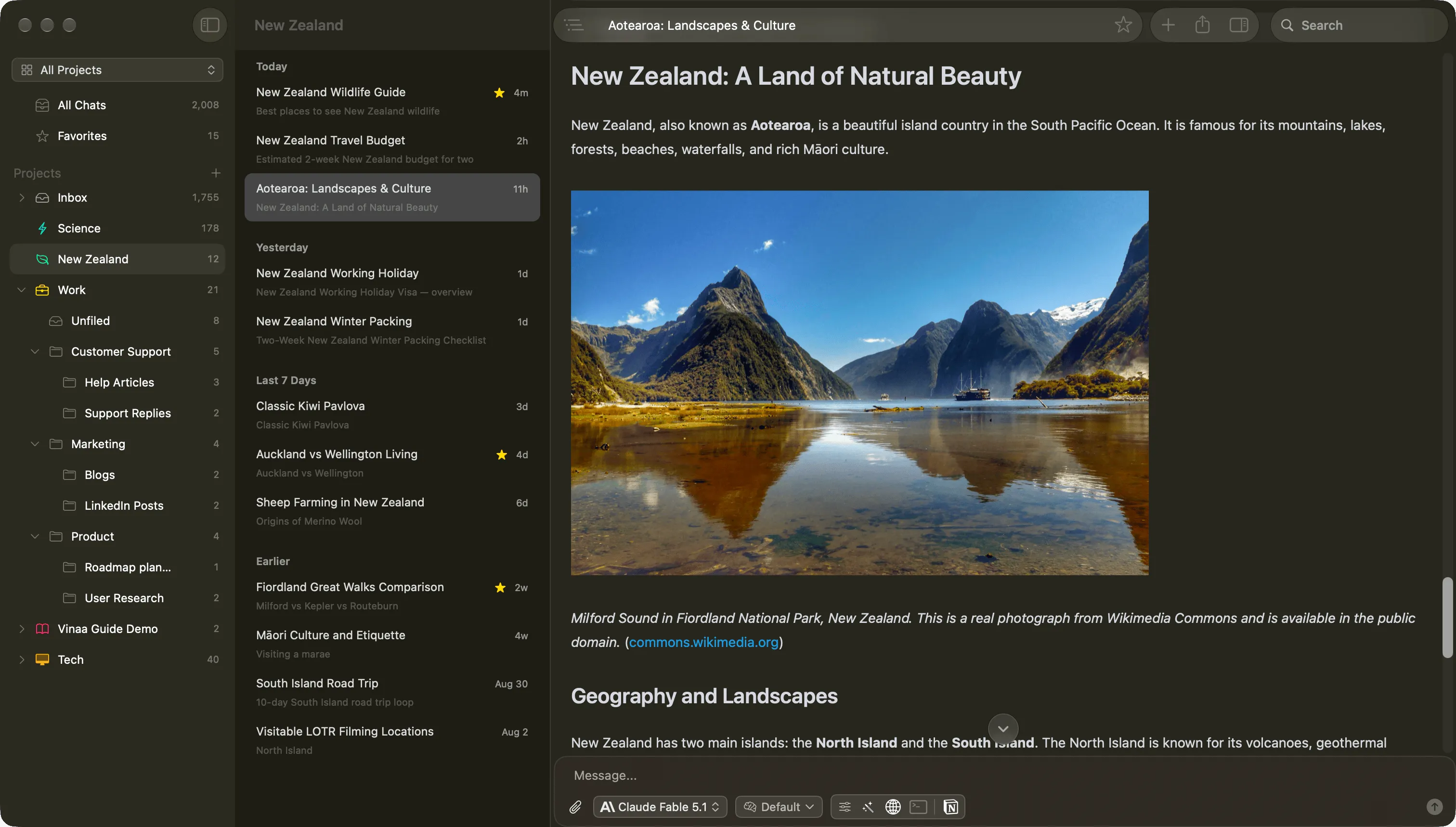
Vinaa keeps the conversation workspace separate from the runtime you choose.
This does not make Ollama and LM Studio interchangeable. It means you can choose a runtime for its setup and model-management strengths without splitting your chat history between two separate front ends. You can also keep local and cloud models available in the same app and organize their conversations with projects, folders, search, windows, and tabs.
Read more about Vinaa’s model, organization, and local-AI features, or download Vinaa for Mac.
Which should you choose?
Choose LM Studio if:
- You are new to local models and want a visual path through model size and quantization choices.
- You regularly compare models rather than settling on one.
- You want visible runtime, loading, memory-fit, and parameter controls.
- Side-by-side chat and hands-on evaluation matter more than a minimal service workflow.
Choose Ollama if:
- You already know which model you want to run.
- Your main goal is connecting a local model to scripts, editors, agents, or another chat app.
- You prefer compact commands and a predictable background service.
- An MIT-licensed core runtime is important to you.
Use both if:
- LM Studio’s discovery workflow and Ollama’s service convention solve genuinely different jobs for you.
- You are comfortable managing model files, templates, versions, and memory deliberately.
For most people, the answer is not “which one is faster?” With the same GGUF file on our M1 Pro, the speed was a practical tie. Start with the workflow you prefer. You can move the model, add the second runtime later, or keep the same conversation workspace across both.
Sources, disclosure, and update policy
This comparison is published by Vinaa, which supports both Ollama and LM Studio. Vinaa is not affiliated with either company. Performance and workflow statements come from the dated same-file test described above. Changeable product capabilities were checked against current official documentation on 22 August 2026.
Primary sources:
- Ollama macOS documentation
- Ollama OpenAI compatibility
- Ollama import documentation
- Ollama 2026 MLX performance update
- LM Studio 0.4 release notes
- LM Studio documentation
- LM Studio model import documentation
- LM Studio 2026 MLX engine update
We will recheck the decision table quarterly and after a major Ollama, LM Studio, macOS, GGUF, or MLX engine change. Dated measurements will remain dated rather than being silently replaced with a new winner.