
ChatGPT Classic Alternative for Mac: Native Chat with Vinaa
ChatGPT Classic is set to retire January 30, 2027. Compare Mac alternatives and move your ChatGPT history into Vinaa, a native app for cloud and local AI.
ChatGPT Classic was a native Mac app built around conversation. Vinaa is the replacement for people who want to keep that experience and do more with it. Built with Swift, AppKit, and SwiftUI, including native text rendering, Vinaa puts cloud and local AI chat at the center of a Mac app.
The distinction matters: Classic was native; the new ChatGPT desktop app uses Electron. Vinaa keeps the native approach and adds a choice of providers, nested folders, tools, and a chat library you can bring with you. Import your ChatGPT history, find a useful thread, and continue it with the model you choose.
ChatGPT Classic has an end date. According to MacGeneration and a GitHub user report, Classic now shows an in-app notice that it will be retired on January 30, 2027. As of November 1, 2026, OpenAI’s migration guidance still promises model updates, bug fixes, and security patches but has not yet been updated with the retirement date. Here are your replacement options and how to bring your conversations with you.
Vinaa is our app. This guide shows where it goes beyond Classic, how to switch, and which ChatGPT capabilities you may still want to keep.
What happened to ChatGPT Classic?
On July 9, 2026, OpenAI merged the Codex app into the new ChatGPT desktop app. The previous desktop app became ChatGPT Classic. The new app brought everyday chat, the Work agent, and Codex into one product.
Those names describe different activities. Chat is for conversation. Work is for delegating tasks. Codex is for software development. Putting them together offers more capabilities, but it also changed the familiar route from opening the app to finding a chat.
The rollout had real problems. OpenAI’s Tibo Sottiaux acknowledged that the reorganization made chats and Projects harder to find. That is a more specific explanation than saying users simply disliked change: familiar conversations had become less accessible.
It is also important to distinguish the launch from the app today. By July 17, conversation history and Projects were back in the sidebar, with a more prominent Chat/Work toggle. OpenAI also documents the Option+Space shortcut for quick access to chat. If you tried the first release and left immediately, give those changes credit when comparing your options.
Is ChatGPT Classic being discontinued?
Yes. MacGeneration and a GitHub user report describe an in-app notice announcing retirement on January 30, 2027. We have not seen the notice ourselves. OpenAI’s help article, checked November 1, still describes continued support and has not yet added the date.
For people staying with ChatGPT, MacGeneration reports that OpenAI says the full conversation history will transfer to the new ChatGPT app. Sign in with the same account and check your important conversations before removing Classic.
Can you still download ChatGPT Classic?
OpenAI’s main download page currently points people toward the new app rather than offering a visible Classic download. Homebrew still lists a ChatGPT Classic cask, with an installer hosted on OpenAI’s own infrastructure.
If you already use Homebrew, its documented command is:
brew install --cask chatgpt-classicThe cask requires Apple silicon and macOS 14 or later. That is the requirement for this Classic installer, not for Vinaa or every version of the new ChatGPT app. Check the cask before installing because availability can change.
If you do not already use Homebrew, weigh whether installing a package manager is worthwhile just to restore Classic. Avoid unfamiliar download mirrors. Reinstalling or keeping an installed copy is only a short-term option until the reported January 30, 2027 retirement date.
What people actually miss about Classic
The complaints were about everyday chat: finding a conversation, opening a familiar project, and asking a question without entering a different workflow. Four themes stand out in the launch reports.
1. Finding the chats and Projects they already had
In an OpenAI forum thread after the update, MandyRuckus reported that every Project appeared to be gone from the desktop app, then found the Projects and chats still on the web. Others reported Chat mode missing entirely, leaving them unable to reach their existing history through the desktop interface.
The GitHub issue about missing desktop Projects was still open when checked for this article. An open issue is not proof that everyone still has the problem, but it records how disruptive losing access to a familiar sidebar was.
2. Conversation without a push toward Work and Codex
One long-time user described chat history moving into a pop-up and felt the design pushed them toward Work and Codex, neither of which they needed. Michael Tsai’s roundup gathered similar objections to mixing everyday conversation with work and coding.
There was also confusion about usage. In one forum report, a user said credits fell unexpectedly during what they thought were ordinary chat interactions. That is one reported experience, not evidence of a general billing fault. It illustrates why knowing which mode you are using matters.
3. A quick companion window for ordinary questions
A companion-window feature request described Option+Space opening Codex instead of a regular conversation after the update. The user wanted to ask a quick unrelated question without interrupting another task. M.G. Siegler’s account likewise explains how important the old quick-chat workflow was to his daily use.
4. An app that feels like a Mac app
The native interface was part of Classic’s appeal. John Gruber measured its app bundle at about 159 MB, versus about 1.5 GB for the new Electron app, on July 9, 2026. For someone who primarily wants to read, write, select text, and move between conversations, the Mac experience matters as much as the model list.
OpenAI addressed significant launch problems: history and Projects returned to the sidebar by July 17, alongside a clearer Chat/Work toggle, and Option+Space quick access is documented today. Some users also prefer the combined app. The choice now is whether you want that broader interface or a native app centered on your conversations.
ChatGPT Classic alternatives for Mac: your options
Keep Classic short term, until January 30, 2027
Keeping Classic until its reported January 30, 2027 retirement is a short-term choice. You retain the familiar app while you test a replacement. Keep a separate export of valuable conversations so that your backup does not depend on an installed app remaining available.
Choose this if you need time to test your next app. Plan to switch before January 30, 2027.
Use the new ChatGPT app if you want Chat, Work, and Codex together
The unified app makes sense if you want to move between conversation, delegated tasks, and development. Its current navigation is described in OpenAI’s migration guide.
Choose it when its agent and coding capabilities are part of what you want from ChatGPT.
Use chatgpt.com if you want to keep ChatGPT without another desktop client
The ChatGPT website is the straightforward option if your main objection is the desktop interface. It also lets you compare a new client against your existing conversations without moving everything at once.
Choose this if staying inside ChatGPT matters more than having a native Mac interface. A browser bookmark may solve the immediate problem well enough.
Consider another provider if you want to change the AI itself
If you want different answers rather than a different home for GPT conversations, evaluate Claude or Gemini on a few representative tasks. Switching providers and replacing the Mac interface are separate decisions. You may like a different model but still want one app for keeping its conversations alongside your GPT chats.
Choose Vinaa if you want native Mac chat with control over your history
Vinaa fits when the conversation itself is the main activity: writing, asking questions, comparing explanations, reviewing files, or returning to an earlier discussion. You choose cloud or local models and keep the chats in one Mac app.
It is especially useful if you want to bring your ChatGPT history with you, organize it beyond a flat list, and continue selected threads with another model. You can download Vinaa and test that with a few familiar conversations before changing your daily routine.
How Vinaa replaces the Classic experience
Native Mac chat is the foundation
Vinaa follows the native Mac approach that made Classic appealing: Swift, AppKit, SwiftUI, and native text rendering. Text selection, keyboard navigation, tabs, and windows belong to the experience of using the app every day. Vinaa runs on Intel and Apple silicon Macs with macOS 15 or later.
Open a chat, select a model, and ask a question. Attach a document or image when the question needs it. Return to the thread whenever you want to continue the conversation. The Vinaa features page shows the current chat and file workflows.

A note from Sujeevan, Vinaa’s founder
I want Vinaa to be the Mac app you open when you want to have a conversation with AI. My design priority is to make chatting, reading answers, and returning to earlier discussions feel cohesive, using native Mac controls and text rendering. More models and more tools should extend that experience while keeping the conversation at the center.
What you get beyond the Classic experience
Vinaa combines a native chat interface with a broader set of ways to use and keep your conversations:
- Choose the model for the question: OpenAI, Anthropic, Google, xAI, Mistral, DeepSeek, and more, plus Ollama, LM Studio, and Apple’s on-device model on supported Macs running macOS 27, in one chat library.
- Keep related chats together: projects with nested folders and automatic filing put each conversation where you can find it again.
- Find the words you remember: full-text search across every message supports exact phrases, even when you have forgotten the chat title.
- Keep two discussions in view: tabs and multiple windows let you read a reference chat beside the one you are writing.
- Jump straight to the useful section: Content Navigation lists messages and headings inside long answers.
- Reuse your best instructions: the Prompt Library inserts saved prompts with
/and fills repeatable details through placeholders. - Bring a file into the next discussion: reuse attachments from earlier chats instead of locating and attaching them again.
- Act through connected tools: remote MCP connections and Tool Finder make the relevant tools available when needed.
- Keep your chats on your Mac: local storage with optional sync through your private iCloud account.
- Bring history in and take answers out: import ChatGPT and Claude exports, continue imported chats, and export conversations as Markdown or PDF.
- Own the app with one payment: Lifetime access includes all future Vinaa updates, with no Vinaa subscription. You pay cloud model providers directly for model usage.
See the current Vinaa features for these workflows. Classic already offered capabilities such as Projects and conversation search; Vinaa’s advantage is the combination of model choice, deeper organization, native navigation, tools, and portability.
Use your ChatGPT plan or an API key
Vinaa’s Codex CLI connection lets you use the GPT models available to your plan through Codex. Usage goes against your ChatGPT plan rather than a separate per-token API bill. Model access follows what Codex makes available to your plan.
Setup currently requires installing OpenAI’s Codex CLI and running codex login in Terminal once. After signing in, you connect Vinaa to that local Codex configuration. This is a one-time technical setup; chatting in Vinaa does not require coding.
Follow OpenAI’s official Codex CLI installation and sign-in instructions.
The alternative is an OpenAI API key connection for direct API access, billed separately from your ChatGPT subscription. See OpenAI’s explanation of ChatGPT and API billing.
Keep more than one provider in the same app
Vinaa also connects to providers including Anthropic and Google, and to local models through Ollama or LM Studio. You can choose the connection that suits a particular conversation instead of keeping a separate app and history for every provider.
For example, you could draft with a GPT model, ask a Claude model to critique the result through an Anthropic API connection, and use a local model for another chat. Provider access, model availability, and usage costs depend on the connection you configure. A ChatGPT subscription does not pay for other providers.
Find the answer inside the history
A chat title is often a poor description of everything discussed in a long thread. Vinaa’s full-text search looks across message contents, so you can search for a phrase from an answer even if you have forgotten the conversation’s name.
Use Option+Command+F for search across chats and Command+F to find text in the current conversation. Within a long thread, Content Navigation lists messages and response headings so you can jump to the relevant section.
That gives you three ways back to an answer: find the chat, find a phrase within it, or jump to a heading you recognize.
Organize the conversations you want to keep
Vinaa supports projects, folders, nested folders, favorites, bulk organization, and automatic folder filing. A project can also have a default model and system prompt.
For a job search, for example, create a Job Search project with folders for Companies, Applications, and Interviews. Keep a separate chat for each application or interview. A reusable project instruction can explain the kind of help you want, while a saved prompt can hold the structure you use for a cover-letter review.
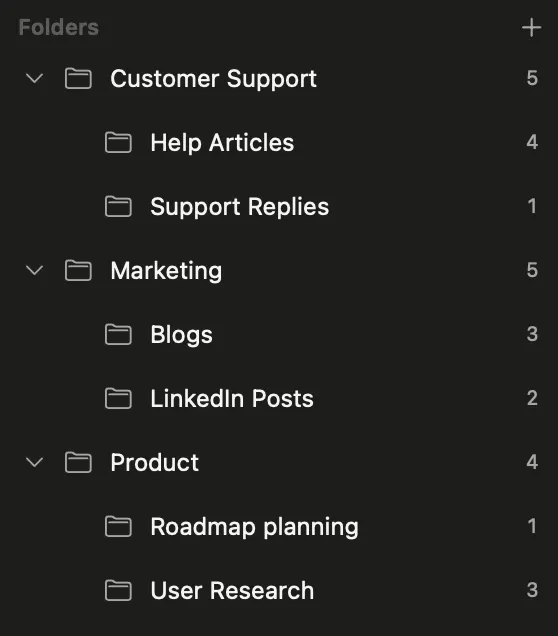
The guide to organizing ChatGPT conversations explains a practical project system without requiring you to reorganize your entire archive first.
Keep reference material close
Use multiple windows or tabs when you want an old discussion beside a new one. Save a useful prompt in the Prompt Library and insert it by typing /, rather than finding last week’s version and copying it again.
Reuse attachments from earlier chats to bring the same reference document into a new discussion. File support depends on the model and connection you select.
Store chats on your Mac and export useful results
Vinaa stores conversations locally. Optional sync uses your private iCloud account; Vinaa does not run a server for storing your chat history. You can export conversations as Markdown or PDF.
Cloud providers process the prompts and attachments you send them. For on-device inference, choose a local model and check any connected tools. See Vinaa’s privacy information for the app’s data handling.
ChatGPT Classic vs the new ChatGPT Mac app vs Vinaa
Checked November 1, 2026. New ChatGPT app interaction cells were checked hands-on in regular Chat-mode conversations (not Codex chats) on a Mac with a Plus account. Classic was not installed; its cells use documentation and shared ChatGPT account features. Available means a current capability; Planned means unavailable today, with no promised release date. Not documented means no official documentation was found for that app.
| What matters | ChatGPT Classic | New ChatGPT app | Vinaa |
|---|---|---|---|
| Main experience | Familiar ChatGPT chat | Chat, Work, and Codex | Native Mac chat with cloud and local models |
| Mac implementation | Native | Electron | Native Swift/AppKit/SwiftUI and text rendering |
| Built-in model providers | OpenAI only | OpenAI only | Many cloud providers, plus local models |
| Local model connections | Not available | Not available | Ollama, LM Studio, Apple on-device model on supported macOS 27 Macs |
| Model connection | ChatGPT account | ChatGPT account | ChatGPT plan through Codex CLI, provider API keys, or local connections |
| Existing ChatGPT history | In your ChatGPT account | Same-account history and Projects | Import from an export; no live ChatGPT sync |
| Chat organization | ChatGPT Projects | ChatGPT Projects | Projects, nested folders, automatic filing, favorites |
| Nested folders inside projects | Not available | Not available; sidebar sections group whole projects | Available, with automatic filing |
| Search inside message text | Conversation search | Available | Full-text search across every message, including exact phrases |
| Tabs and multiple windows | Main window plus Option+Space companion window | Multiple windows; tabs are for the built-in web browser, not chats | Tabs and multiple full windows |
| Saved prompt library with slash insertion | Not available | Not available; slash opens app commands | Available, with placeholders |
| Long-answer navigation | Not documented; web has a table of contents | Not available in regular chats; web has a table of contents | Content Navigation for messages and headings |
| Reuse earlier chat files | Not documented | Available (Library) | Available |
| Where chat history is stored | ChatGPT cloud | ChatGPT cloud | Your Mac, with optional private iCloud sync |
| App pricing model | ChatGPT plans, including Free | ChatGPT plans, including Free | One-time payment |
| Option+Space-style quick access | Available | Available | Planned |
| Voice mode | Available | Available | Not available; voice input planned |
| Screen/app interaction | Work with Apps | Work and Codex capabilities | Screen awareness, app context, and Computer Use planned |
| Keeping a portable copy | ChatGPT data export | ChatGPT data export | ChatGPT/Claude import; Markdown/PDF export |
On a narrow screen, scroll the table horizontally to compare all three apps.
Sources for the ChatGPT columns: hands-on checks of the new desktop app on November 1, 2026 (Plus account, Chat mode), alongside ChatGPT release notes, Classic release notes, current desktop navigation, Work and Codex capabilities, Mac quick access, ChatGPT plans, chat storage and retention, TextExpander’s saved-prompt guide, and Gruber’s architecture report. Vinaa’s current capabilities are shown on the features page.
What Vinaa does not replace yet
The new ChatGPT app has voice and image creation in Chat mode. These are among the capabilities Vinaa does not offer today.
- Voice mode: unavailable. Voice input is planned, which is different from an advanced back-and-forth voice conversation.
- A global quick-chat launcher: unavailable. An Option+Space-style entry point is planned.
- Memory across chats: unavailable and planned. Project instructions and folders do not substitute for automatic memory.
- Image generation: unavailable today and planned. Attaching an image for a model to read is a different capability.
- Custom GPTs and Canvas: unavailable. Saved prompts are not Custom GPTs, and reading imported Canvas content is not editing a Canvas document.
- Screen sharing, Work with Apps, and Computer Use: unavailable. Screen awareness, app context, and Computer Use are planned.
- An iPhone app: planned. Vinaa is currently Mac-only, with no Windows app.
- Live ChatGPT history sync: unavailable. Import is a point-in-time copy from an export. Chats written in either app do not appear automatically in the other; account memory and hidden instructions do not transfer.
Custom GPTs also need a separate planning decision: OpenAI schedules their platform-wide retirement for December 11, 2026, with later dates for qualifying approved Enterprise deferrals and FedRAMP workspaces. Follow your account’s notice. That Custom GPT schedule is separate from Classic’s reported January 30, 2027 retirement.
If voice, Canvas, screen interaction, or an existing GPT is central to your day, keep the relevant ChatGPT workflow while you test Vinaa. Choose based on what is available today rather than a roadmap.
How to switch from ChatGPT Classic to Vinaa
Request your export first. While ChatGPT prepares it, install Vinaa and connect the model you want to use.
1. Request your ChatGPT export
For an eligible account, open ChatGPT’s Settings → Data Controls → Export Data and confirm the request. Download the ZIP when it is ready. The full ChatGPT export guide covers the contents and checks worth making.
There is an important workspace exception: OpenAI does not offer self-service export for Business, Enterprise, or Healthcare workspaces. Ask your workspace owner about organization-managed access.
Keep the untouched ZIP as a backup.
2. Install Vinaa and connect a model
Download Vinaa on a Mac running macOS 15 or later. Set up the Codex CLI connection if you want to use your ChatGPT plan, including the one-time installation and codex login step described above. Alternatively, add an OpenAI or another supported provider’s API key, or configure a local model connection.
Start one new chat before importing. Ask a question you know well, attach a representative file if that matters to you, and check that the connection behaves as expected.
3. Import the ZIP and read the review screen
In Vinaa’s import flow, choose ChatGPT, select the export ZIP or extracted folder, and choose a model for continuing the imported conversations. Review what Vinaa found before confirming the import.
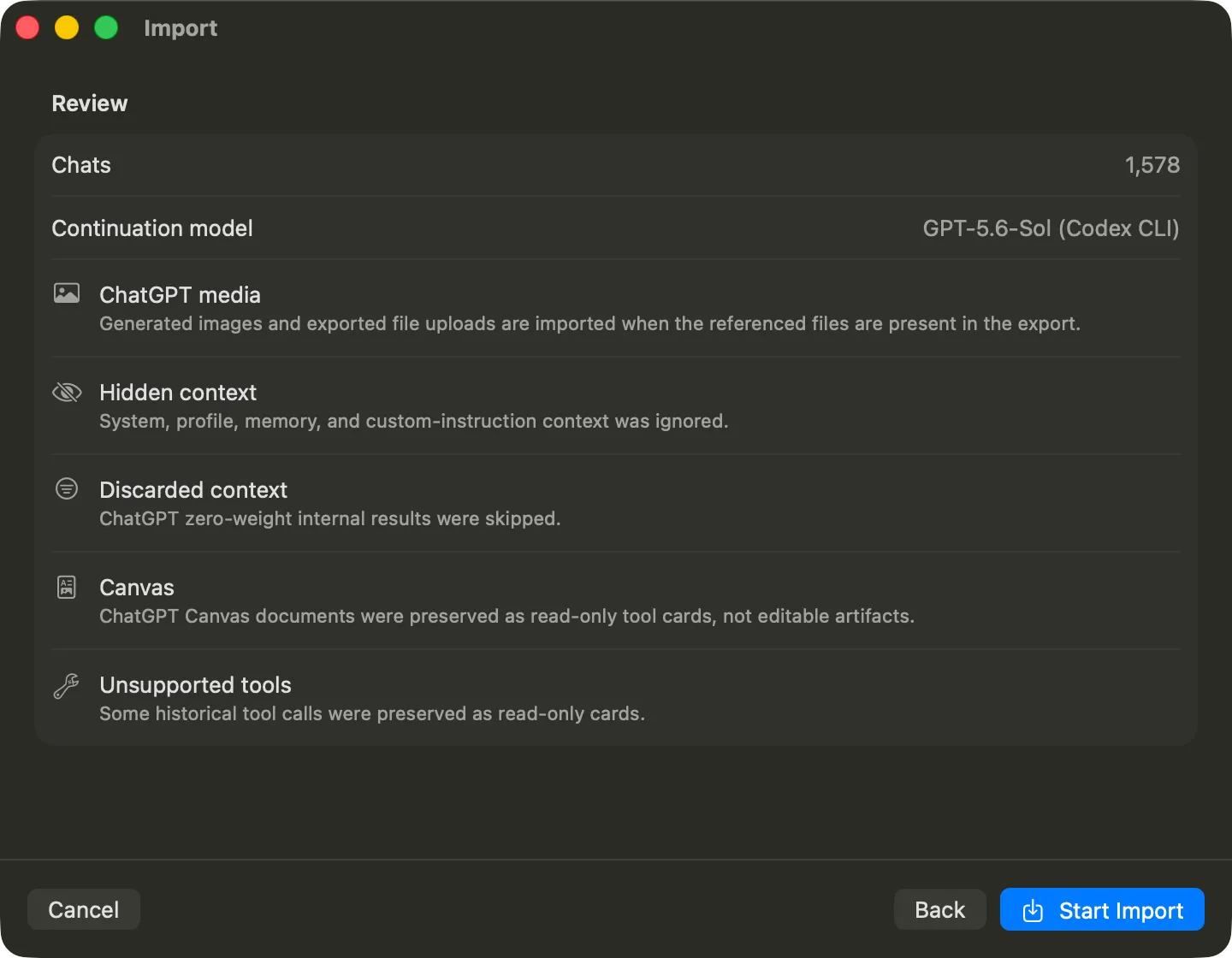
Import preserves what the export contains, rather than rebuilding the whole ChatGPT account. Check the review for missing attachments or unsupported records. The export and import walkthrough explains these limits in detail.
If you want to inspect the archive first, the free AI Chat History Browser opens ChatGPT and Claude exports locally in your browser without uploading the archive. That is useful even if you keep Classic until its retirement or move to the new ChatGPT app.
4. Verify a few important conversations
Open an old thread, a recent thread, and one with a file attachment. Compare the content with ChatGPT. Search for a distinctive phrase you remember. Then continue a low-stakes imported chat with your chosen model.
Continue an imported conversation with any configured model that supports its content and context length.
5. Organize what you will use next
Move a handful of active conversations into a project, add a few useful folders, and choose the project’s default model. Leave the rest until you need it.
Frequently asked questions
What is the difference between ChatGPT Classic and the new ChatGPT app?
Classic is the previous desktop app, with a native Mac interface. The new Electron app combines Chat, Work, and Codex.
Can I use Vinaa instead of the ChatGPT Mac app?
Yes, for native Mac chat with supported cloud or local models. You can import a ChatGPT export and continue conversations, but Vinaa does not sync live with ChatGPT or reproduce every ChatGPT feature.
When is ChatGPT Classic being retired?
According to MacGeneration and a GitHub user report, the in-app notice gives January 30, 2027. OpenAI’s help article had not added the date as of November 1, 2026.
Is Vinaa an official ChatGPT app?
No. Vinaa is an independent Mac app that connects to supported cloud and local AI models. Its Codex CLI connection uses your own ChatGPT plan access.
Can I use my ChatGPT Plus subscription in Vinaa?
Yes, through Vinaa’s Codex CLI connection after installing OpenAI’s Codex CLI and running codex login once. You can use the GPT models available to your plan through Codex. Plan usage limits still apply.
Will all my ChatGPT chats carry over automatically?
No. You request an export and import it into Vinaa. Check the import review and compare important threads afterward. It is a copy of what the export contains, not ongoing synchronization or a transfer of account settings.
Is Vinaa free?
Vinaa is free to download. Lifetime access is a one-time payment that includes all future Vinaa updates, with no Vinaa subscription. See the pricing page for current access terms. You pay cloud model providers directly for model usage.
Does Vinaa work on Intel Macs?
Yes. Vinaa supports Intel and Apple silicon Macs running macOS 15 or later. Local model suitability depends separately on your hardware and the model you choose.
Should I uninstall Classic after importing?
Verify important conversations and files, test your replacement, and keep your original export before uninstalling. Classic’s reported retirement date is January 30, 2027, so complete your switch before then.
Give your conversations a home you want to return to
Classic’s appeal was simple: a native Mac app that made conversation easy to reach. Vinaa carries that forward and adds room to keep those conversations useful. Import your ChatGPT history, choose cloud or local models, organize the chats you care about, and continue them when you need them again.
Download Vinaa and try it with a conversation worth keeping.