
How to Organize ChatGPT Conversations by Project
A practical system for organizing ChatGPT conversations by project, keeping useful context, and finding important chats later on your Mac.
Starting a new ChatGPT conversation is easy. Finding the one that contains the decision, explanation, or draft you need three weeks later is harder.
The quickest solution is to create one ChatGPT Project for each ongoing outcome, move the valuable existing chats into it, add only the files and instructions shared by that work, and rename each conversation by its purpose.
ChatGPT now supports more kinds of work on the desktop. On July 9, OpenAI introduced a new app that brings ChatGPT and Codex together. The previous macOS app is now called ChatGPT Classic and remains supported. In the new app, users switch between ChatGPT and Codex at the top level. Inside ChatGPT, a separate toggle switches between Chat and Work.
The first part of this guide gives you a complete ChatGPT Projects workflow. The second part explains when a dedicated chat workspace becomes useful and what it can add.
Start with ChatGPT Projects
ChatGPT Projects group related chats, files, and instructions. Existing chats can be dragged into a Project or moved through the chat menu. Project memory can also keep context focused on the work inside that Project.
Suppose you are using ChatGPT to plan a product launch. Start like this:
- Create one Product Launch Project.
- Move the valuable launch conversations into it.
- Add only the reference files and instructions shared by the whole launch.
- Rename each conversation around its task, decision, or output.
- Start future launch conversations inside the Project.
For someone who mainly uses ChatGPT and needs project-level grouping, this is the simplest place to start. You do not need another tool merely because your sidebar looks busy.
Organize by the work, not the chat list
A useful hierarchy has three levels:
- Project: an outcome or responsibility that lasts longer than one chat.
- Workstream: a stable part of that project, such as research or customer feedback.
- Conversation: one task, decision, artifact, or line of inquiry.
The same product launch can be divided into workstreams that developers, designers, marketers, consultants, and indie founders will recognize. A practical structure might look like this:
- Product launch
- Research
- Audience
- Competitors
- Product
- Decisions
- Launch checklist
- Go to market
- Positioning
- Content
- Outreach
- Customers
- Feedback
- Support
- Research
The important part is that the structure describes the work. It does not depend on a model, a date, or the wording of the first prompt.
Give each conversation one durable purpose
Conversation titles should help you recognize an outcome without opening the thread.
Weak titles repeat the first prompt:
- Help with marketing
- Review this
- Product question
Useful titles describe the work:
- Compare positioning for technical and non-technical buyers
- Review launch-page objections
- Summarize customer feedback into product decisions
One endless conversation eventually becomes difficult to navigate. Dozens of tiny chats can be just as fragmented. Start a new conversation when the task, decision, or artifact changes enough that you would want to find it separately later.
Clean up what matters, not your entire history
Do not begin by reorganizing every experiment and one-off question. Start with active projects and conversations you expect to use again.
For each one:
- Rename it around its purpose or outcome.
- Place it with the project it supports.
- Keep shared files and instructions at the project level when they genuinely apply to several conversations.
- Archive or remove obvious tests using the controls available in your current chat app.
This creates value quickly. You can deal with the long tail only when an old conversation becomes useful again.
Know when to try Vinaa
If your work stays in ChatGPT and project-level grouping is enough, ChatGPT Projects may be all you need. Vinaa becomes worth trying when you want to:
- continue the same project with different cloud or local AI models;
- divide a project into nested workstreams;
- move many existing conversations at once;
- file new conversations automatically;
- keep several projects and conversations visible in windows and tabs.
These are different workflow needs, not a reason to dismiss ChatGPT Projects. Vinaa is a dedicated Mac AI chat app for using cloud and local models, with deeper conversation organization at the center of the experience.
Sujeevan Nagarajah built Vinaa around this experience. In a July post about AI portability, he explained that he wanted one place to chat and organize work instead of losing conversations across provider apps. He has also argued that coding and general chat are different jobs, even when the same model can do both.
Set up the same organization method in Vinaa
Vinaa uses projects and nested folders while allowing conversations to continue with different cloud or local models. The product-launch structure from the first half of this guide carries over directly.
Create the project and its workstreams
Create a Product Launch project, then add the Research, Product, Go to market, and Customers folders. Add nested folders only where they make retrieval easier.
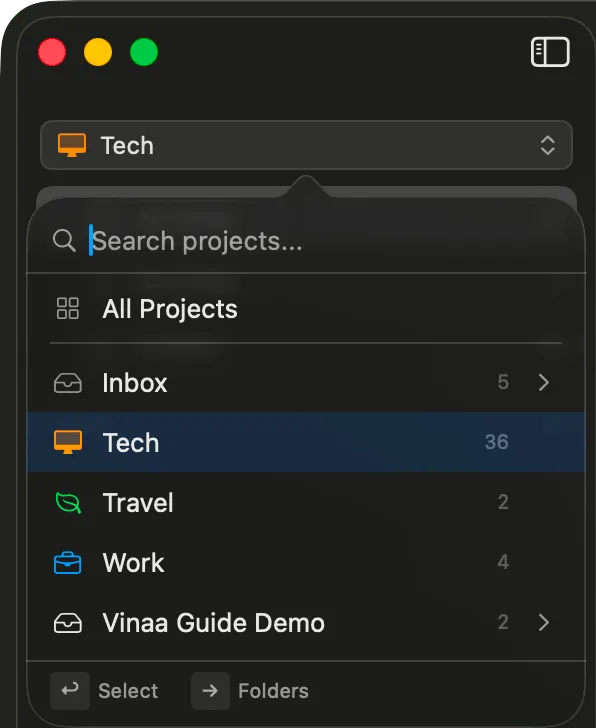
Projects keep conversations tied to a durable outcome rather than a provider.
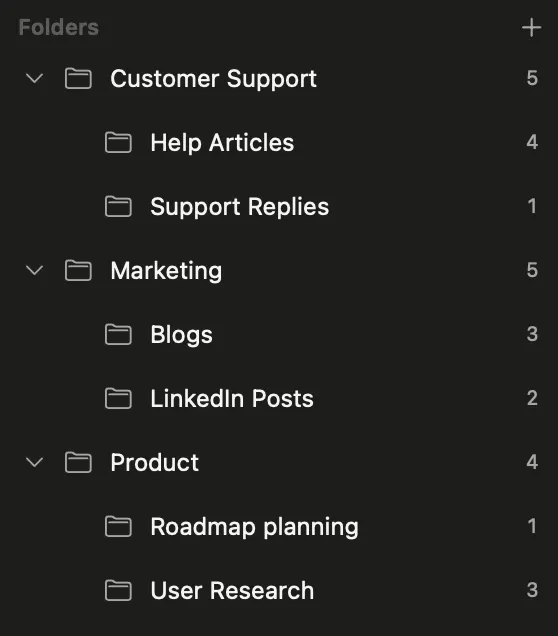
Nested folders represent the workstreams inside the project.
Do not recreate your whole file system. Four clear folders are better than twenty speculative ones.
Use Inbox or Quick Chats for one-off tasks
Not every conversation deserves a place in an ongoing project. In Vinaa, Inbox is the default project. When you start a chat without selecting another project, it goes to Inbox.
You can use Inbox for spelling checks, light rewrites, quick explanations, and other one-off tasks. If you prefer to keep Inbox as a general place for unfiled conversations, create a separate Quick Chats project instead.
Review these temporary chats occasionally and remove anything you no longer need. If a quick chat becomes useful beyond the original question, rename it and move it into the relevant project.
Move existing conversations in bulk
Select related conversations and move them to a project or folder together. Bulk organization is useful when cleaning up an import or a backlog of unfiled work.
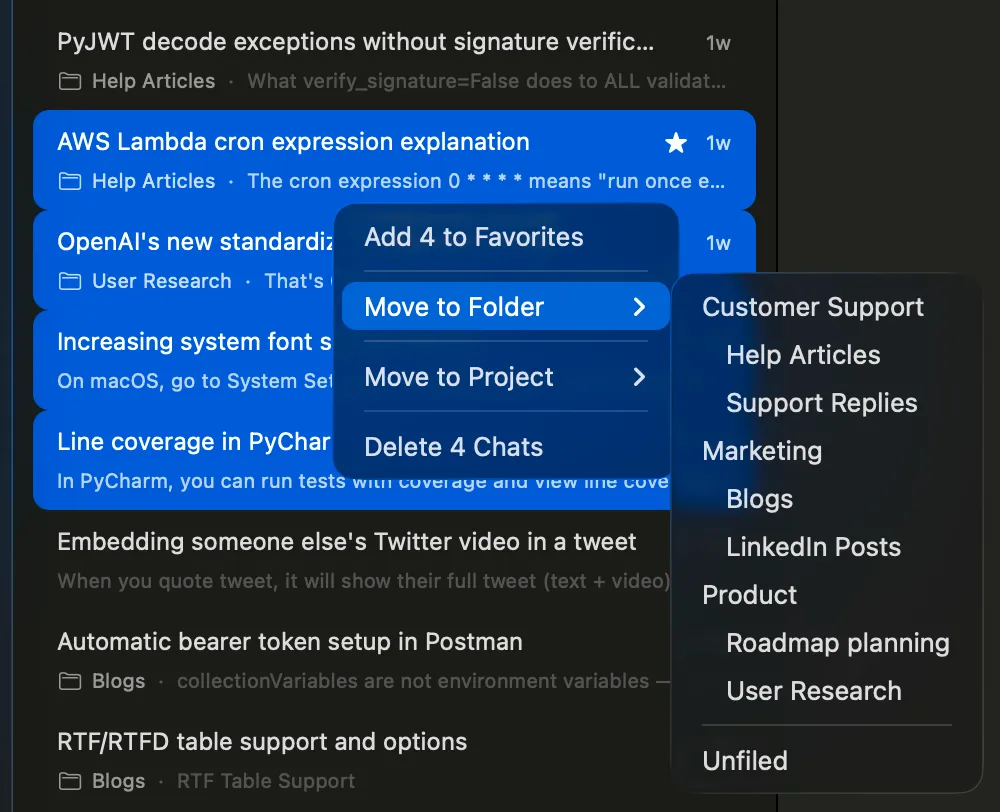
Move or favorite several existing conversations in one pass.
Vinaa can import ChatGPT and Claude exports. The export guides cover how to export your ChatGPT conversations and how to export Claude conversations before organizing them. The method is the same whether a chat was imported or started in Vinaa.
Tell Vinaa how to file new chats
Automatic filing uses three pieces of information:
- the first prompt in the new conversation;
- the list of folders already in the project;
- the project’s folder automation prompt.
Vinaa uses those inputs to choose where the conversation belongs. You control the policy by editing the automation prompt. For the launch project, it could say:
Put audience and competitor discovery in Research. Put feature, scope, and launch-readiness decisions in Product. Put public copy and promotion planning in Go to market. Put user problems and requests in Customers.
The prompt can include the distinctions that matter to your own workflow instead of forcing every project into the same classification rules.
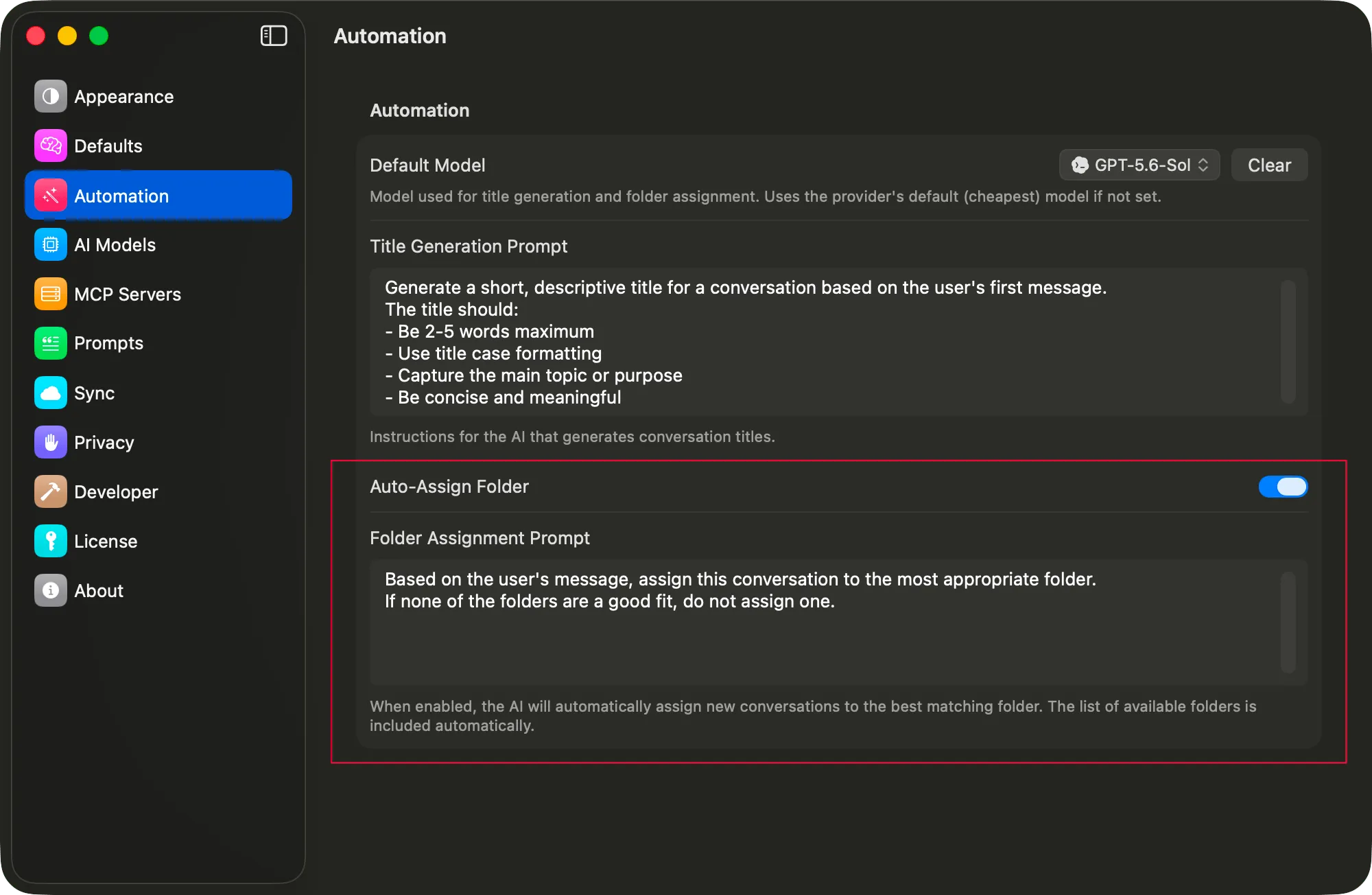
The folder automation prompt defines how new conversations should be classified.
Keep active conversations visible
A useful setup is one window for each active project, with tabs for the conversations you need from that project. Vinaa supports multiple windows and chat tabs, but it does not lock you into that arrangement. You can open the same project in more than one window or keep tabs from different projects in one window when the work calls for it.
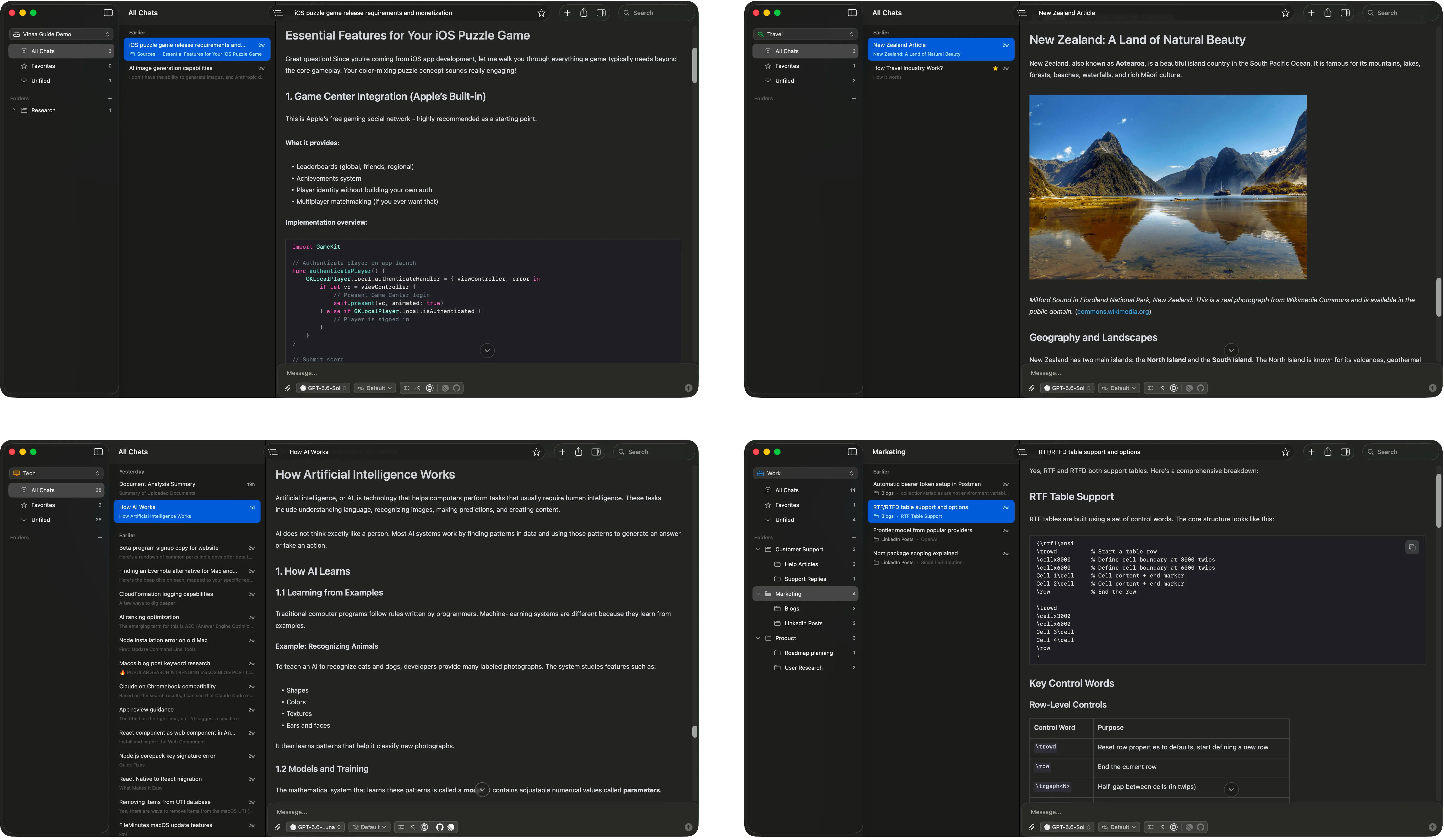
Separate windows can keep active projects visible without mixing their immediate context.
Use Favorites for conversations you repeatedly consult, Unread for responses that need attention, and Unfiled as an inbox to review. Search covers conversation titles and preview text when you remember the subject but not its location.
Use a ten-minute weekly reset
No organization system stays useful without a small amount of maintenance. Once a week:
- Review Unfiled conversations.
- Rename chats whose purpose is unclear.
- Move related work in bulk.
- Keep Favorites limited to active work and lasting references.
- Adjust folders when the project changes instead of creating more top-level projects.
The goal is not a perfect archive. It is to make the next useful conversation easy to recover.
Choose the smallest system that fits your work
Use ChatGPT Projects if your work stays in ChatGPT and project-level grouping gives you enough structure. It is built into the product and keeps shared files, instructions, and chats together.
Use Vinaa when you want to chat with cloud or local models and need nested workstreams, bulk organization, or automatic filing. Vinaa is an AI chat app first, with deeper conversation organization built into the experience.
You can download Vinaa for Mac after entering your email to receive the download link, or review the optional lifetime-access offer.