
How to Export Your ChatGPT Conversations
Export your ChatGPT conversations, understand what is inside the ZIP, transfer chats between accounts, and keep your history private and usable.
To export your ChatGPT conversations, open Settings, choose Data controls, select Export data, and confirm the request. OpenAI sends an email or SMS when the ZIP file is ready.
The request takes about a minute. The archive can take much longer to arrive, and making it useful takes a little more thought.
A ChatGPT data export is a copy of your account data. It is not a readable conversation library or a full migration into another ChatGPT account. This guide covers both export routes, what is inside the ZIP, how ChatGPT-to-ChatGPT transfer actually works, what may not transfer cleanly, and how to inspect or import the archive without giving years of private conversations to an unknown server.
Export your data from ChatGPT
For a personal ChatGPT account:
- Sign in to ChatGPT and open your profile menu.
- Choose Settings.
- Select Data controls.
- Under Export data, select Export.
- Select Confirm export.
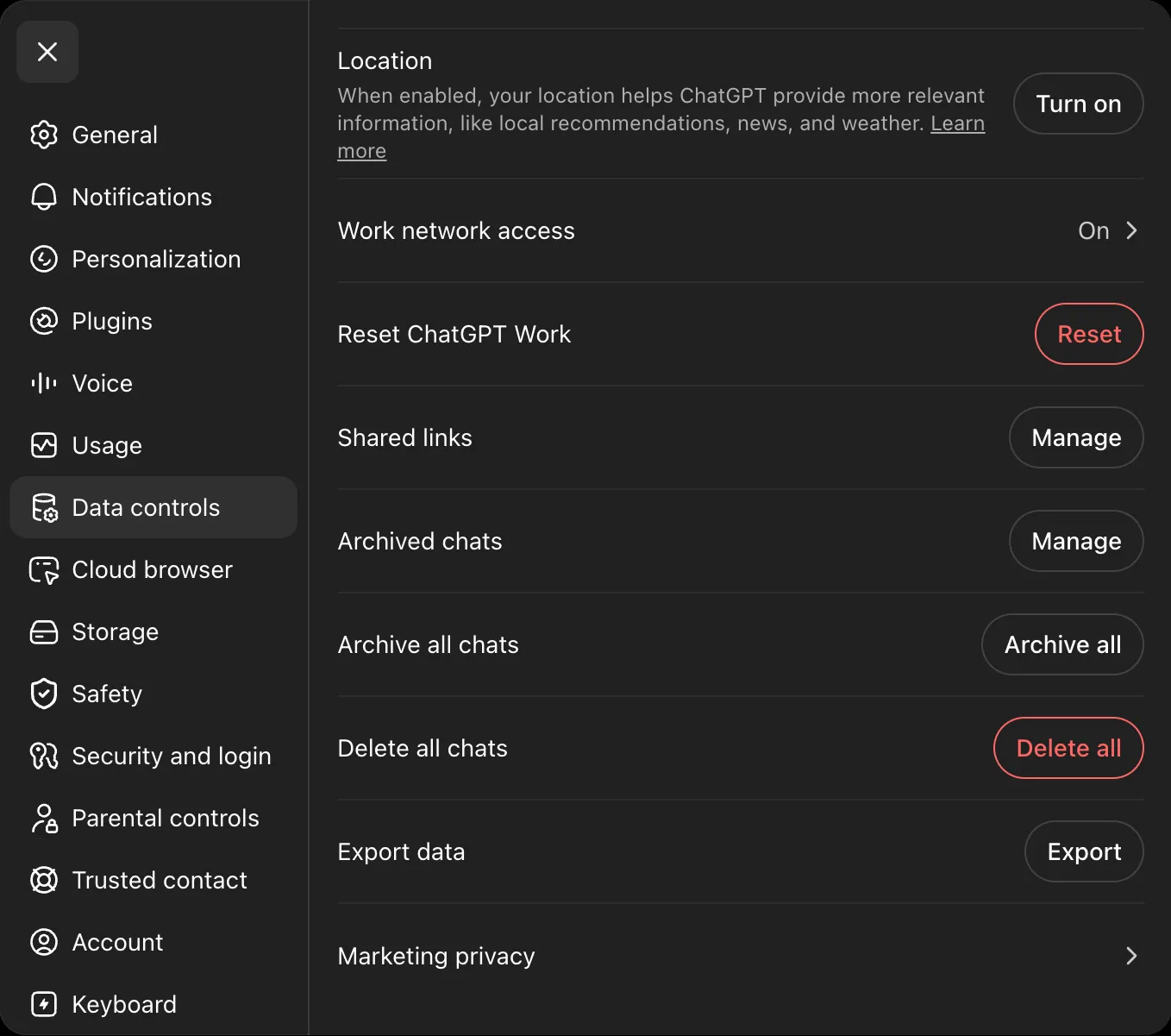
The exact rows in Data controls vary by account and workspace. OpenAI currently makes this settings export available to Free, Plus, and Pro accounts, plus eligible ChatGPT Edu workspaces. You cannot request it while logged out, and it is not available inside ChatGPT Business or Enterprise workspaces.
An Edu export also depends on the workspace. An admin must allow members to export their own data, and a workspace with data residency configured is not eligible for this feature.
OpenAI sends an email or SMS when the archive is ready. It can take up to seven days to arrive, and the download link expires after 24 hours. Download it while signed in to the same account that requested it. If the message does not arrive, check spam and promotions folders or wait for the existing request to finish before starting another one.
Keep the ZIP exactly as it arrived. It is your source copy, and you do not need to unpack it for tools that support the original archive.
For the latest eligibility, timing, and troubleshooting rules, read OpenAI’s data export documentation.
Use the Privacy Portal if you cannot sign in
ChatGPT settings are not the only route. A consumer account holder can also request a copy through OpenAI’s Privacy Portal:
- Select Make a Privacy Request.
- Choose I have a consumer ChatGPT account.
- Select Download my data.
- Complete the identity checks.
This route is particularly useful if you cannot sign in to ChatGPT. You still need access to the email address or phone number associated with the account so that OpenAI can verify ownership.
Choose the right kind of export
ChatGPT has several ways to get information out, but they solve different jobs.
| What you want | ChatGPT feature | What you receive |
|---|---|---|
| A backup of your complete eligible account history | Export data | A ZIP containing conversation data, files and assets where provided, plus other account data |
| A copy requested outside ChatGPT settings | Privacy Portal | The account data OpenAI provides after verifying your request |
| A way for someone else to read one conversation | Share | A link to a snapshot of the conversation or selected response |
| A document or code file from Canvas | Canvas download | PDF, Markdown, Word, or an appropriate code file, depending on the Canvas |
| Old conversations available as reference in another ChatGPT account | Export data, then upload the conversation JSON | One new chat can reference the uploaded history, but the old account is not rebuilt |
A shared link is not a private backup. Anyone who has the link can view it, and ChatGPT does not offer granular permissions or an expiry date for personal shared links. Exporting your account also does not revoke those links. OpenAI includes shared-link metadata in a shared_conversations file, but you still manage access under Settings → Data controls → Shared links. OpenAI’s shared links FAQ explains the current access and deletion rules.
Canvas download is useful when the thing you care about is a finished document or code file. It does not export the surrounding conversation history or the rest of your account. See OpenAI’s Canvas documentation for the formats currently available.
What is inside a ChatGPT export?
ChatGPT sends a ZIP rather than a folder of clean Markdown documents. The exact file inventory can change, but current exports that Vinaa supports store the main conversation record in conversations.json or in numbered files for larger histories. A large export may also contain export_manifest.json, which tells compatible software which physical files make up the logical conversation record.
In a fresh personal export requested on 9 August 2026, uploaded files were stored with generic .dat extensions instead of their original file-type extensions. Their original names were recorded separately in conversation_asset_file_names.json, while library_files.json described files in ChatGPT’s library. This is why double-clicking a .dat file may not open it in the right app even though the original filename still exists inside the archive.
That export also contained ads.json, with advertising-interest and impression data, alongside account and conversation metadata such as shared_conversations.json, user.json, and user_settings.json. These account sidecars are sensitive, but they are not part of the conversation transcript.
Generated-image folders present in an older export from the same account were absent from the August archive. One account cannot establish whether that reflects a format change, asset expiry, or another cause. The practical lesson is simpler: do not assume generated images are included. Save important generated images separately and inspect your own ZIP before relying on it as the only copy.
OpenAI describes the ZIP as containing your chat history and other relevant account data, not as a stable migration format. Another app has to understand both the archive and the limits of what it provides.
ChatGPT conversations are not stored as simple top-to-bottom transcripts. Each conversation is a graph of message nodes with parent and child relationships. The current_node field identifies the path that was visible when the conversation was exported. Earlier answers created by editing a prompt or regenerating a response can remain on other branches.
That structure preserves more history than a flat text file, but it creates a portability decision. A destination can keep every branch, follow only the active path, or flatten alternatives into one sequence. If a viewer or importer does not explain its choice, two tools can show different versions of the same exported chat while both are reading the same JSON.
Projects have a different problem. In the older April export inspected for this guide, a project chat carried an opaque project identifier but no project name or project definition. A compatible importer could group chats that shared an identifier, but it would have to use placeholder names such as Project 1 and Project 2. In the fresh August export from the same account, the project fields were absent altogether. Neither format can reliably recreate the original ChatGPT Projects.
What transfers cleanly, and what needs care?
The ChatGPT archive contains much more than plain prompt and response text, but not every part of the ChatGPT experience has a portable equivalent.
| Part of the ChatGPT experience | What the export can provide | Portability note |
|---|---|---|
| Conversation titles and messages | Structured conversation records | Generally portable with a purpose-built parser |
| Dates and model details | Conversation and message metadata | Fields vary across older chats and product features |
| Edited prompts and regenerated answers | A branching message graph | A destination must preserve branches or choose which path to show |
| Uploaded files | References, original names, and binary assets where included | Newer exports may store the binary as a .dat file and keep its name in a separate map |
| Generated images | May be included in some archives, but were absent from the fresh August export inspected here | Save important generated images separately |
| Reasoning | thoughts and reasoning_recap content where present | A destination must understand and render these content types |
| Tool activity | Structured tool messages existed in the older export but were absent from the August export | An importer cannot reconstruct tool activity the ZIP does not contain |
| Canvas documents | Format and coverage can vary; no Canvas-specific metadata appeared in the August export inspected here | Download important Canvas work separately when you need the editable or finished document |
| Shared links | Link metadata in shared_conversations | The export does not revoke or change access to the live links |
| Memories, custom instructions, GPTs, settings, and subscriptions | Account data may be represented separately | OpenAI’s account-transfer workaround does not apply these to the destination account |
| Projects | Older exports may identify project chats with opaque IDs but omit project names; the fresh August export contained no project fields | The original Projects cannot be reconstructed reliably |
| Other sidebar and workspace organization | Conversation and account metadata | Uploading the JSON to ChatGPT does not rebuild the original sidebar or workspace |
This table describes the current ChatGPT format supported by Vinaa’s importer as checked on 16 August 2026. The August findings come from one personal account, so treat absent fields as observations rather than universal rules. Export formats change, and your own archive is the final source of truth.
Can you import the export into another ChatGPT account?
Not as a full migration. OpenAI does not support merging accounts or restoring an export so that every old conversation reappears as a separate chat in the new account.
OpenAI does provide a limited transfer method:
- Extract the ZIP.
- Find
conversations.jsonor the numbered conversation JSON files. - Sign in to the personal ChatGPT account you want to keep.
- Start a new conversation.
- Upload the conversation JSON file.
ChatGPT can use the uploaded file as reference inside that new conversation. It does not recreate the old chats, restore the sidebar, combine the accounts, or transfer subscriptions, workspace access, memories, custom instructions, GPTs, files, or other settings. If the JSON is too large to upload, OpenAI suggests uploading numbered files separately, splitting the JSON into smaller files, or uploading only the conversations you need.
That makes this useful for asking questions about an old history. It does not give you the old ChatGPT account back. See OpenAI’s account transfer documentation before closing or abandoning the original account.
Once you have the ZIP, there are two private ways to make it useful. Use the free browser below for temporary inspection. Use Vinaa when you want to import the history, organize it, and continue those conversations with cloud or local models.
Read the archive without uploading it
An AI history export can contain client work, source code, medical questions, financial information, private documents, and years of personal context. Treat it as highly sensitive.
The Vinaa AI Chat History Browser opens a ChatGPT or Claude ZIP locally in your browser. It lets you browse conversations, search titles and message text, read complete threads, and open attachments that are included in the archive. It follows ChatGPT’s active conversation path and tells you when other branches remain in the export.
The archive is not uploaded to a server. Conversation data and attachment previews are processed from the files on your device, and unrelated account sidecars are ignored. Closing the archive clears it from the reader.
Be more cautious with a viewer that asks you to upload the ZIP. Before handing over the file, check whether processing happens on your device, whether the service stores the archive, and whether its privacy policy covers conversation contents and attachments.
Even with a local viewer, keep the untouched ZIP until you have verified the conversations and files that matter.
Turn a backup into a usable archive
A backup protects you from loss. An archive is something you can browse and search. The downloaded ZIP starts as the first kind, and you have three practical ways to turn it into the second.
Read it locally. Use a local viewer when you need to find or read old conversations without changing the source archive.
Script it. If you are comfortable with code, parsing the JSON into Markdown or a database is not difficult, and several open source projects already do it. You end up with files you control and a job you now maintain.
Import it into an app that reads the format. Several tools accept a ChatGPT export directly and turn it back into conversations you can browse, search, and in some cases continue.
Turning the export back into conversations
Vinaa is a native macOS app for chatting with cloud and local AI models, and it reads ChatGPT exports directly. Vinaa stores your conversations locally on your Mac. If you choose to enable sync, supported app data is stored in your private iCloud account rather than a Vinaa account.
The import runs as a short wizard.
1. Choose where the chats are coming from. Select ChatGPT.
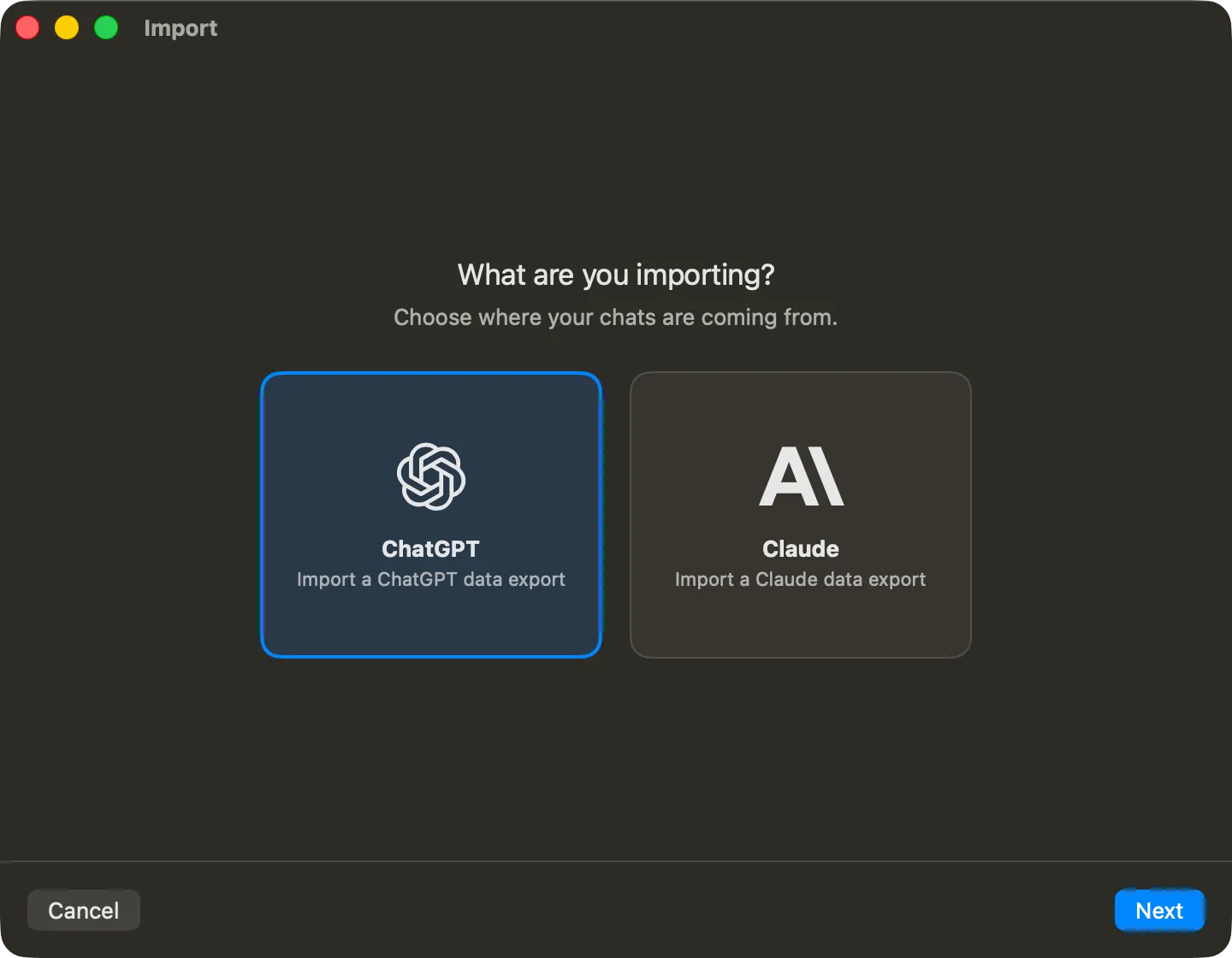
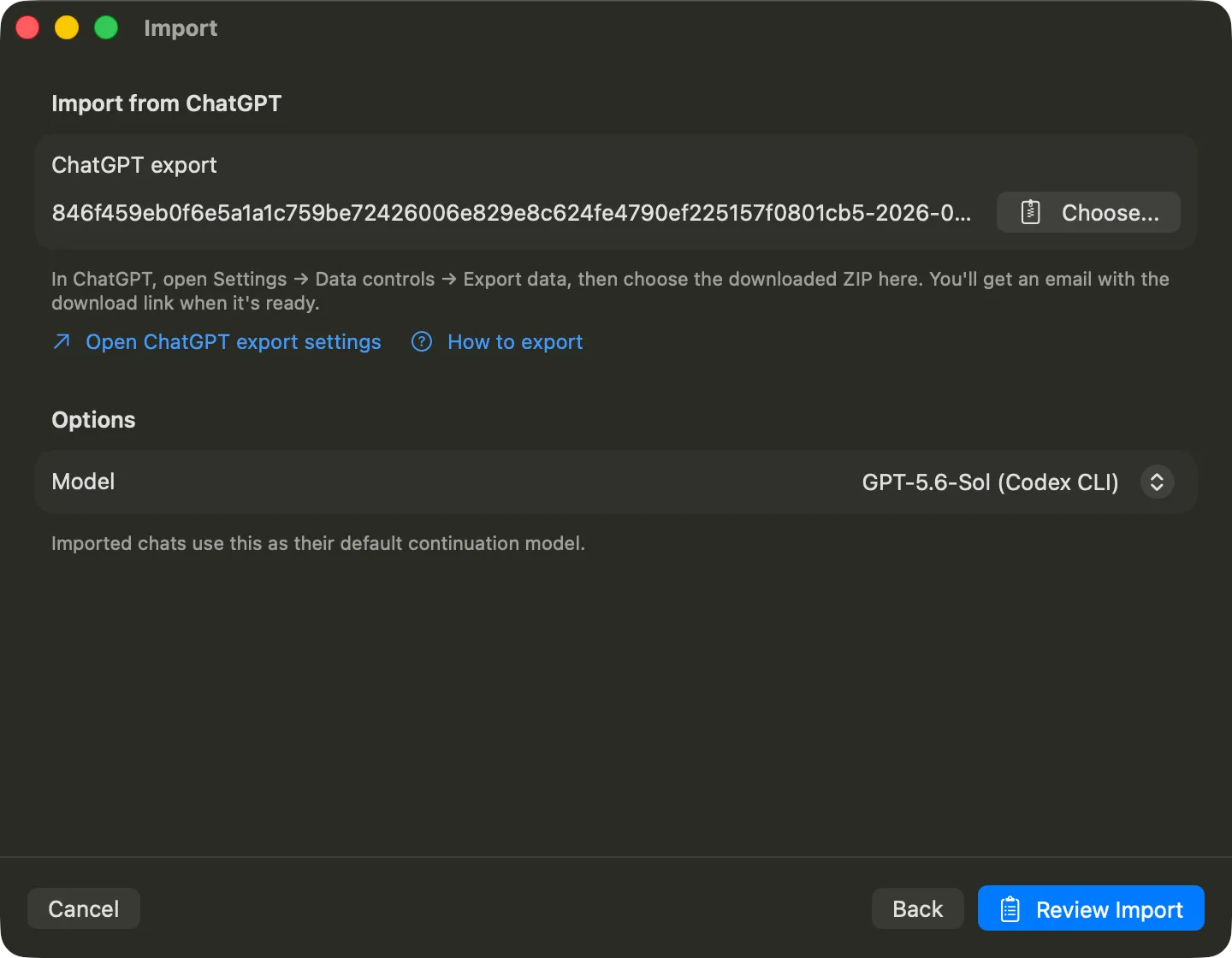
2. Point Vinaa at the file, and pick a continuation model. Choose the ZIP you downloaded, or the extracted folder if you already unpacked it. Vinaa checks that the contents look like a genuine ChatGPT export before continuing.
The model you pick here becomes the default for continuing any imported conversation later. It does not rewrite anything that came from ChatGPT.
3. Review before committing. Nothing is written until you approve this screen. Vinaa shows how many chats it found and what it did and did not carry across.
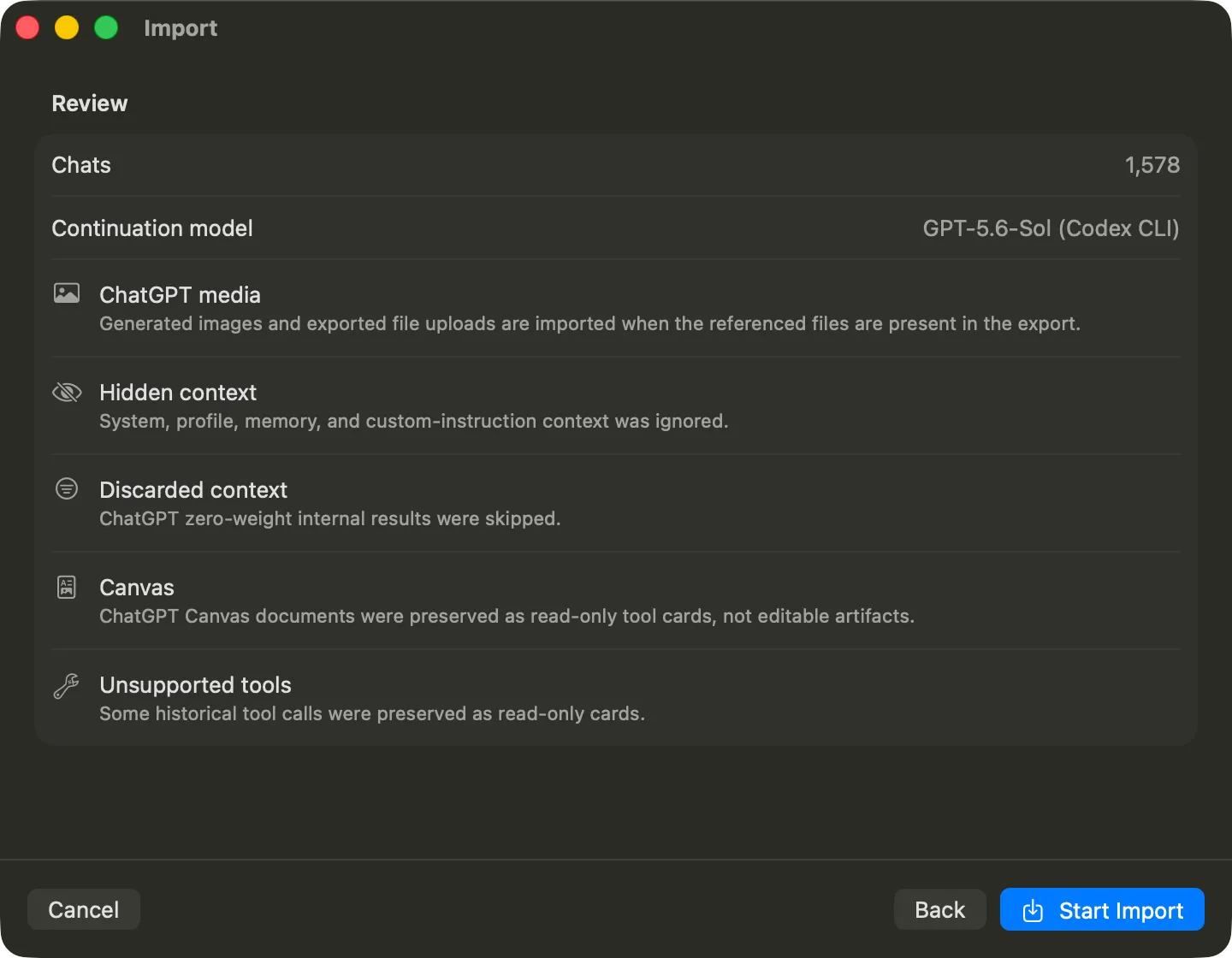
This is the screen worth reading rather than clicking past. Most of the record comes across: conversations and their messages, attached files that are present in the export, and supported reasoning content. Some things do not. The fresh August archive did not contain the generated-image folders or structured tool activity found in the older export, so no importer can reconstruct those missing records. Hidden context such as system, profile, memory, and custom instructions is ignored. Canvas documents come in as read-only cards when the export provides them rather than as editable documents. You see the importer’s findings before you commit, not after.
4. Import. Vinaa builds a new project from the export and opens it when finished. The example above imported 1,578 chats in one pass, so a few years of history is not a problem.
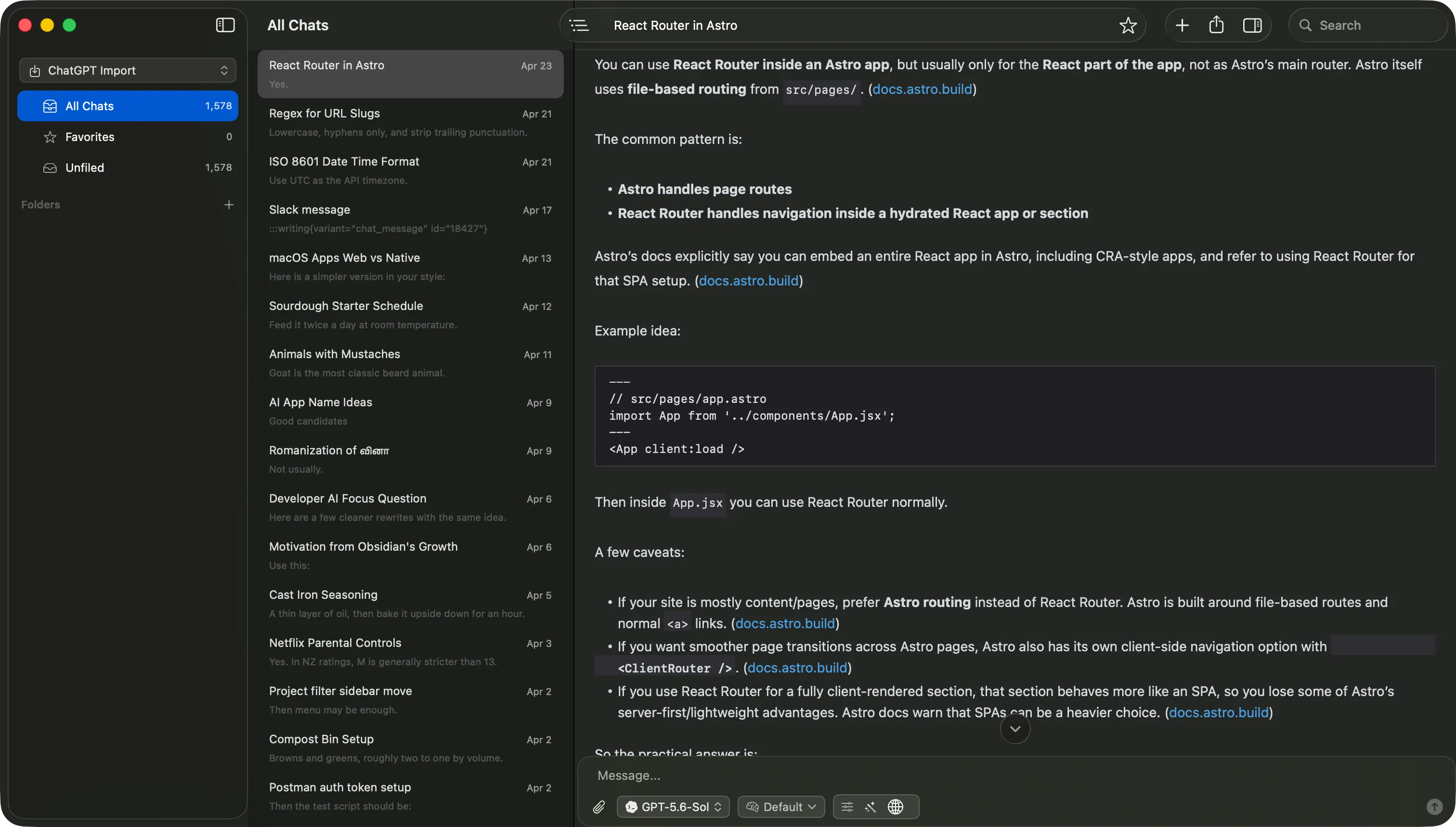
Those are the same conversations that were unreadable JSON a few minutes earlier. They are now browsable, searchable, and open to the exact exchange you were looking for.
If you are deciding between keeping a backup, converting selected chats, or moving the full history, the AI conversation portability guide explains the format and privacy tradeoffs for both ChatGPT and Claude.
Everything does land in one project, unfiled. That is the correct starting point rather than the finished state, and it is worth knowing before you open it: a complete history in one place looks a lot like the pile you were trying to escape.
What you end up with
The point of all this is not the import. It is what the history becomes once it is somewhere designed to hold it.
It is searchable. Full text search across every imported conversation, including the ones you would never have found by scrolling.
It can be organized. The import gives you one project full of unfiled conversations. From there they sort into projects and folders that match your actual work rather than a single reverse-chronological list. That sorting is the part that turns an archive into something you use, and the method is covered in organizing ChatGPT conversations by project.
It continues. An imported conversation is not frozen. A thread you started last year can carry on today with its context intact, using the continuation model you chose during the import. What came from ChatGPT stays exactly as it was; anything new uses the model you selected.
It stays private. The history lives in a local database on your Mac. Optional sync uses your private iCloud account, and Vinaa does not have access to the contents of that private iCloud database.
Keep the export as a source record
After viewing, converting, or importing your history:
- Open several old conversations and compare them with ChatGPT.
- Check chats where you edited a prompt or regenerated an answer.
- Verify uploaded documents, generated images, tool results, and Canvas content that matter to you. Do not assume every referenced item is present in the ZIP.
- Search for a few specific titles and phrases, then confirm the oldest and newest conversation dates.
- Review shared links separately and revoke any that should no longer be accessible.
- Keep the untouched ZIP in a private backup until you trust the new archive.
An export is a point-in-time copy. It does not stay synchronized with ChatGPT, so request another one when you need a newer backup.
Worth doing either way
Even if you never import it anywhere, export your conversations. It takes two minutes, and it means a few years of thinking, drafting, and working through problems is not sitting entirely inside one company’s account under retention rules you do not set.
Whether that export stays a backup or becomes something you actually use is the more interesting question, and it is the one worth answering while the file is still in your Downloads folder.
Download Vinaa and bring your history with you.