
How to Export Your Claude Conversations and Keep Them Usable
Export your Claude conversations, understand what is inside the archive, and keep your chat history readable, private, and useful outside Claude.
To export your Claude conversations, open Settings, choose Privacy, and select Export data. Claude prepares the archive and emails a download link to the address on your account.
The request takes about a minute. Making the archive useful takes a little more thought.
Claude’s export is designed as a copy of your data, not as a readable library or a one-click migration into another account. This guide covers the request, what is inside the ZIP, what may not transfer cleanly, and how to inspect or import it without uploading years of private conversations to a third-party server.
Export your data from Claude
For an individual Claude account:
- Open Claude on the web or in Claude Desktop.
- Select your initials in the lower-left corner.
- Open Settings.
- Choose Privacy.
- Select Export data.
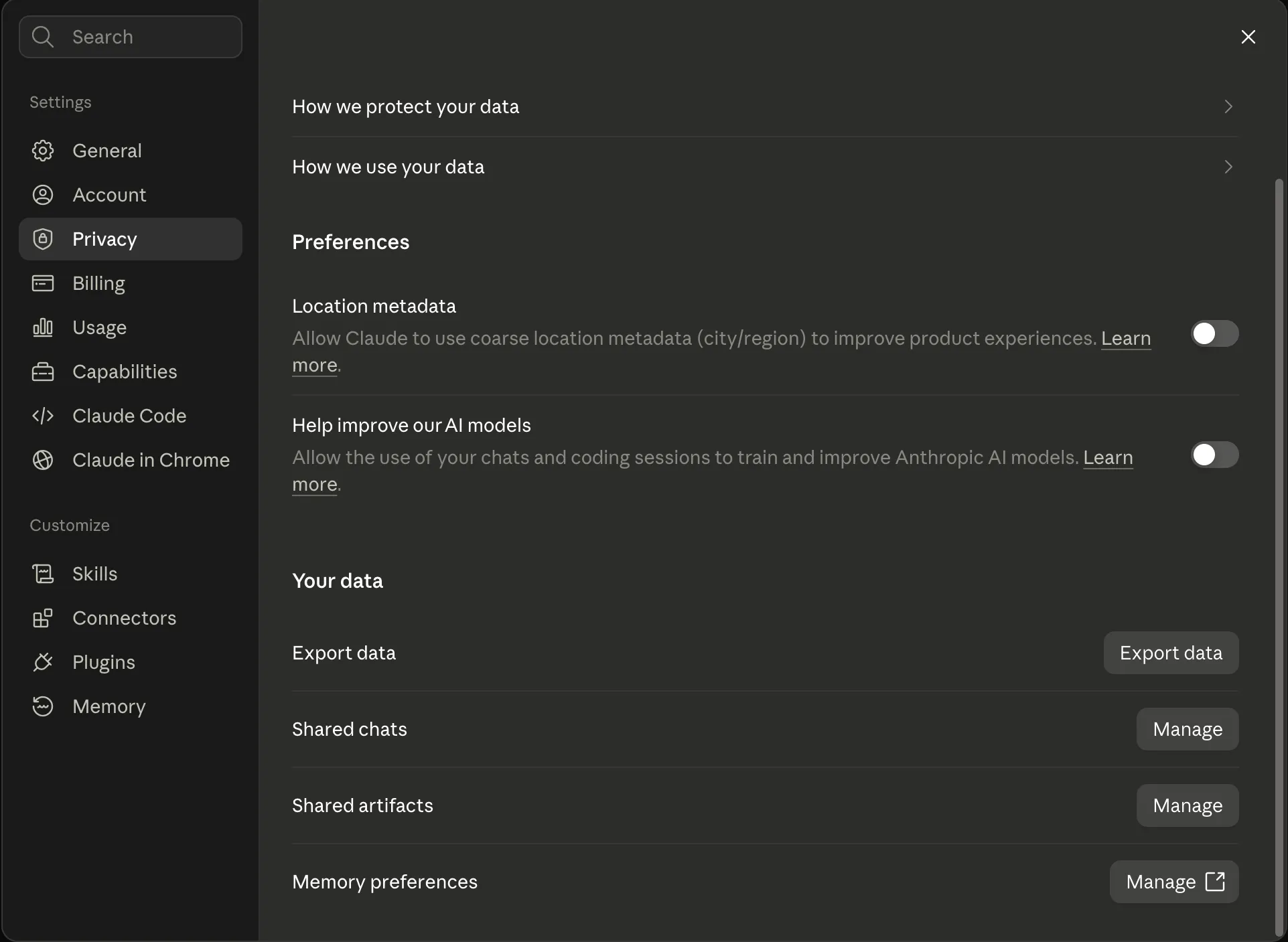
Export data sits under Your data on the Privacy tab, below the location and model training preferences, alongside the controls for shared chats, shared artifacts, and memory.
Anthropic says individual data exports are available on Free, Pro, and Max plans. You can request one from the web app or Claude Desktop, but not from the iOS or Android app. Team and Enterprise exports are controlled by the organization’s Primary Owner.
Claude emails you when the archive is ready. You need to be signed in to download it, and the link expires after 24 hours. If it expires, request another export from the same Privacy settings page.
Keep the ZIP exactly as it arrived. It is your source copy, and some tools can read it without making you extract anything first.
For the current account rules and interface steps, see Anthropic’s export documentation.
What is inside a Claude export?
Claude sends a ZIP containing JSON files. JSON is structured data intended for software rather than comfortable reading.
In the personal Claude exports that Vinaa currently supports, the main conversation record is conversations.json. It contains conversation titles, dates, messages, content blocks, citations, tool activity, attachment metadata, and file references where those fields exist.
The archive may also contain sidecar files such as:
- a
projects/folder containing one JSON definition for each project, orprojects.jsonin older exports; users.jsonfor account information;memories.jsonfor Claude memory data.
Those sidecars are useful evidence, but their presence does not mean another app can reproduce the Claude workspace exactly.
The current project files can include names, descriptions, instructions, and document records. What they do not include is a list of conversations. The conversation records also contain no project identifier. This means an importer can read the project definitions but cannot determine which conversations belong to them, so the original Claude Projects cannot be reconstructed.
A file reference may name something you uploaded without including the original binary file. A tool result may mention a file made inside Claude’s sandbox that is not actually in the archive.
That is why it is worth inspecting the ZIP before assuming that “exported” means “fully portable.”
Data export and memory export are different
Claude’s full data export and its memory transfer feature solve different jobs.
The data export is the account archive described above. It contains conversation and account data. Use it when you want a backup, need to inspect your history, or want a compatible app to reconstruct individual conversations.
The memory transfer feature moves a compact set of learned context and preferences. It does not recreate your full chat history. Anthropic currently lets users paste memory from another AI service into Claude, or copy Claude’s memory for use elsewhere. Its documentation also warns that memory import remains experimental.
If your goal is to preserve years of prompts and responses, export the account data. If your goal is to teach a new assistant your preferences and ongoing context, memory transfer may help as a separate step.
Read Anthropic’s memory import and export documentation before relying on that feature.
Can you import the export into another Claude account?
No. Anthropic says a personal Claude data export cannot be imported into another personal Claude account, and it does not support migration between personal accounts.
That limitation is easy to miss because Claude also offers memory import. Importing memory does not rebuild the old conversations, sidebar, projects, or files.
If you need the complete conversations outside the original account, keep the ZIP and use a tool that explicitly understands Claude’s conversation format.
What transfers cleanly, and what needs care?
The current Claude format contains much more than plain prompt and response text, but not every part of the Claude experience has a portable equivalent.
| Part of the Claude experience | What the export provides | Portability note |
|---|---|---|
| Conversation titles and messages | Structured conversation records | Generally portable with a purpose-built parser |
| Dates | Conversation and message timestamps | Useful for rebuilding chronology |
| Citations and tool activity | Structured content blocks where present | A destination must understand and render them |
| Text attachments | Extracted text and attachment metadata can be present | The original document may not be included as a binary file |
| File references | Names and identifiers can be present | A reference is not proof that the file itself is in the ZIP |
| Projects | Named project definitions can be present | Neither the project files nor conversation records say which chats belong together |
| Memory | A separate sidecar can be present | It is not the same as conversation history |
| Conversation branches | Parent relationships can be present | Importers may need to flatten branches into one readable path |
| Sandbox output files | References may appear in tool results | The generated file may not be included |
This table describes the archive format supported by Vinaa’s importer as checked on 16 August 2026. Export formats change, so verify a fresh archive before a large migration.
Once you have the ZIP, there are two private ways to make it useful. Use the free browser for temporary inspection. Use Vinaa when you want to import the history, organize it, and continue those conversations with cloud or local models.
Read the archive without uploading it
An AI history export can contain client work, code, health questions, financial information, private documents, and years of personal context. Treat it as highly sensitive.
The Vinaa AI Chat History Browser opens the ZIP in your browser. It detects Claude or ChatGPT, then lets you browse the conversation list, search titles and message text, read complete threads, and open files that are included in the archive. It also shows extracted attachment text and flags portability problems such as missing file binaries or project membership.
The archive is not uploaded to a server. Conversation data and included attachments are processed locally from the files on your device, while unrelated account sidecars are ignored. Closing the archive clears it from the reader.
Even with a local tool, keep the original ZIP until you have verified that every important conversation and file survived the next step.
Turn the export back into conversations on your Mac
Vinaa imports Claude data exports directly on your Mac. It turns the JSON records back into conversations you can browse, search, organize, and continue with a cloud or local model. Vinaa stores your conversations locally. If you enable sync, supported app data is stored in your private iCloud account rather than a Vinaa account.
The import runs as a short wizard.
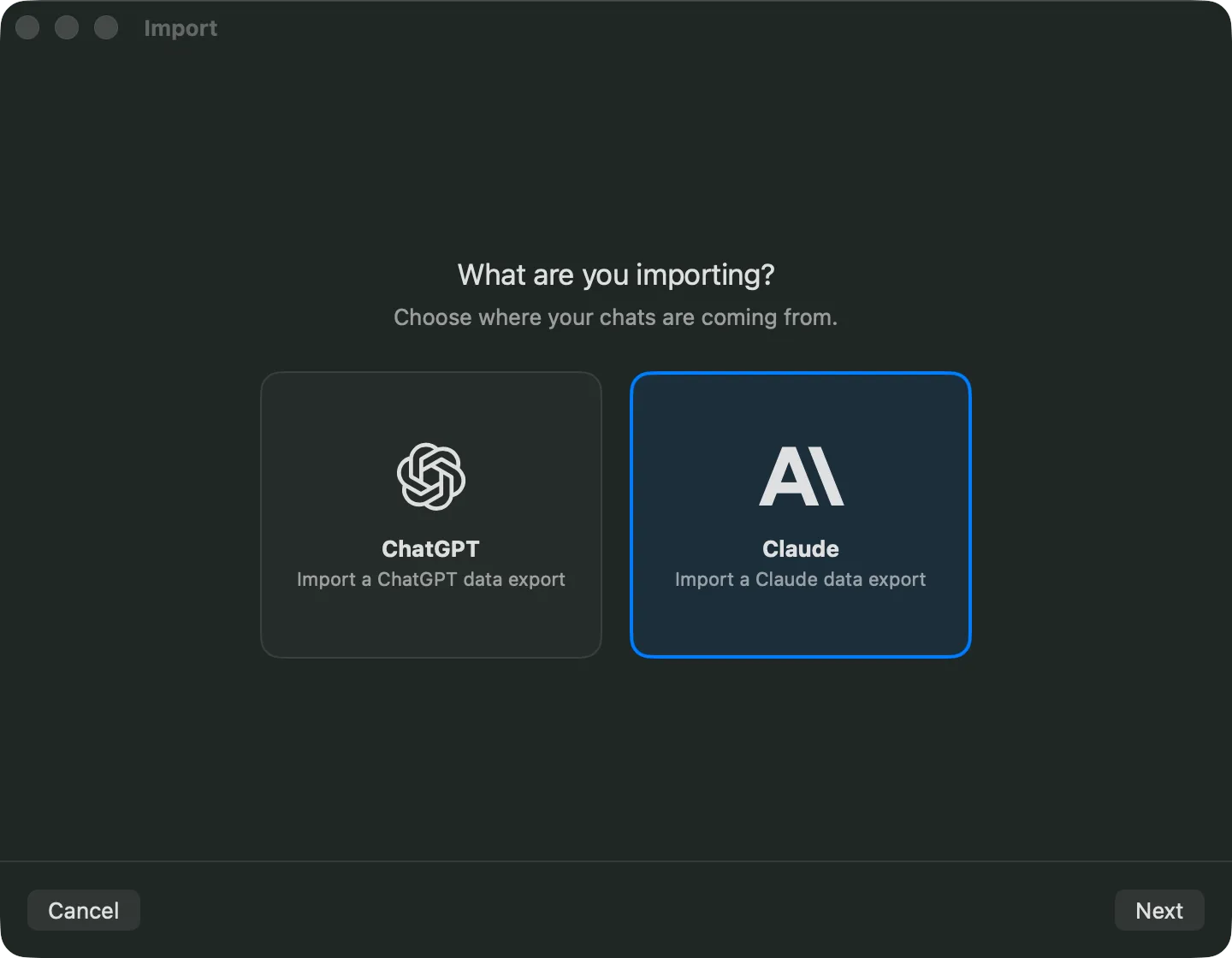
1. Choose where the chats are coming from. Select Claude.
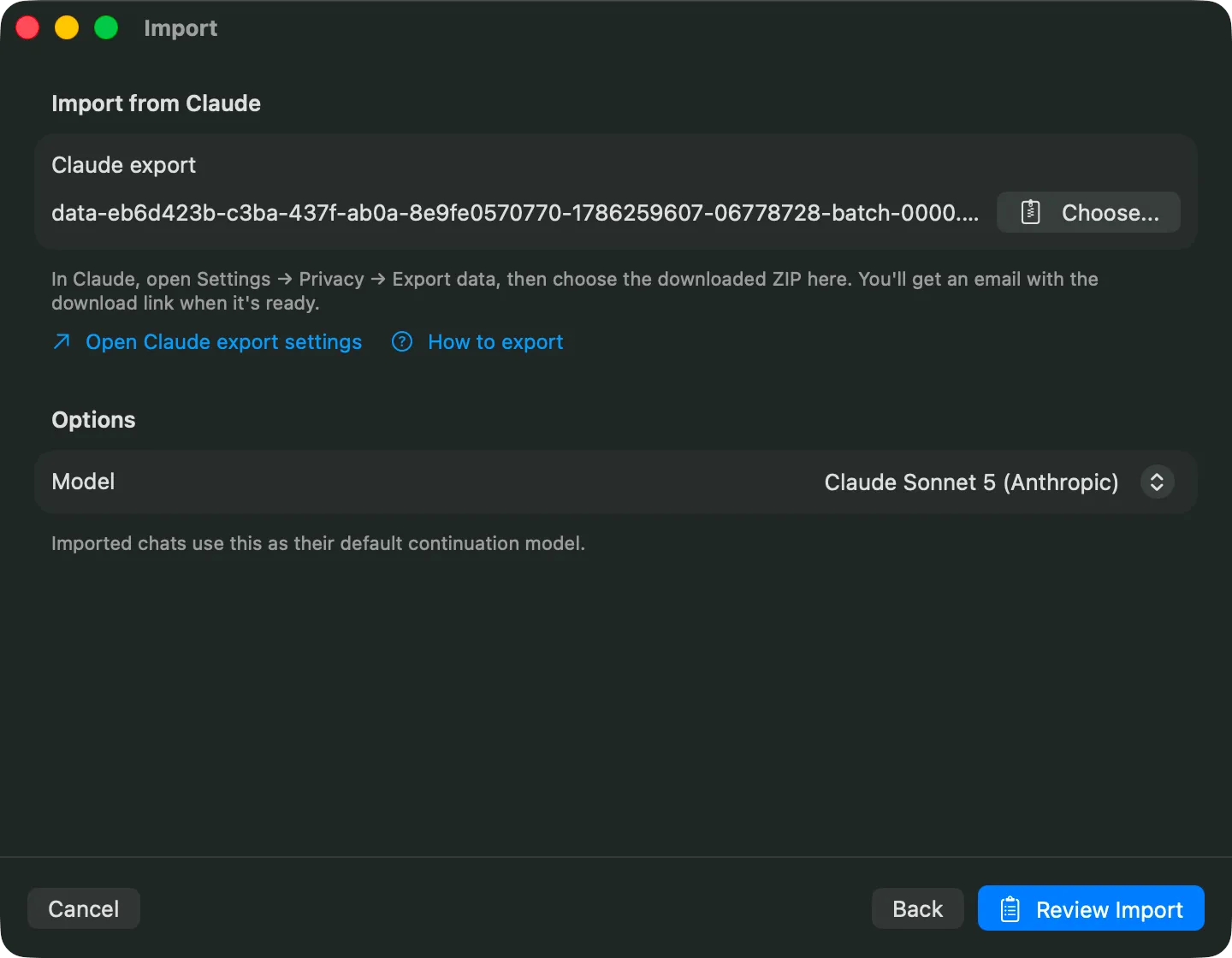
2. Choose the Claude export and a continuation model. Select the ZIP you downloaded. Vinaa checks the archive and lets you choose the model that will be used if you continue an imported conversation later.
The continuation model does not rewrite the original Claude responses. It becomes the default only for new messages you send after the import.
3. Review before committing. Nothing is written until you approve this screen. Vinaa shows how many conversations it found, how many empty chats it will skip, and the limitations that apply to this archive.
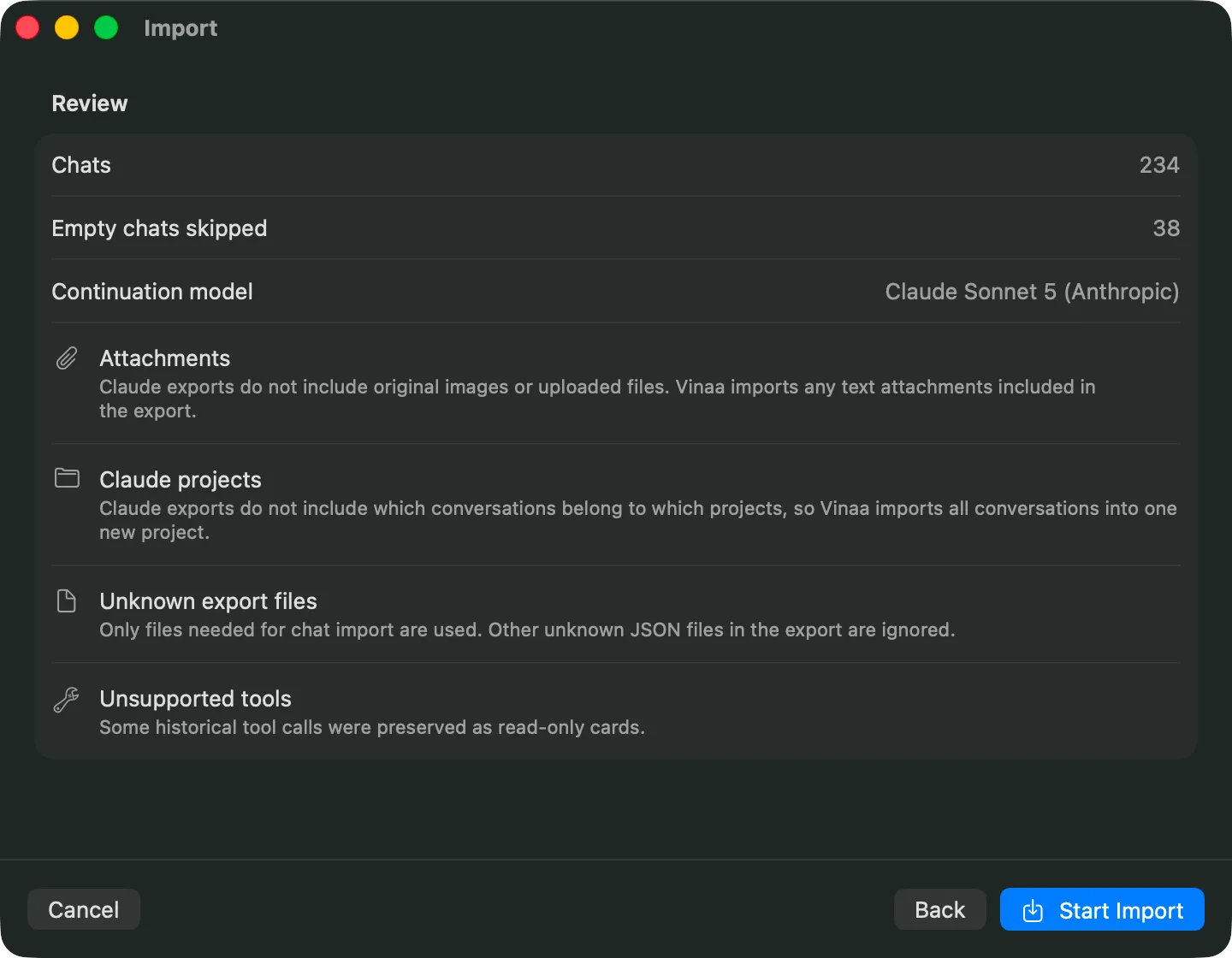
This is the screen worth reading rather than clicking past. In this example, Vinaa found 234 conversations and skipped 38 empty chats. Your counts will be different. It also explains that Claude exports do not include original uploaded images or files, although text attachments included in the export can be imported. Claude project metadata does not contain the links needed to put each conversation back into its original project, so the conversations go into one new Vinaa project. Unknown JSON files are ignored, and some unsupported historical tool calls are preserved as read-only cards.
The importer preserves conversation text and supported structured content where the export provides it. When a conversation contains branches, Vinaa keeps one readable path rather than pretending every alternate response belongs in a single linear thread. Missing binary files remain missing because they were not included in the source archive.
4. Start the import. Vinaa builds a new project called Claude Import and opens it when finished. The selected continuation model is ready if you decide to add a new message.
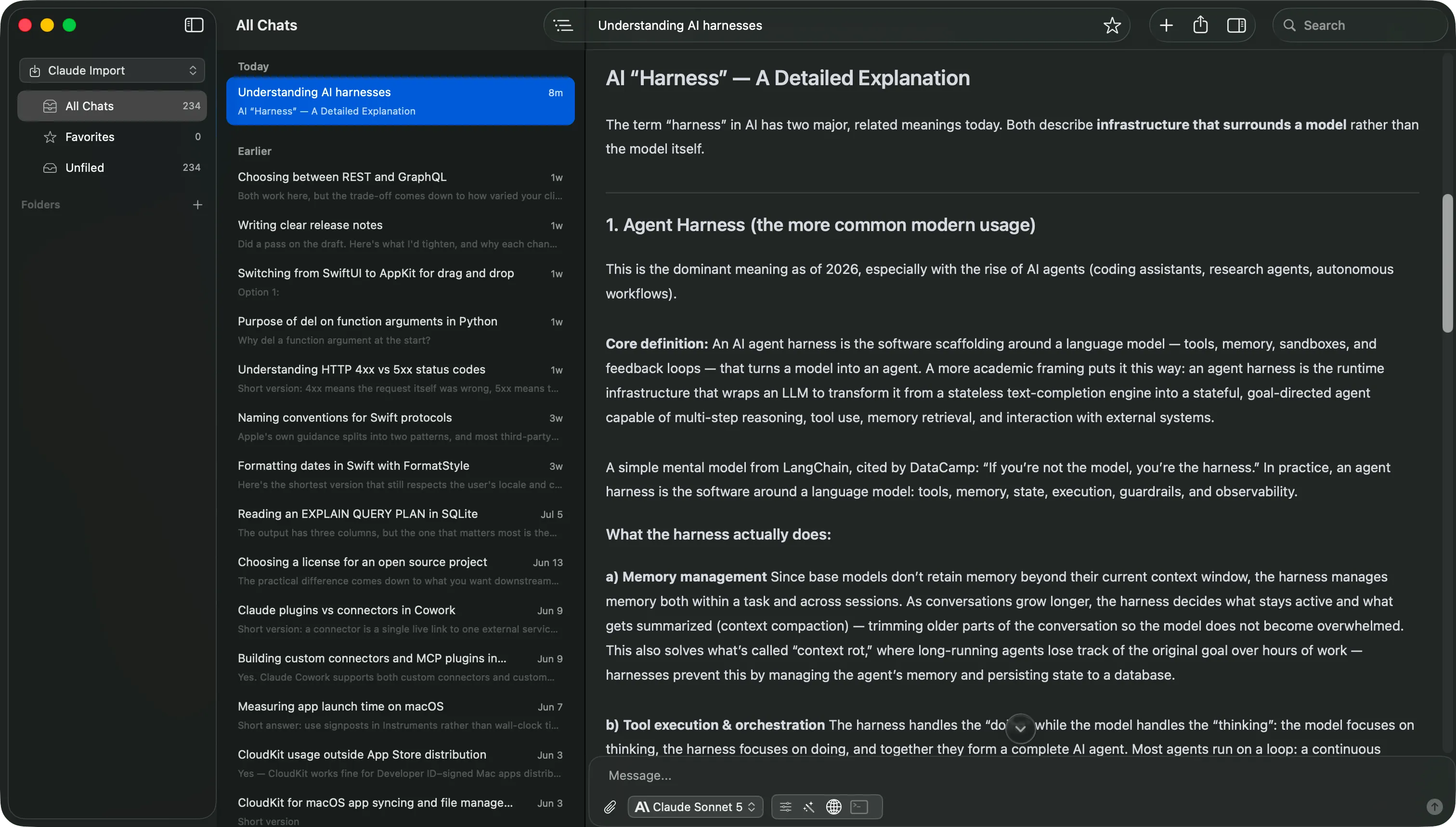
Those are the same conversations that were difficult to use as raw JSON. They are now readable, searchable, and open to the exact exchange you were looking for.
The import is processed locally on your Mac. Optional iCloud sync is controlled by you and uses your private iCloud account. Vinaa does not receive a copy of the archive or the imported conversation database.
If you are deciding between keeping a backup, reading selected chats, or moving the full history, the AI conversation portability guide explains the format and privacy tradeoffs for both Claude and ChatGPT.
Everything initially lands in one project as unfiled conversations. That is the starting point, not the finished state.
What you end up with
The point of importing the archive is what you can do with the history afterward.
It is searchable. Full text search works across every imported conversation, including old threads that were hard to find by scrolling.
It can be organized. Move conversations from the import project into projects and folders that match your actual work. Vinaa’s organization features turn one large archive into a workspace you can return to.
It continues. An imported conversation is not frozen. You can continue a useful thread with the model you selected during import while keeping the original Claude messages intact.
It stays private. The history lives in a local database on your Mac. If you enable sync, supported data uses your private iCloud account. Vinaa does not have access to the contents of that private iCloud database.
Keep the export as a source record
After importing or converting your chats:
- Open several old conversations and compare them with Claude.
- Check conversations that used uploaded files, projects, tools, or branches.
- Search for a few specific titles and phrases you remember.
- Confirm the oldest and newest conversation dates.
- Keep the untouched ZIP in a private backup until you trust the new archive.
A provider export is valuable even when you are not leaving today. It gives you a point-in-time copy and makes future migration possible if account access, product direction, pricing, or your preferred model changes.
Download Vinaa and bring your Claude history with you.