
Connect other AI providers
Add a provider's API key to use Grok, Mistral, DeepSeek, Kimi, GLM, Qwen, or hosted open models in Vinaa.
An API key is a secret credential that lets Vinaa send requests using your provider account. API usage is billed by that provider; check its current pricing and any free-tier limits before chatting.
Choose a provider and get a key
Use the provider name shown in Vinaa. The links below lead to official key pages or setup guides. The examples describe uses to consider, not a guarantee that every model supports every feature.
| Provider in Vinaa | Models and uses to consider | Get a key |
|---|---|---|
| xAI | Grok for conversation, reasoning, and coding. | xAI Console |
| Mistral AI | Mistral models for writing and general chat. | Mistral’s API key guide |
| DeepSeek | DeepSeek models for chat, coding, and reasoning. | DeepSeek’s API setup guide |
| Moonshot AI | Kimi for writing, code, and document analysis. | Kimi API keys |
| Z.ai | GLM models for coding and reasoning. | Z.ai’s API setup guide |
| Alibaba Cloud | Qwen models for chat and coding. | Model Studio’s API key guide |
| Groq | Fast replies from hosted models. | Groq’s API setup guide |
| Together AI | A broad choice of hosted open models. | Together AI’s setup guide |
| Fireworks AI | Hosted open models for chat and coding. | Fireworks AI’s setup guide |
| Cerebras | Fast generation with supported models. | Cerebras’s API setup guide |
| DeepInfra | A broad choice of hosted open models. | DeepInfra’s API setup guide |
| Baseten | Hosted Model APIs for chat and reasoning. | Baseten’s API key guide |
For Moonshot AI, use the Kimi API platform’s pay-as-you-go key. Kimi Membership and Kimi Code are separate products. For Z.ai, use a Standard API key for the general API. For Alibaba Cloud, Vinaa’s built-in connection uses the Singapore endpoint: create a matching pay-as-you-go Model Studio key. Regional keys and endpoints cannot be mixed; see Alibaba’s regions and endpoints.
Add the connection
- Choose Vinaa → Settings → AI Models.
- Click Add Connection in the toolbar.
- Choose your provider under Model Providers or Gateways & Inference Hosts, or find it with Search providers.
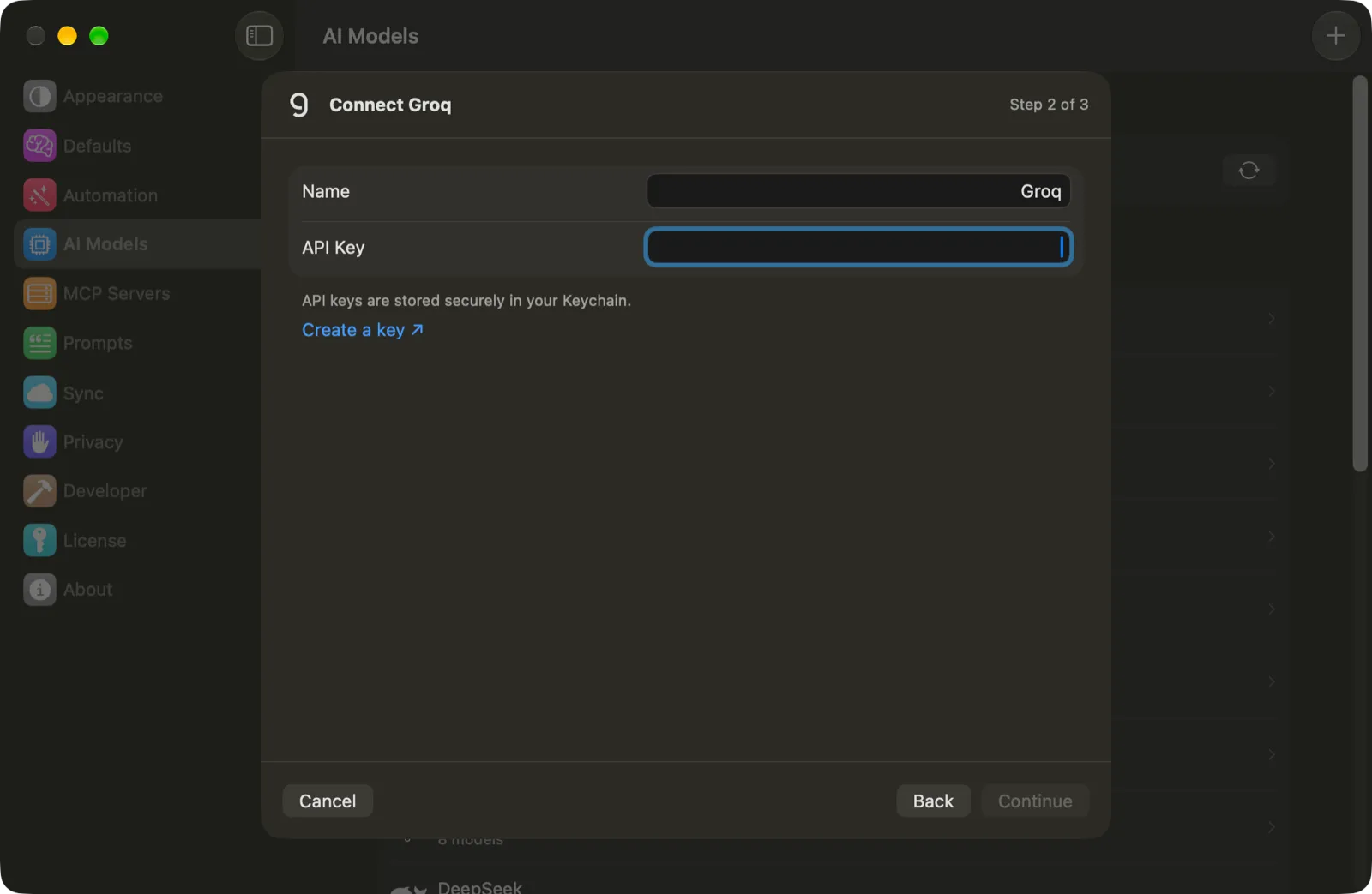
- Enter a Name that helps you recognize the connection.
- Paste your key into API Key.
- Click Continue.
- Select the models you want in Choose Models.
- Click Add Connection.
Some providers show Create a key ↗ below the key field. Use that link, or the official guide above, to create your key. Vinaa stores it in Keychain.
Use and manage your models
Press ⌘L in a chat to choose a model. Features such as image input, reasoning, and tool use depend on the selected model and Vinaa’s integration.
To change your available models, open the connection in AI Models and click Choose Models…, then Save. To replace a key, click Edit…, enter the new API Key, then click Save.
Click Refresh to update the connection’s model information. xAI, Mistral AI and DeepSeek add newly listed models automatically. Moonshot AI, Z.ai, Alibaba Cloud, Baseten, Groq, Together AI, Fireworks AI, Cerebras and DeepInfra instead show N new models to review with Review…. Click Review… to select the new models you want.
Models from inference hosts show their maker’s icon when recognized. In the chat model picker, type / and use Made by to filter by maker.
If a synced connection shows Setup required, its key may be missing from this Mac’s Keychain. Its models appear dimmed. Open Edit…, paste the key and click Save.