
Manage your chats
Rename, favorite, move or delete chats, and work with several conversations at once.
Use the Chat List to manage conversations in the project, folder or built-in view you selected. Most actions are available by right-clicking a chat.
Read the Chat List
Chats are grouped by date. When the list spans projects, rows show a project badge. Within one project, a filed chat can show its folder breadcrumb so you can see where it belongs.
A spinner means a reply is being generated. An orange dot means the chat is waiting for you. A dot with a bold title marks an unread reply, and a star marks a favorite. A waiting or generating indicator takes priority. See Understand projects and folders for more about these views and indicators.
Rename a chat or copy its title
- Right-click the chat and choose Rename, or open it and click its title in the toolbar.
- In Rename Chat, enter the new Title.
- Click Rename.
To copy only the title, right-click the chat and choose Copy Title.
Favorite a chat
Open the chat and press ⌘D or click the toolbar star. You can also right-click it and choose Add to Favorites.
Repeat the shortcut or click the star again to remove the favorite, or right-click and choose Remove from Favorites. Select Favorites in the Folder Panel to return to starred chats within the current project view.
Open a chat separately
Right-click a chat and choose Open in a New Tab or Open in New Window. To return to a chat already open in a window or tab, use Navigation → Switch to Open Chat… (⇧⌘O).
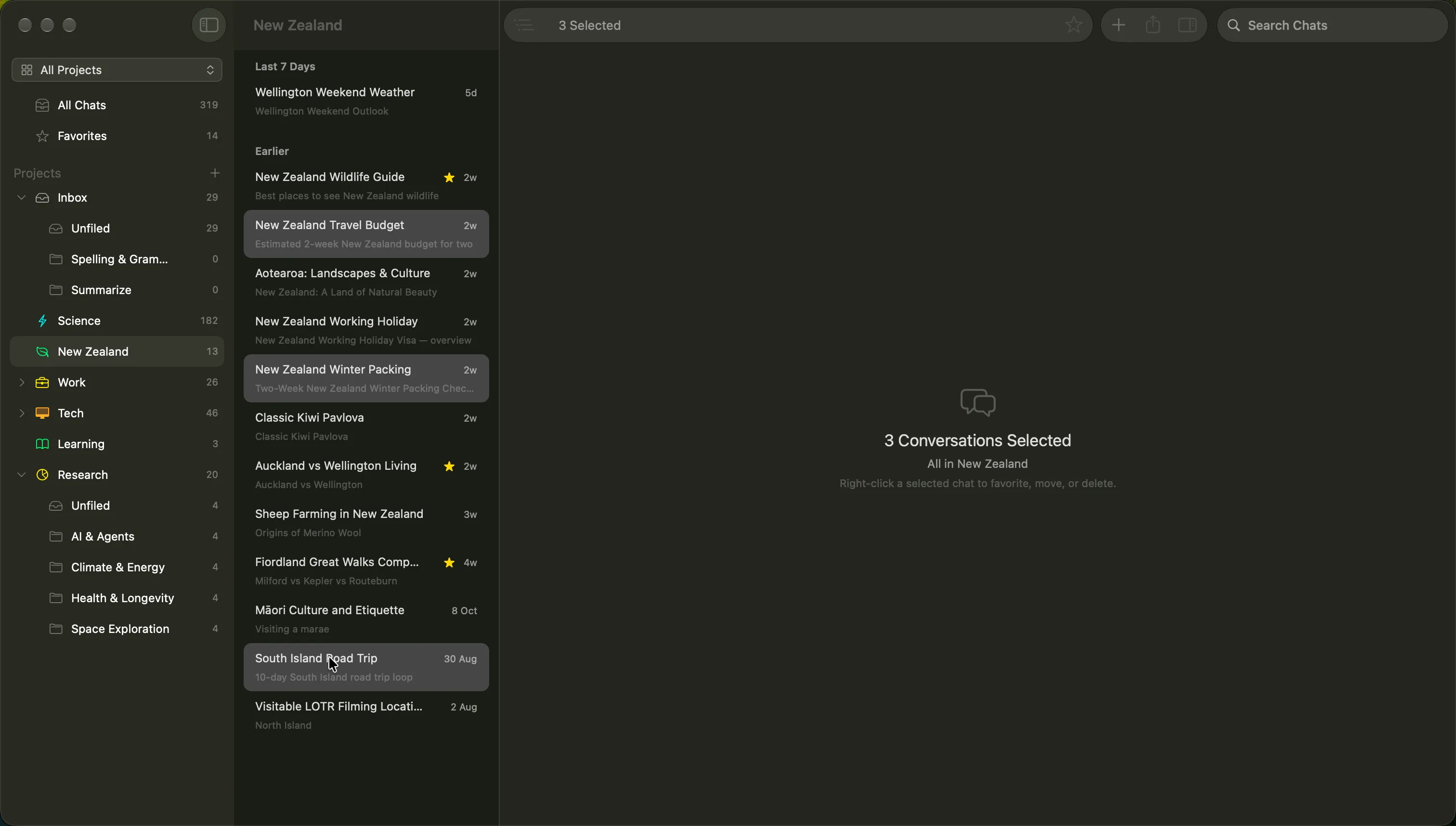
Select several chats
- Click a chat in the Chat List.
- Hold ⌘ and click other chats to add or remove them from the selection. Use ⇧-click to select a range.
- Check the detail pane’s selection count and project summary.
- Right-click a selected chat to act on the selection.
The menu shows Add N to Favorites or Remove N from Favorites, Move to Project, and Delete N Chats, with the number selected in place of N. Move to Folder is available when the selected chats share the window’s current project and that project has folders.
To move chats by dragging them or to organize folders, see Create and manage projects.
Delete chats
- Select one or more chats in the Chat List.
- Right-click and choose Delete or Delete N Chats, or press ⌫ while the Chat List has focus.
- Read the confirmation and confirm deletion.
Deletion cannot be undone. If iCloud sync is on, the deletion also syncs to your other Macs. Export a chat first if you need to keep a separate copy.