
Sync with iCloud and back up your data
Keep your Vinaa data available on other Macs and save a separate export for safekeeping.
iCloud sync keeps supported Vinaa data in step across Macs using the same iCloud account. An export gives you a separate copy: deleting a synced chat also deletes it on your other Macs.
Turn on iCloud sync
- Choose Vinaa → Settings…, or press ⌘,.
- Select Sync.
- Turn on Sync via iCloud.
- Click Relaunch Now when prompted.
- Repeat these steps on each Mac you want to sync.
If you choose Later, the change takes effect the next time Vinaa launches. Sync is a separate choice on each Mac. Use Open iCloud Settings… if you need to check your iCloud account or iCloud Drive.
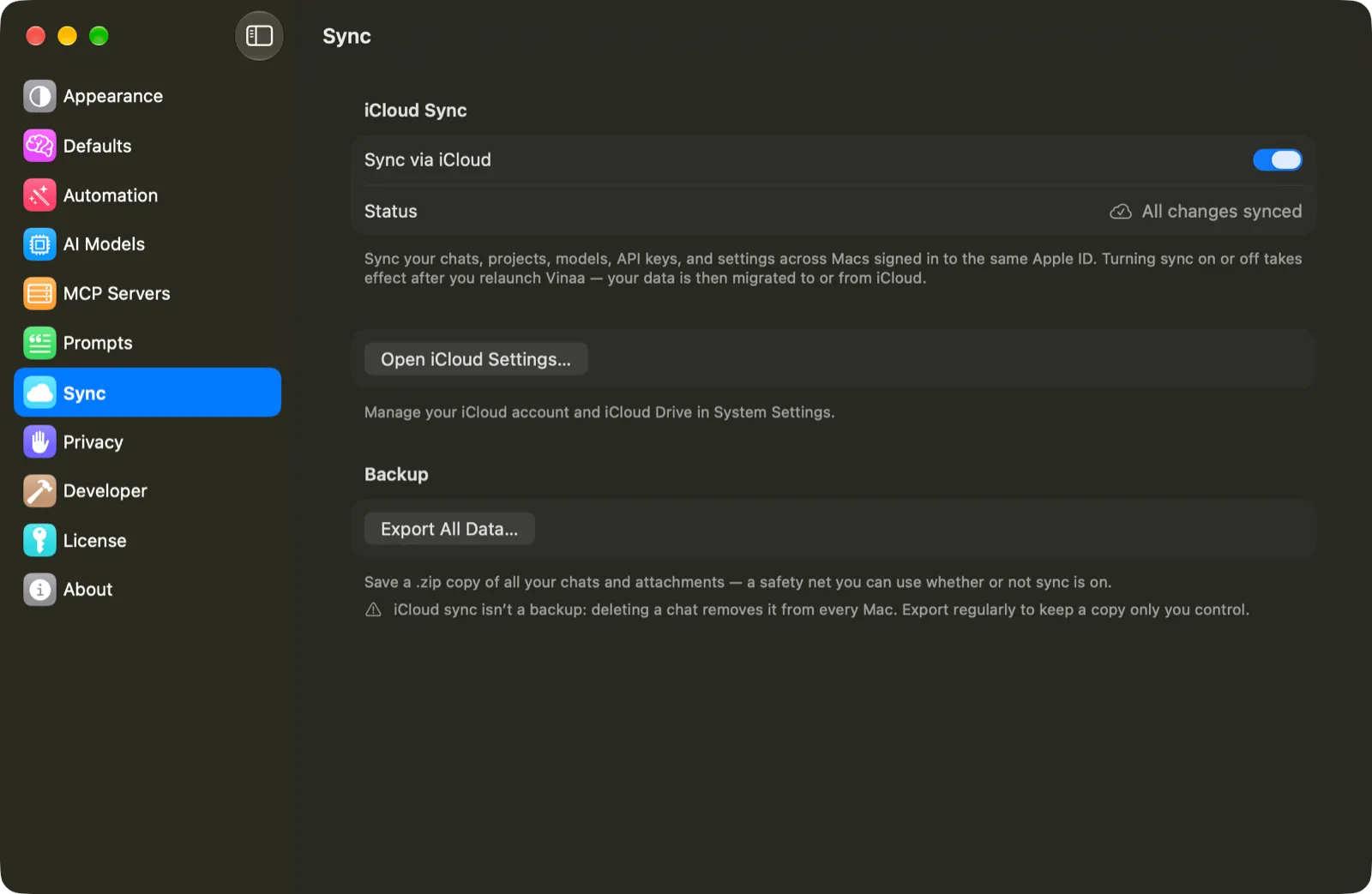
Understand what syncs
Sync covers chats, projects, folders, attachments, model and connection information, and supported app settings. API keys, the secret credentials that let Vinaa use your AI provider, use macOS Keychain and supported keys can sync through iCloud Keychain.
Some connections still need setup on each Mac. Setup required also covers API-key and OpenRouter connections whose key is missing from this Mac’s Keychain. Their models are dimmed in the model picker. Open the connection in Vinaa → Settings… → AI Models, click Edit…, paste the key and click Save.
ChatGPT Plan needs local sign-in and folder access. Claude Plan needs Claude Code and its sign-in, and its terms must be accepted separately on each Mac.
Check sync status
Click the sync status at the bottom of the Folder Panel to open Vinaa → Settings → Sync. This row appears during sync activity or when there is a sync problem; it is hidden when everything is synced.
In Sync, check Status:
| Status | What to do |
|---|---|
| All changes synced | No sync activity is currently pending. |
| Syncing… | Wait while changes are transferred. A progress count may appear. |
| Offline | Reconnect your Mac to the internet. |
| iCloud unavailable | Use Open iCloud Settings… to check your account and iCloud Drive. |
| Relaunch to start syncing | Relaunch Vinaa to apply the sync choice. |
| iCloud Sync off | Enable Sync via iCloud if you want this Mac to sync. |
Save an export
- Open Vinaa → Settings… → Sync.
- Under Backup, click Export All Data….
- Choose a name and save location for the
.zipfile. The suggested name is Vinaa Export YYYY-MM-DD.zip, using the local date. - Save the file.
- Wait while Exporting… appears. When it finishes, the page shows Saved followed by the file name. Click Show in Finder to locate it.
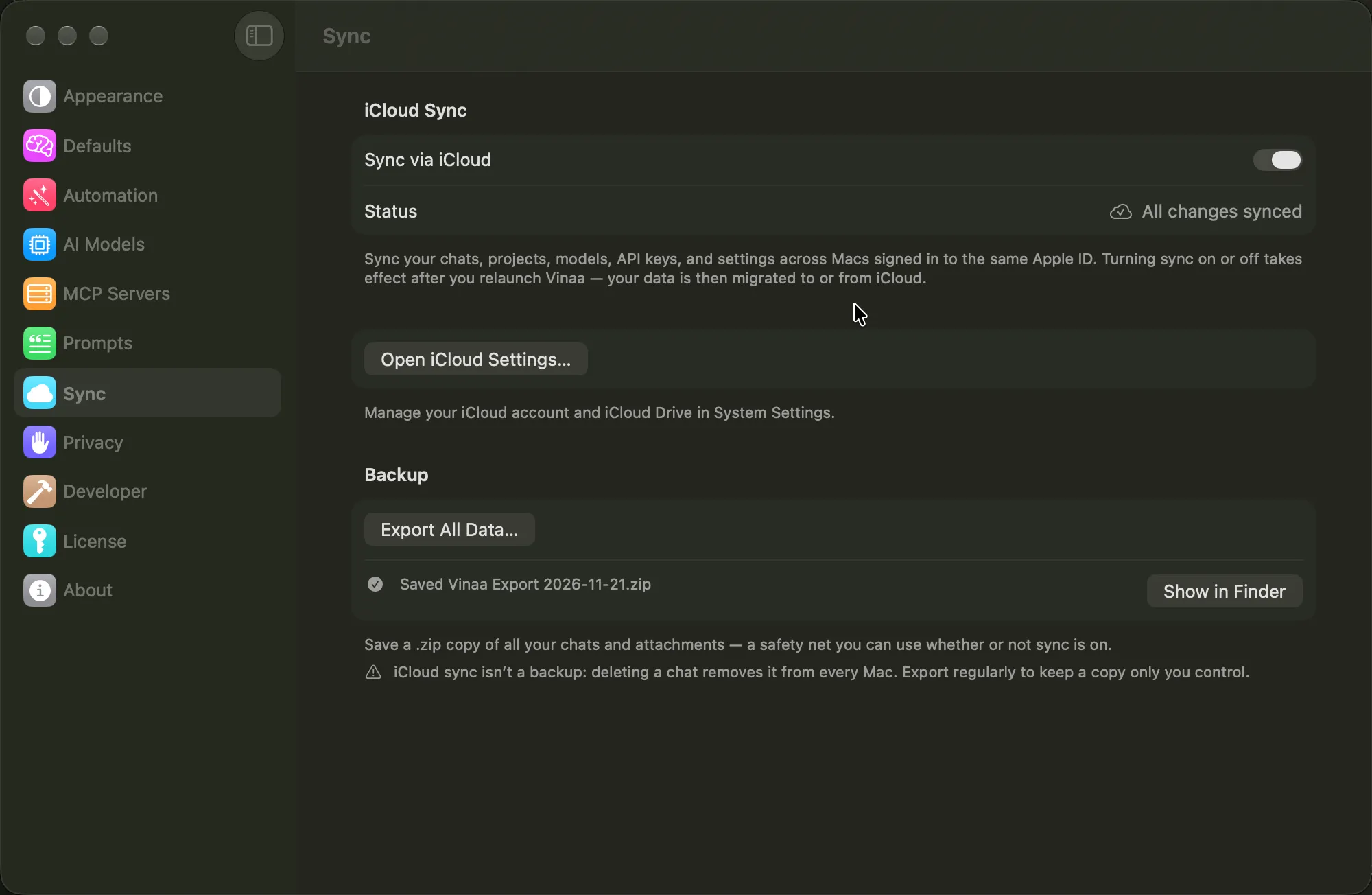
The archive contains a copy of Vinaa’s database and locally available attachment files. Make sure attachments you need can be opened on that Mac before relying on the export. This export does not separately export your Keychain credentials.
Keep regular exports somewhere you can find them independently of Vinaa. The export is a data archive, not a Markdown or PDF document for reading; use chat export for those formats.
Turn off sync on a Mac
Turn off Sync via iCloud, then relaunch when prompted. Vinaa copies the data back to that Mac and downloads attachments stored only in iCloud first. Allow that process to finish.