
Start your first chat
Choose a model, send a message, and continue your first conversation in Vinaa.
After connecting an AI provider, you can start a chat in a project or folder. You also need an active trial or license to send messages.
Send your first message
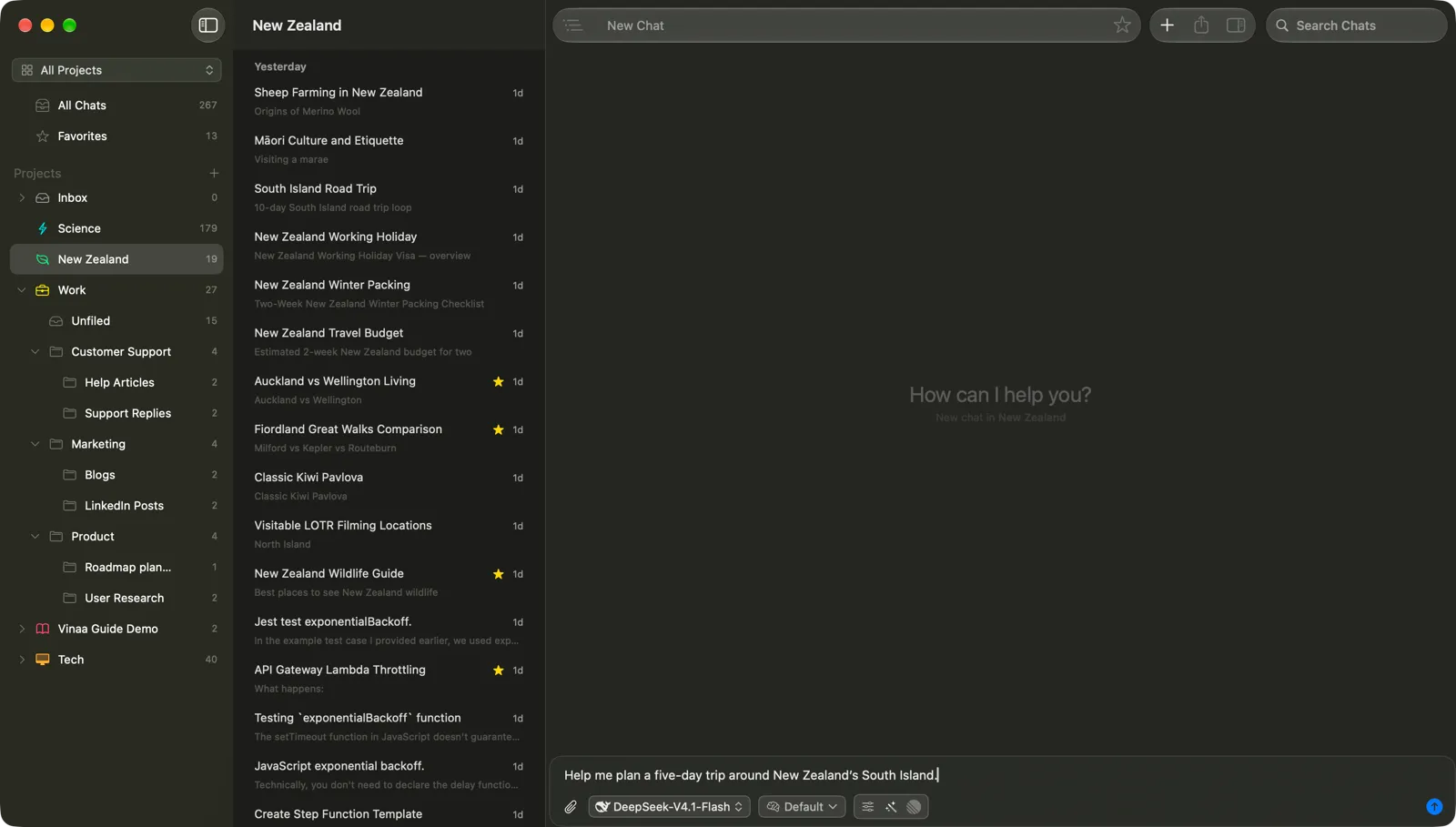
- Select the project or folder where you want the chat to live, such as New Zealand.
- Click New Chat in the toolbar or press ⌘N.
- Click the model button below the message field, or press ⌘L.
- Choose an available model, the AI that will answer your messages.
- Enter your request in Chat Input, such as “Help me plan a five-day trip around New Zealand’s South Island.”
- Press Return to send it.
Vinaa creates the conversation when you send the first message. The reply appears as the AI writes it. When you create a chat from a view spanning projects without a specific project selected, the new chat goes to Inbox.
Write on more than one line
Press Shift-Return (⇧Return) to add a new line without sending. Use this to separate your request, requirements, and background information.
Read or stop a response
By default, Vinaa keeps your reading position while the response is being written. Hover over the floating response control to see its label:
- Follow Response scrolls with the reply as it grows.
- Stop Following lets you stay at your current reading position.
- Scroll to End takes you to the bottom after generation finishes.
To follow replies automatically, enable Follow responses while streaming in Vinaa → Settings → Appearance.
To stop generation, click the stop button in Chat Input or press Escape while Chat Input is focused. You can then send a follow-up or regenerate the latest response.
To copy a response, click Copy message, the copy button in its message toolbar.
Continue or try the latest response again
Type another message and press Return to continue the conversation. Use ⌘L to change models for future responses; existing messages stay as they are.
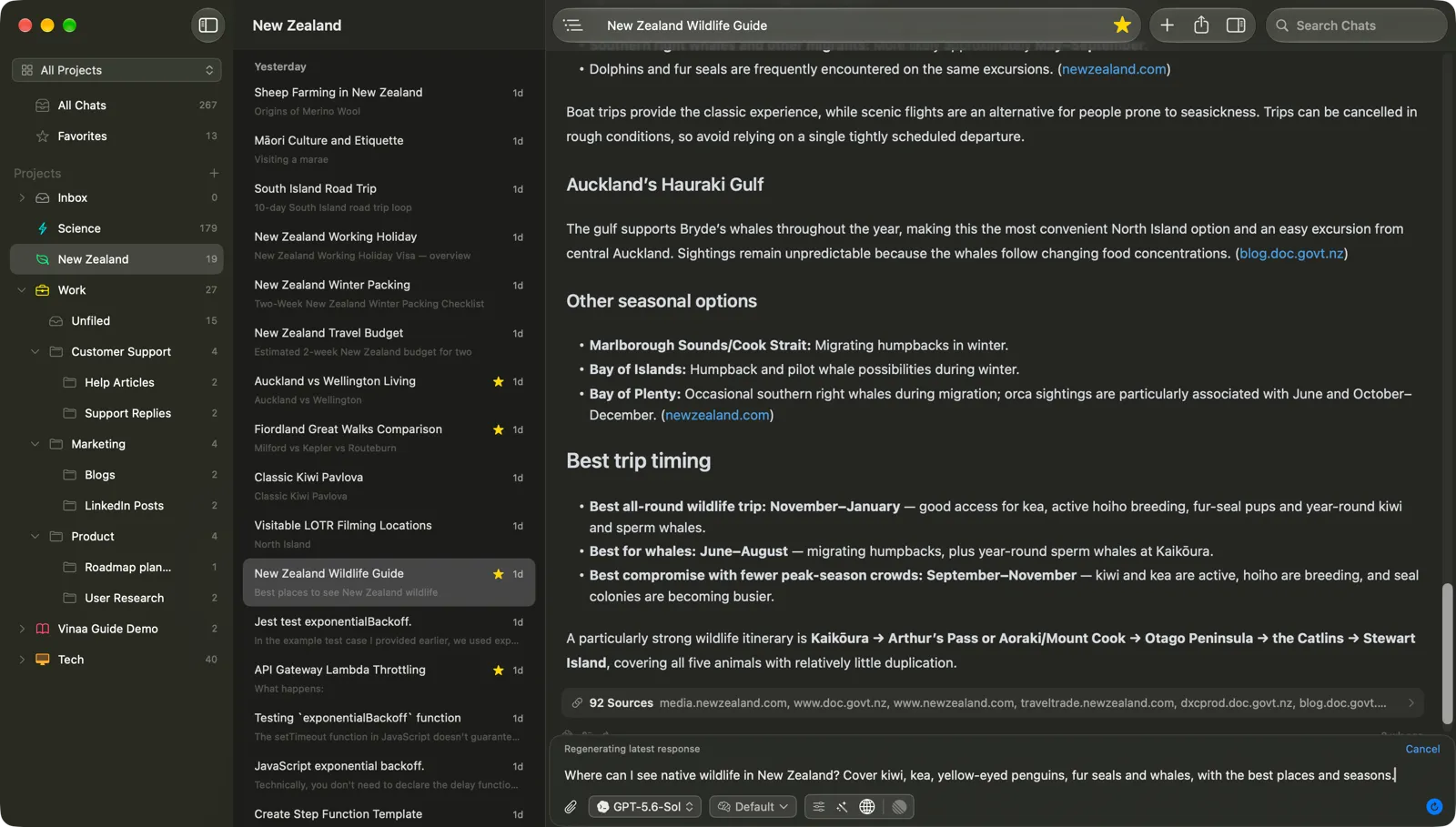
To retry the latest response:
- Click Regenerate response in its message toolbar.
- Adjust the original request in Chat Input if needed.
- Press Return to generate the replacement response.
You can also change the model before resending. Cancel leaves regeneration mode. Regeneration is available only for the latest response; older messages cannot be edited.
Bring an existing conversation
When you have no conversations yet, the first-conversation screen offers Import from ChatGPT or Claude. Click it to open the import wizard. If the button is not visible, choose File → Import… (⇧⌘I).
You can add files to supported models, choose tools with ⇧⌘T, and use the toolbar star to favorite a chat when you’re ready.