
Use AI tools
Choose tools for a chat, let the AI find tools when needed, and follow its work.
Tools let a supported model search the web, fetch pages, run code, or work with a connected app. The tools available depend on your model, AI connection and MCP servers.
Choose tools for a conversation
- Open a chat with a model that supports tools.
- Click the sliders button in Chat Input, or press ⇧⌘T.
- Use Search tools… to find a tool or group.
- Select the tools you want the AI to use.
- Close the panel.
- Send a request that needs those tools.
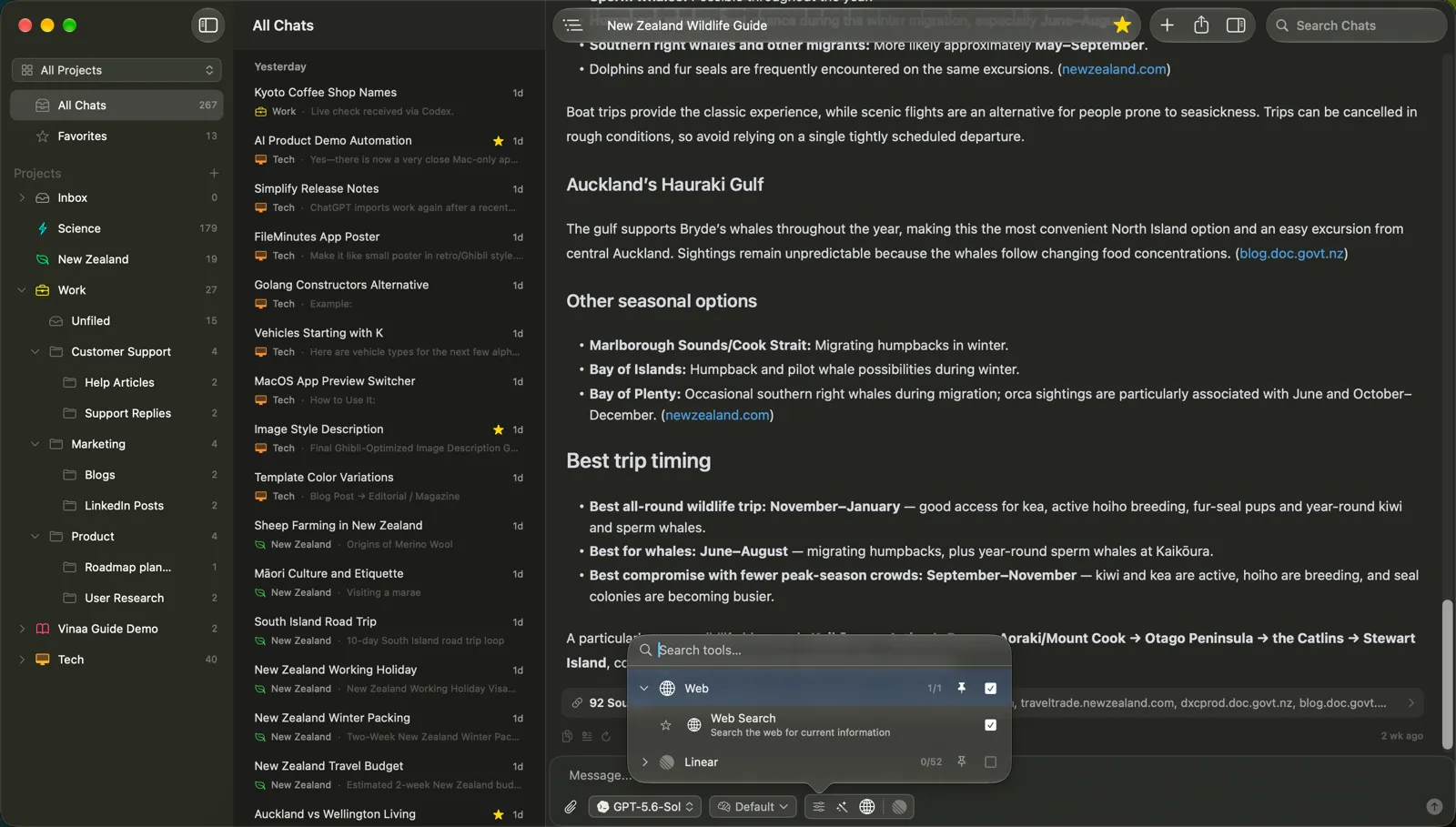
A newly added MCP server’s tools appear in this panel. Select the tools you want for this conversation; being enabled in server settings does not select them in every chat.
Use the star beside a tool to keep it in Favorites. Pin a category to keep its button in the quick bar beside the sliders button. Quick-bar category buttons turn that category’s tools on or off without reopening the panel; pinning a category does not itself enable its tools.
Built-in tools by connection
These are the built-in tools Vinaa offers for each connection. Availability also depends on the model and your provider account.
| Connection | Built-in tools |
|---|---|
| Anthropic | Web Search, Web Fetch, Code Execution |
| OpenAI | Web Search, Code Interpreter |
| xAI | Web Search, X Search, Code Execution |
| Google Search, Code Execution | |
| OpenRouter | Web Search |
| ChatGPT Plan | Web Search |
| Claude Plan | Web Search, Web Fetch |
Let Tool Finder choose tools
Click the wand button in Chat Input to turn on Tool Finder. It lets the AI find and add suitable tools as needed during the conversation. Click it again to turn it off.
Tool Finder uses the tools available to Vinaa. For an app connection, you still need to add its MCP server and make the relevant tools available in settings.
Set tools for new chats
- Open Vinaa → Settings → Defaults.
- Find Default Tools.
- Select the categories you want enabled in new conversations.
The choices include Web, Code, Tool Finder, and configured MCP servers. These defaults apply to new chats unless the project has its own tool defaults. You can change the tools in each chat separately.
Follow tool activity
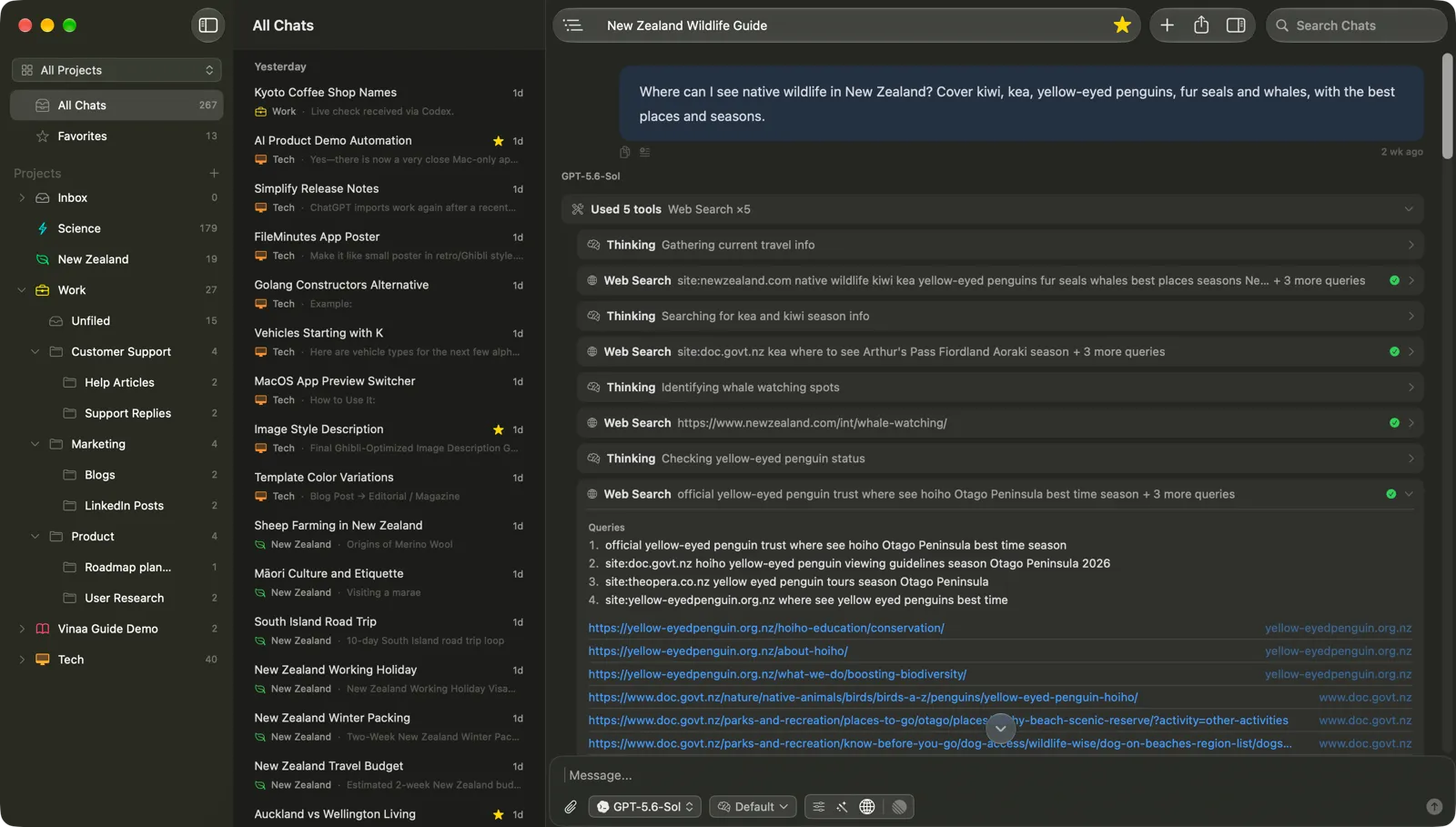
During a reply, Vinaa groups thinking and tool activity into a steps line. Click it to Show Steps, then expand a tool’s block for its details. Depending on the tool, you may see search queries, fetched pages, code, or results from an app.
MCP tools with permission set to Ask pause for approval. Review the Run …? card and choose Allow Once or Deny. Always Allow saves permission for that tool beyond the current request.
Continue after the step limit
Max Tool Steps, in Vinaa → Settings → Defaults, limits how many tool steps the AI takes in one response. At the limit, the response pauses and shows Continue. Click it to let the AI keep working, or leave the response paused.