
Connect an AI provider
Add an AI connection, choose its models, and manage it in AI Models settings.
Vinaa needs a working AI connection before it can answer your messages. A connection gives Vinaa access to an AI service or a model running on your Mac; a model is the particular AI you choose for a chat.
Open the connection wizard
- Choose Vinaa → Settings (⌘,).
- Select AI Models.
- Click Add Connection (+) in the toolbar.
The wizard has three steps: Choose a Provider, connect that provider, and Choose Models. Nothing is saved until you click Add Connection at the end.
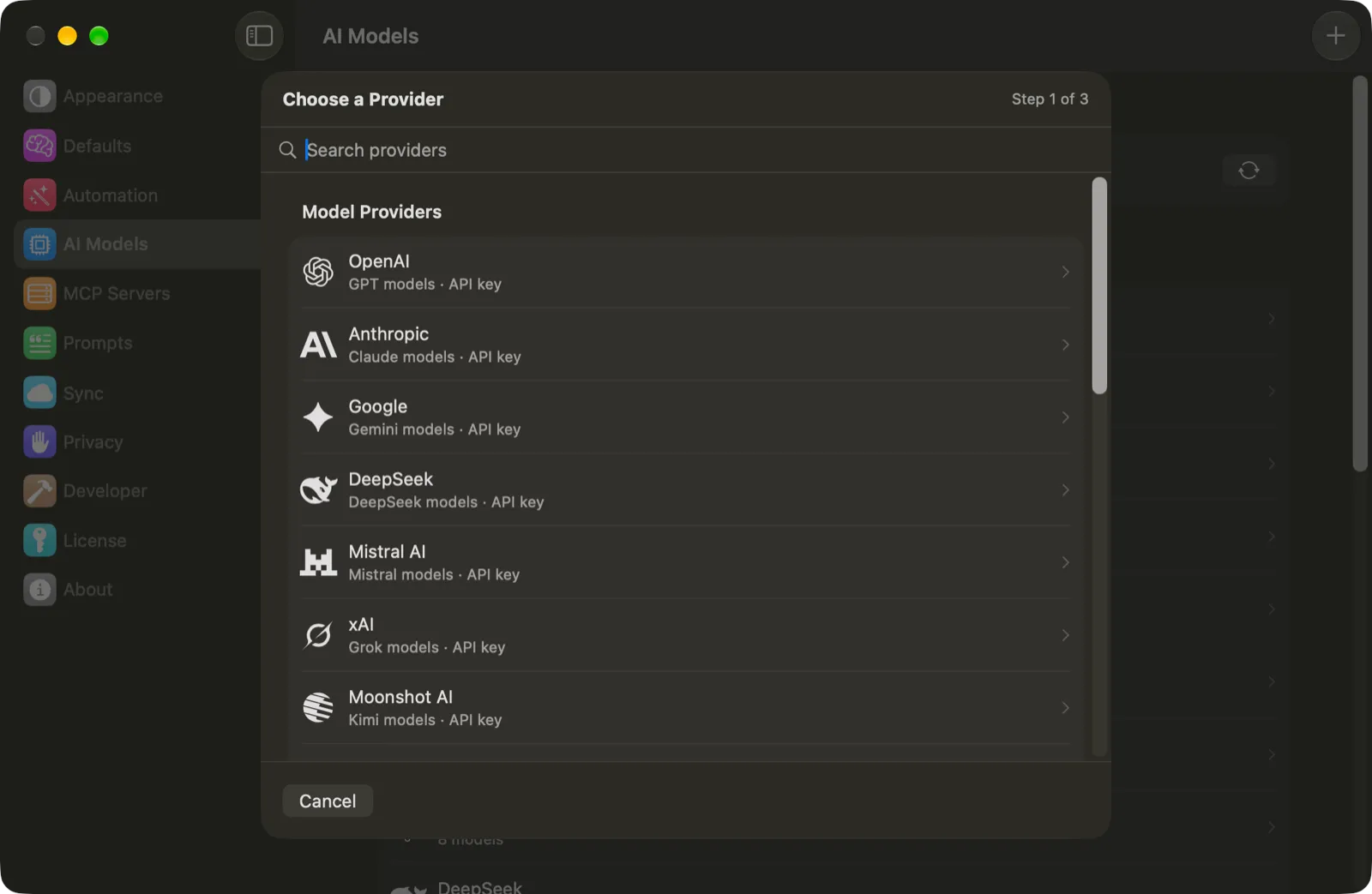
Step 1: Choose a provider
Click a provider, or use Search providers. The groups are:
| Group | What you can connect |
|---|---|
| Use Your ChatGPT or Claude Plan | ChatGPT Plan through Codex CLI, or Claude Plan through Claude Code. Claude Plan is Experimental. |
| Model Providers | OpenAI, Anthropic, Google, DeepSeek, xAI, Mistral AI, Moonshot AI, Z.ai, and Alibaba Cloud. |
| On This Mac & Local Servers | Ollama, LM Studio, and, on macOS 27 or later, Apple Foundation Models. |
| Gateways & Inference Hosts | OpenRouter, Groq, Together AI, Fireworks AI, Cerebras, DeepInfra, and Baseten. These services provide access to AI models. |
| Custom | An OpenAI-Compatible API, for a server that supports the same request format as OpenAI. |
Already-added ChatGPT Plan, Claude Plan, and Apple Foundation Models connections are omitted from this picker. Open their existing connection to manage them.
Step 2: Connect the provider
Follow the fields and instructions for your selection:
- API key: An API key is a secret credential from your provider account. Enter a Name and paste the key into API Key, then click Continue. Create a key ↗ opens the provider’s key page. Vinaa checks the key and loads models.
- ChatGPT or Claude plan: Complete the installation, sign-in, access, and terms steps shown in the sheet. See Use your ChatGPT plan in Vinaa or Use your Claude plan in Vinaa for the full procedure.
- Local server: Set up the model server first, then check Base URL, its address. Vinaa does not download or start local models for you. See Run models locally with Ollama or Run models locally with LM Studio.
- OpenRouter: Choose Sign in with OpenRouter or API key and follow the matching instructions.
API keys are stored in the macOS Keychain. API billing can differ from a chat subscription; for example, OpenAI manages ChatGPT and API billing separately.
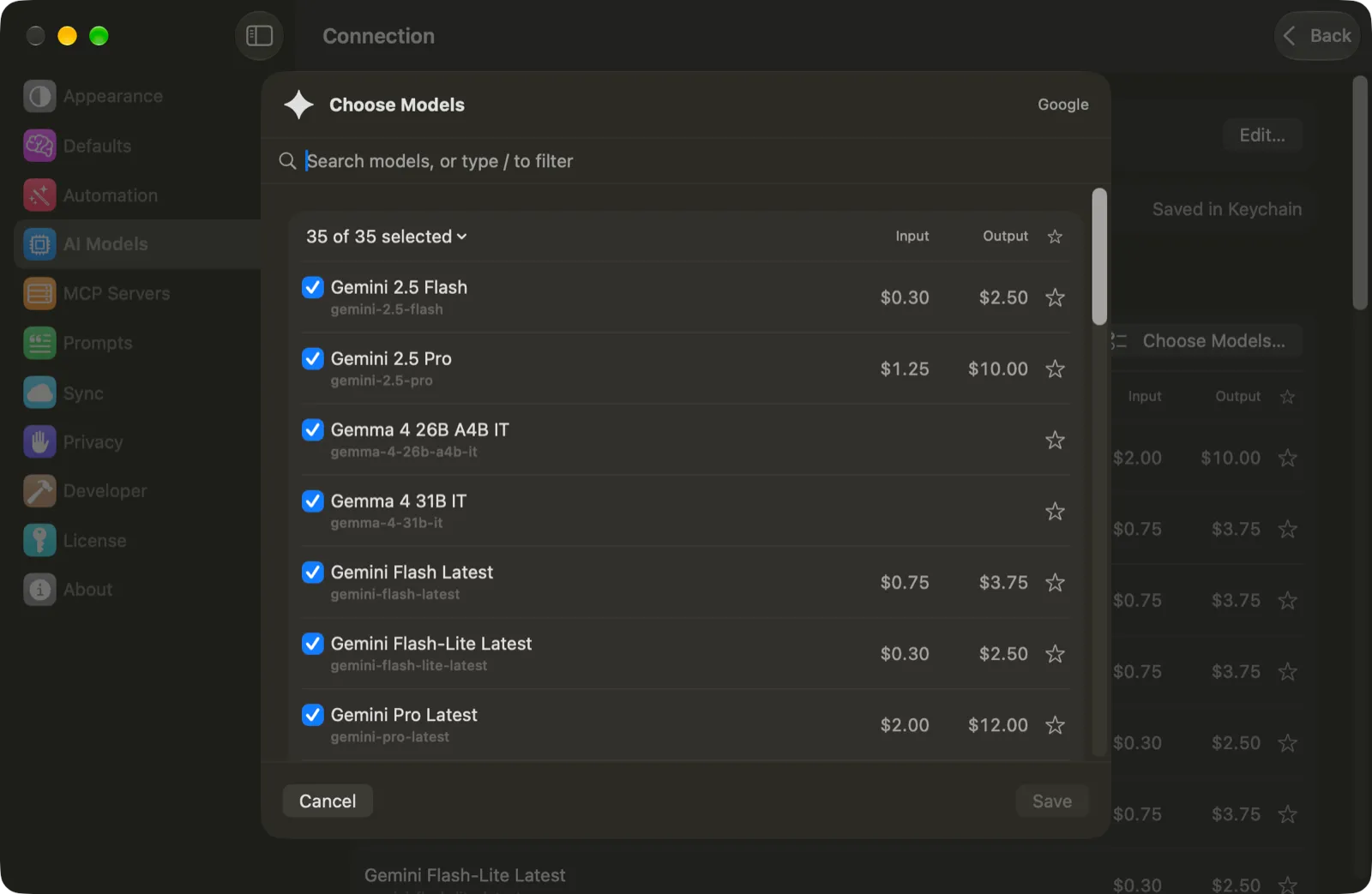
Step 3: Choose models
- Select the models you want available in Vinaa.
- Optionally star models you want as favorites.
- Click Add Connection.
Manage a connection
In AI Models, click a connection under Connections to open its page.
- Click Edit… to change its name or available connection fields, then Save.
- Click Choose Models… to change the model selection, then Save.
- Click Refresh in Models to refresh that connection. Sync on the main AI Models page refreshes models across connections; it is separate from iCloud sync.
- Click Delete Connection… to remove it. If settings still use its models, choose replacements with Migrate all to… or clear those selections with Clear all, then confirm deletion. This clears model settings, not your chat history.
If you see Setup required, open the connection and complete setup on this Mac. For an API-key or OpenRouter connection whose key is missing here, click Edit…, paste the key and click Save. For other errors, check the key, network connection, or local server, then refresh the models.