
Understand projects and folders
Learn how projects, folders and built-in views organize your conversations.
Projects group related conversations. Folders organize chats within a project, so you can keep a trip, a client or a course together without mixing everything into one list.
Projects and folders
A project can have its own name, icon, color, default AI model, chat instructions, automation settings and saved prompts. Inbox is the built-in project for chats that do not need a separate home. You cannot rename, archive, delete or reorder it, or change its icon.
Folders belong to one project. For example, a New Zealand project could contain Transport and Accommodation folders, with subfolders for individual destinations. Selecting a folder also includes chats in its subfolders.
Chats without a folder appear under Unfiled. This row appears only after a project has at least one folder; otherwise, selecting the project already shows all its chats.
Browse all projects
Choose All Projects from the picker at the top of the Folder Panel, the sidebar on the leading edge of the window. Each project can expand to show its folders. Select a project row to see its chats in the Chat List.
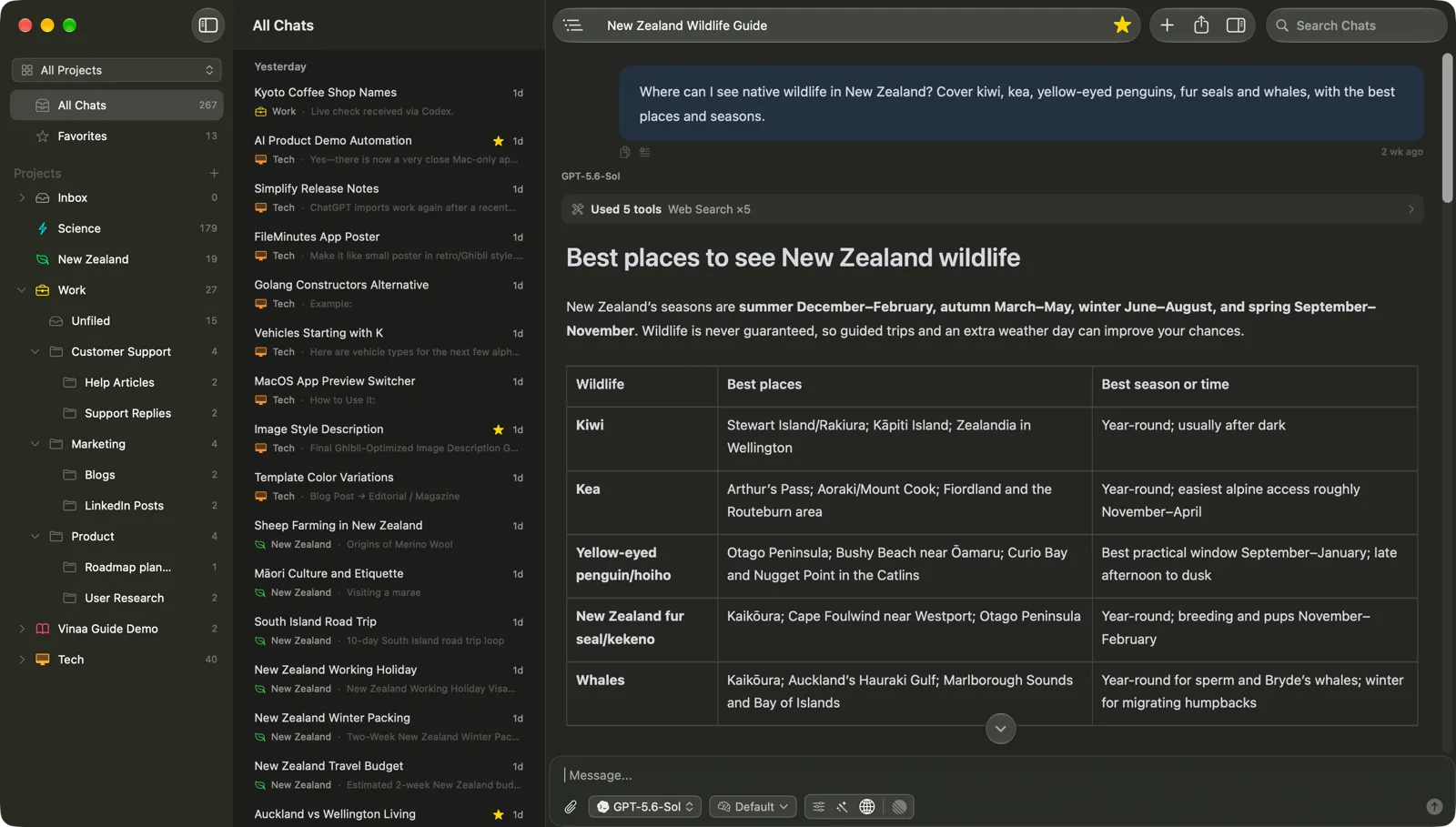
The built-in views follow the project choice at the top:
- All Chats shows chats across the active projects currently in view.
- Favorites shows chats you have starred.
- Unread shows chats with replies that finished while the chat was not visible, and chats still generating responses except the one open in this window. Opening a chat marks it read. The view appears when there is activity to show.
Favorite a chat and read its status
To favorite the open chat, press ⌘D or click the toolbar star. You can also right-click a chat in the Chat List and choose Add to Favorites. Repeat the shortcut or click the star again to remove it, or choose Remove from Favorites in the menu.
Chat List rows show these indicators:
| Indicator | Meaning |
|---|---|
| Orange dot | The chat is waiting for you, such as at a tool approval or a paused response. |
| Spinner | A response is being generated. |
| Dot and bold title | The chat has an unread response. |
| Star | The chat is a favorite. |
A waiting or generating indicator takes priority over unread and favorite indicators.
Focus on one project
- Press ⇧⌘P to open Switch Project….
- Choose a project.
The Folder Panel now shows that project’s folders, and the built-in views apply only to that project. Each window keeps its own project choice. Choose All Projects to broaden the view again.
View archived work
Choose Archived Projects in the project picker to browse archived projects and their chats. This choice appears when you have archived projects. They are hidden from the normal All Projects view. You can read and continue existing chats. On a blank chat, Archived projects take no new chats replaces the message field. Unarchive a project before creating a new chat in it.