
Export or share a chat
Save a conversation as Markdown or PDF, share it through macOS, or export your Vinaa data.
Export a chat when you want a readable copy outside Vinaa. Choose Markdown for text you can edit in other apps, or PDF for a document you can read and send with its layout preserved.
Export a conversation
- Open the chat you want to export.
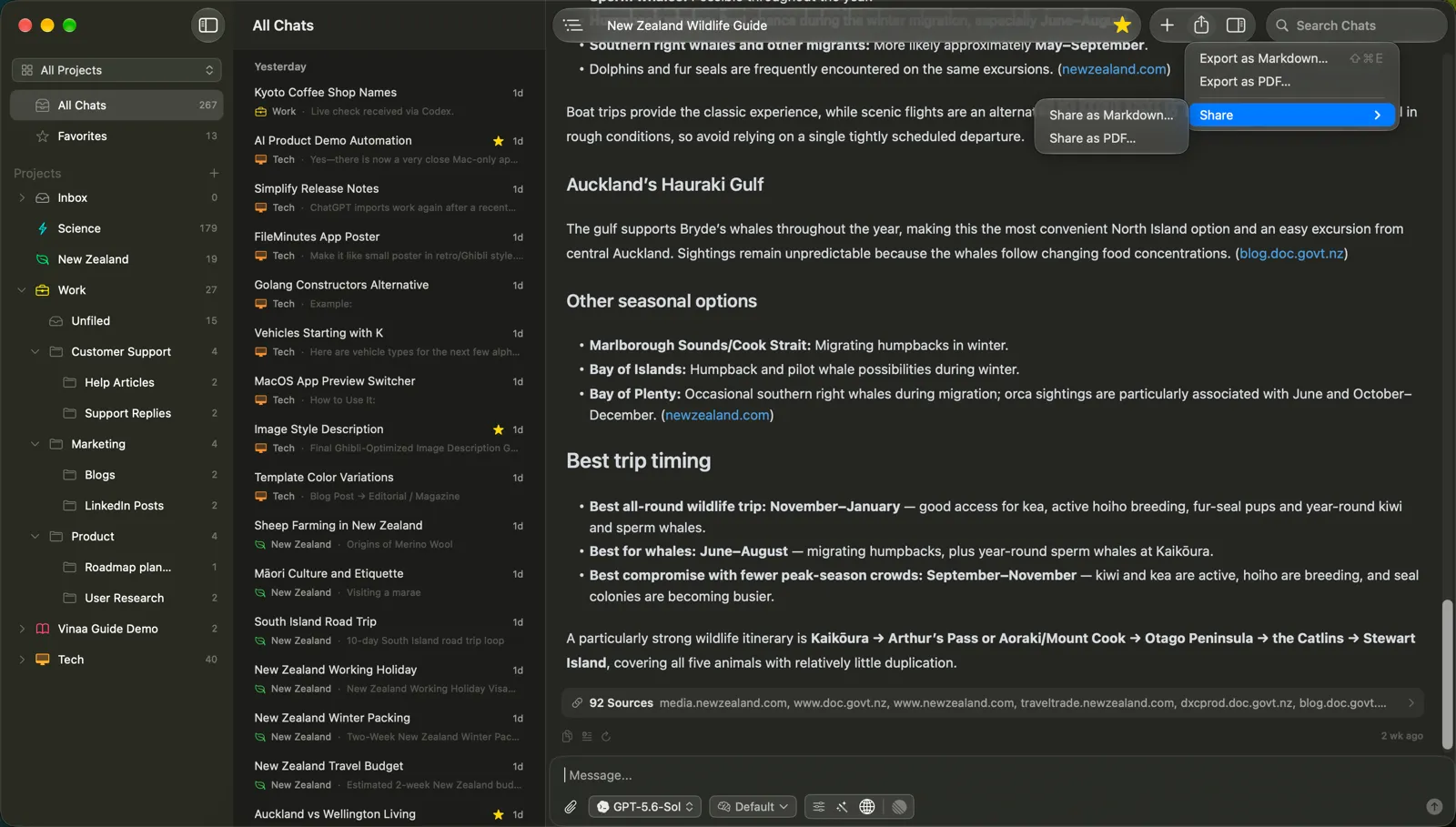
- Choose Chat → Export as Markdown… or Chat → Export as PDF….
- Choose a file name in the save dialog.
- Choose a location.
- Click Save.
You can press ⇧⌘E to export Markdown. Both formats are also available from Share or Export in the chat toolbar. The chat needs at least one message before it can be exported.
The export includes the conversation title, messages and supplied source references. Thinking and tool activity blocks are not included.
Exported PDFs include a table of contents with prompts, responses and response headings. Open your PDF viewer’s sidebar to jump between them.
Markdown lists attachment names rather than bundling the original files. PDF can include attached images, but other attachments appear by name. If the recipient needs an original file, save it separately from the Attachments panel and send it too.
Share through macOS
- Click Share or Export in the chat toolbar.
- Open Share.
- Choose Share as Markdown… or Share as PDF….
- Choose an available destination in the macOS sharing menu.
- Complete that app’s sharing steps.
This shares an exported file. Review the conversation and any information it contains before sending it to someone else.
Export all your data
For an archive of your Vinaa data rather than one readable conversation:
- Open Vinaa → Settings → Sync.
- Click Export All Data… under Backup.
- Choose a location for the ZIP archive. The suggested name is Vinaa Export YYYY-MM-DD.zip, using the local date.
- Click Save.
- Wait while Exporting… appears. When it finishes, Saved followed by the file name and Show in Finder appear. Click Show in Finder to locate the archive.
The archive contains a database snapshot and attachment files available locally. You can export it whether or not iCloud sync is on. Keep it somewhere you can find later, and store it securely because it contains your chats.
Export All Data… produces a data archive; Markdown and PDF are the formats to use when you want someone to read an individual chat.