
Use your Claude plan in Vinaa
Connect Vinaa to Claude Code on your Mac to chat using your Claude plan.
Claude Plan is an Experimental connection available in Vinaa → Settings… → AI Models → Add Connection. It isn’t offered during first-time setup.
Vinaa uses your installed Claude Code and its Claude plan sign-in. This integration may change or stop working at any time.
Before you begin
Use a Claude Pro, Max or Team plan with Claude Code access. Anthropic’s authentication guide explains account options; your team may need to enable access. An API-key or cloud-provider sign-in doesn’t qualify for Vinaa’s Claude Plan connection. To pay per use with an API key, add Anthropic instead.
Vinaa isn’t affiliated with or endorsed by Anthropic. Read the terms shown in Vinaa and Anthropic’s current terms. Usage counts toward your plan’s limits and may incur extra-usage charges if enabled on your account.
Install Claude Code and sign in
Vinaa needs Claude Code 2.1.300 or later. If Claude Code is already installed, start at step 3. For Update required, run claude update in Terminal.
- Open Terminal on your Mac.
- Paste
curl -fsSL https://claude.ai/install.sh | bashand press Return. - Run
claude. - Complete any initial setup prompts.
- Type
/loginin Claude Code and press Return. - Complete sign-in with your Claude subscription account in the browser.
The install command is from Anthropic’s Claude Code setup guide. Follow any instructions the installer prints if Terminal can’t find claude.
Add Claude Plan in Vinaa
- Open Vinaa → Settings… (⌘,).
- Select AI Models.
- Click Add Connection in the toolbar.
- Select Claude Plan under Use Your ChatGPT or Claude Plan.
- Click Read Anthropic’s Terms to review the current terms.
- If you accept, select I’ve read Anthropic’s terms and accept responsibility for my use.
- Check the Status in the Claude Code section.
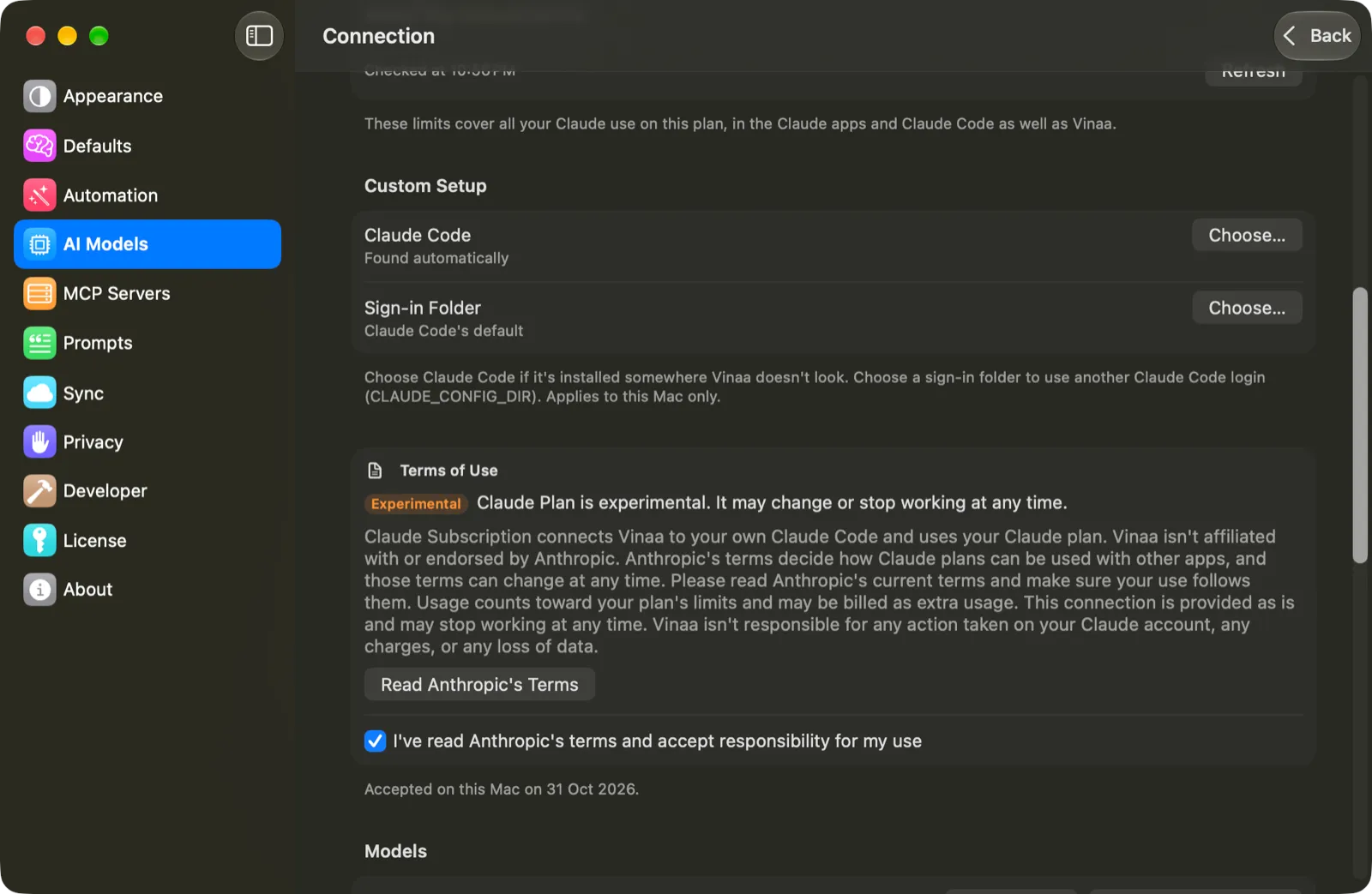
Vinaa checks again when you return from Terminal. If it still shows a setup problem, click Check Again. When the status shows Connected, possibly followed by your plan:
- Keep or change the Name.
- Click Continue.
- Select the models you want in Choose Models.
- Click Add Connection.
Press ⌘L in a chat to choose a Claude Plan model. If Claude Plan isn’t offered in the provider list, open the existing connection; Vinaa allows one such connection.
Understand setup statuses
| Status | What to do |
|---|---|
| Claude Code not installed | Use Copy Command to copy the installer command, then run it in Terminal. Setup Guide opens the official instructions. |
| Update required | Run claude update in Terminal, then click Check Again. |
| Not signed in | Run claude, type /login and sign in. |
| Not signed in with a Claude plan | Use /login to choose your Claude subscription account rather than API or cloud-provider billing. |
| Claude Code not found | Check the program selected under Custom Setup, or click Find Automatically. |
| Unavailable | Read the explanation beneath the status, address it, then click Check Again. |
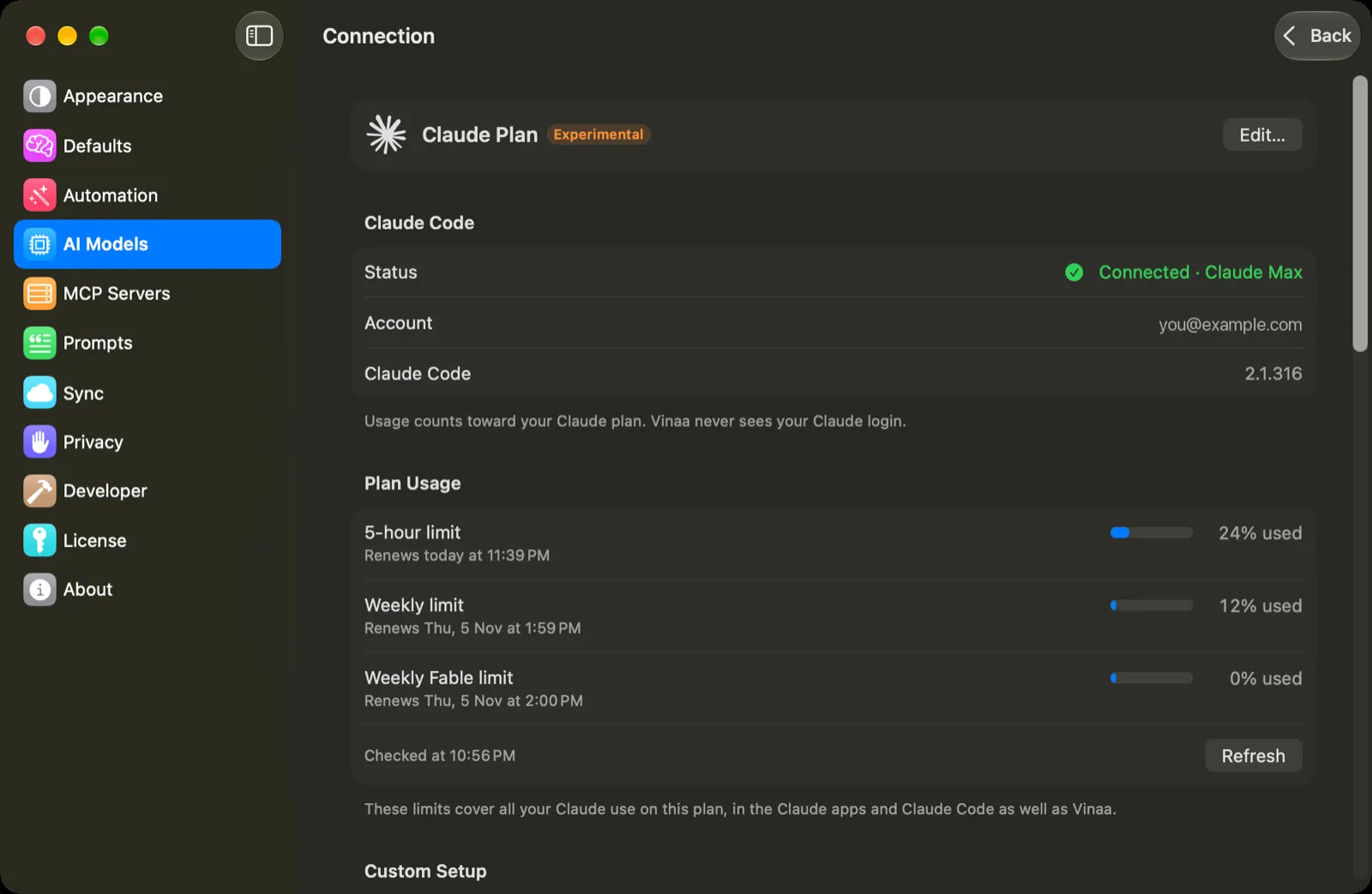
When setup is not ready, Open Terminal opens Terminal so you can follow the status instructions. Once ready, the connection shows Claude Code with its version and an Account row when the account email is available.
Vinaa does not use your Claude Code settings, hooks, plugins, CLAUDE.md files or @ file mentions in chats.
Check your plan usage
- Open your Claude Plan connection in AI Models.
- Find Plan Usage when the connection is connected.
- Click Refresh to update the reported limits.
These limits cover your Claude plan use across Claude apps, Claude Code and Vinaa. Refreshing usage doesn’t send a chat message or consume message usage. If usage can’t be retrieved, the page says Usage isn’t available right now.
If you reach a plan limit, the chat may say You’ve reached your Claude plan’s 5-hour limit. followed by when it renews and when you can continue. Vinaa waits for you; it does not switch models automatically.
Use a custom installation or another Mac
Under Custom Setup, use Choose… beside Claude Code to select the claude program if it isn’t found automatically. Sign-in Folder lets you select a different Claude Code configuration folder, corresponding to CLAUDE_CONFIG_DIR. Leave the defaults unless your setup needs this.
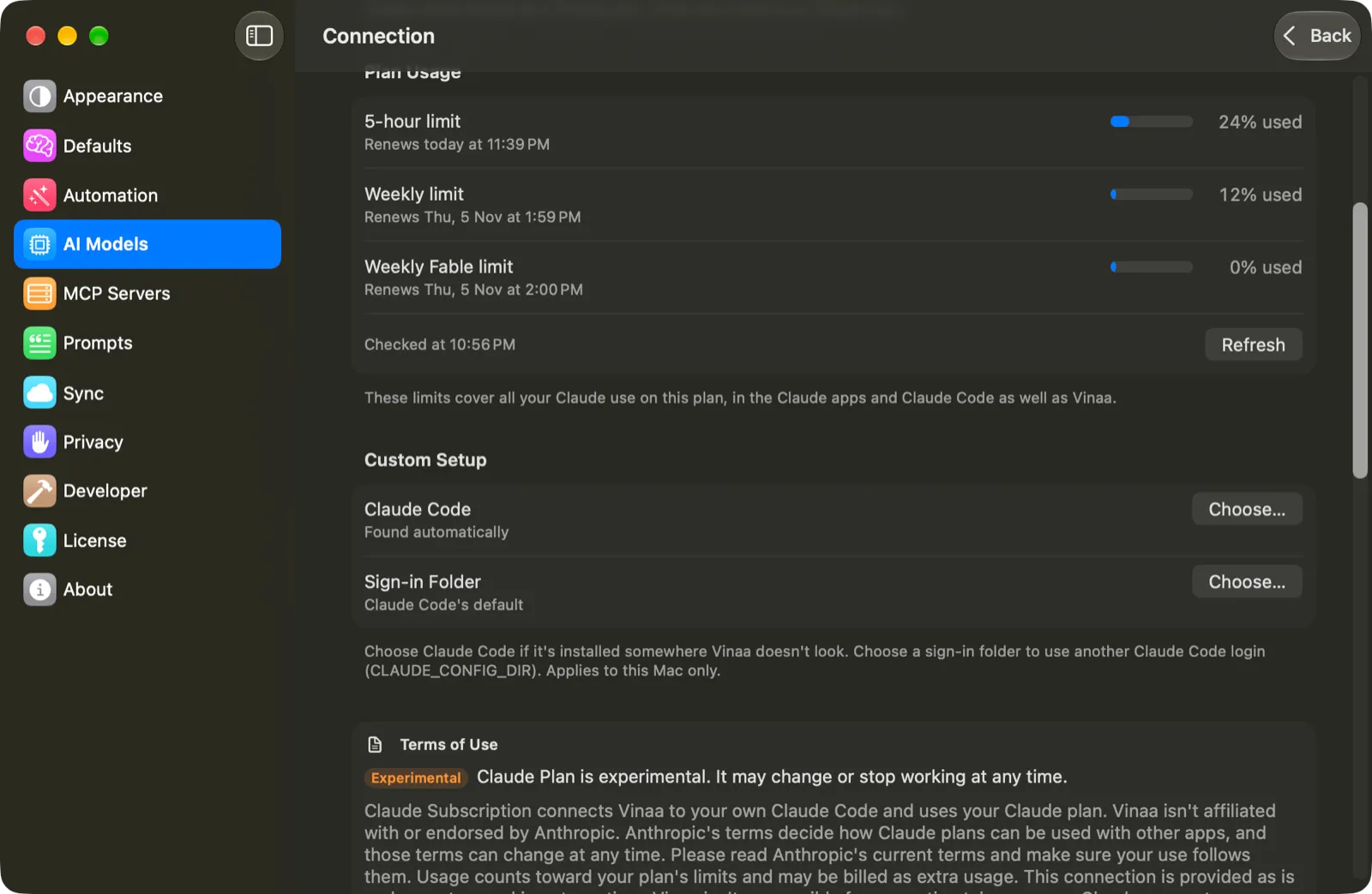
Custom setup and terms acceptance apply to this Mac. Unticking the terms acceptance makes the connection Setup required on this Mac. On another Mac, install and sign in to Claude Code and accept the terms there, even if iCloud has synced the connection.