
Find a chat
Return to a conversation using chat, project and folder switchers.
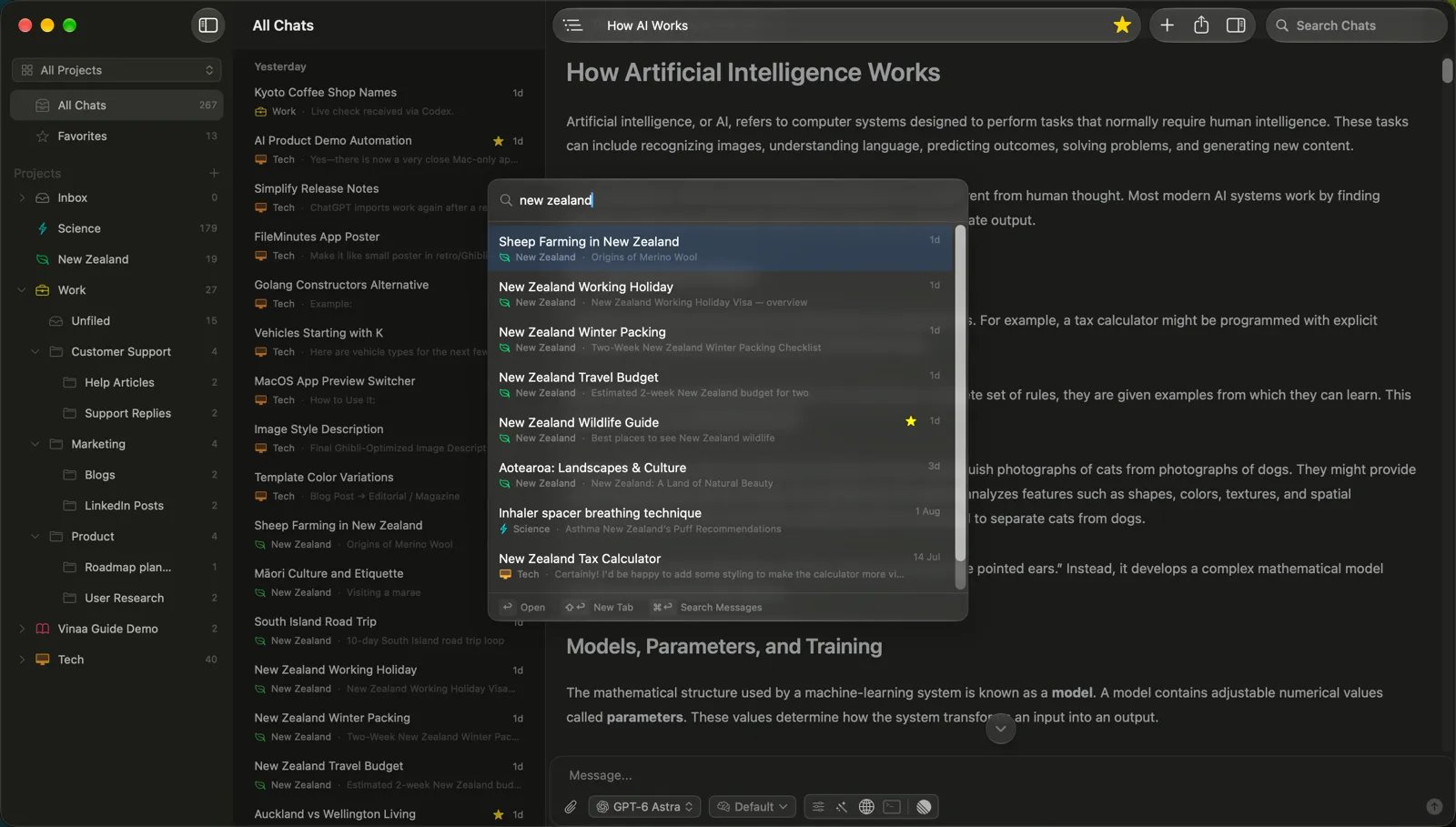
Use Go to Chat… when you remember a chat’s title or preview. If you remember something deeper in the conversation, use Search Chats to search message text.
Go to a chat
- Choose Navigation → Go to Chat…, or press ⌘O.
- Enter part of the chat’s title or preview text.
- Select the chat you want, or use the arrow keys to highlight it and press Return.
To open the highlighted chat in a new tab, press Shift-Return (⇧Return).
Narrow the results
Type / in Go to Chat… to choose project, folder or Favorites filters. Add a filter, then type your search text. You can combine filters.
When the window is focused on one project, that project’s filter is applied automatically. Remove its chip to look across active projects. To find archived chats, use the Archived filter or open Go to Chat… from the Archived Projects view.
If title and preview matches do not find what you need, choose Search Messages for “…” at the end of the results, or press ⌘Return. Vinaa passes your query to Search Chats.
Go to a project or folder
- Choose Navigation → Go to Project or Folder…, or press ⌥⌘O.
- Enter part of a project or folder name.
- Select a result.
Selecting a result selects its row in the Folder Panel. The switcher opens with a Recent section above the full list. In All Projects, type / to choose the Archived filter when archived projects exist. In a window focused on one project, the results stay within that project. To change the window’s project choice, use Navigation → Switch Project… (⇧⌘P).
Reveal a chat’s location
- Right-click a chat in the Chat List.
- Open Show in, when offered.
- Choose its project or one of the folders on its path.
This takes you to that location without moving the chat. A checkmark marks the current location; if you are already at the only possible location, the submenu is hidden.
Switch between open chats
Choose Navigation → Switch to Open Chat…, or press ⇧⌘O. This lists chats already open across your Vinaa windows and tabs. Select one to return to its existing tab.
To open a Chat List conversation separately, right-click it and choose Open in a New Tab or Open in New Window.
For starred chats, select Favorites in the Folder Panel. Unread helps you return to responses needing attention, and Unfiled shows chats outside folders when the project has folders.