
Set default instructions and automation
Set app-wide chat instructions and choose how Vinaa generates titles and assigns folders.
App-wide defaults give your chats common instructions. Automation settings control the separate AI work that names conversations and assigns them to existing folders. A project’s own settings take priority over the app defaults.
Set default chat instructions
- Open Vinaa → Settings → Defaults.
- Find System Prompt under Conversation.
- Enter instructions you want the AI to follow, such as a preferred writing style.
Changes save automatically. The current date is added automatically to the instructions. Reset to Default appears when you have changed the prompt; click it to restore Vinaa’s built-in instructions.
For instructions that apply only to one project, use Project Settings… → Defaults → Chat System Prompt. A project override takes priority over the app’s System Prompt.
Saved prompts are different: they insert reusable text into Chat Input. See Save and reuse prompts.
Choose the automation model
- Open Vinaa → Settings → Automation.
- Choose Default Model for title generation and folder assignment.
This model is separate from the Default Model for new chats in Defaults. If the automation model is not set, Vinaa uses the chat connection’s default model, described in settings as the provider’s default (cheapest) model. If no connection default is available, it uses the chat’s model. Click Clear to remove an app-wide automation model selection.
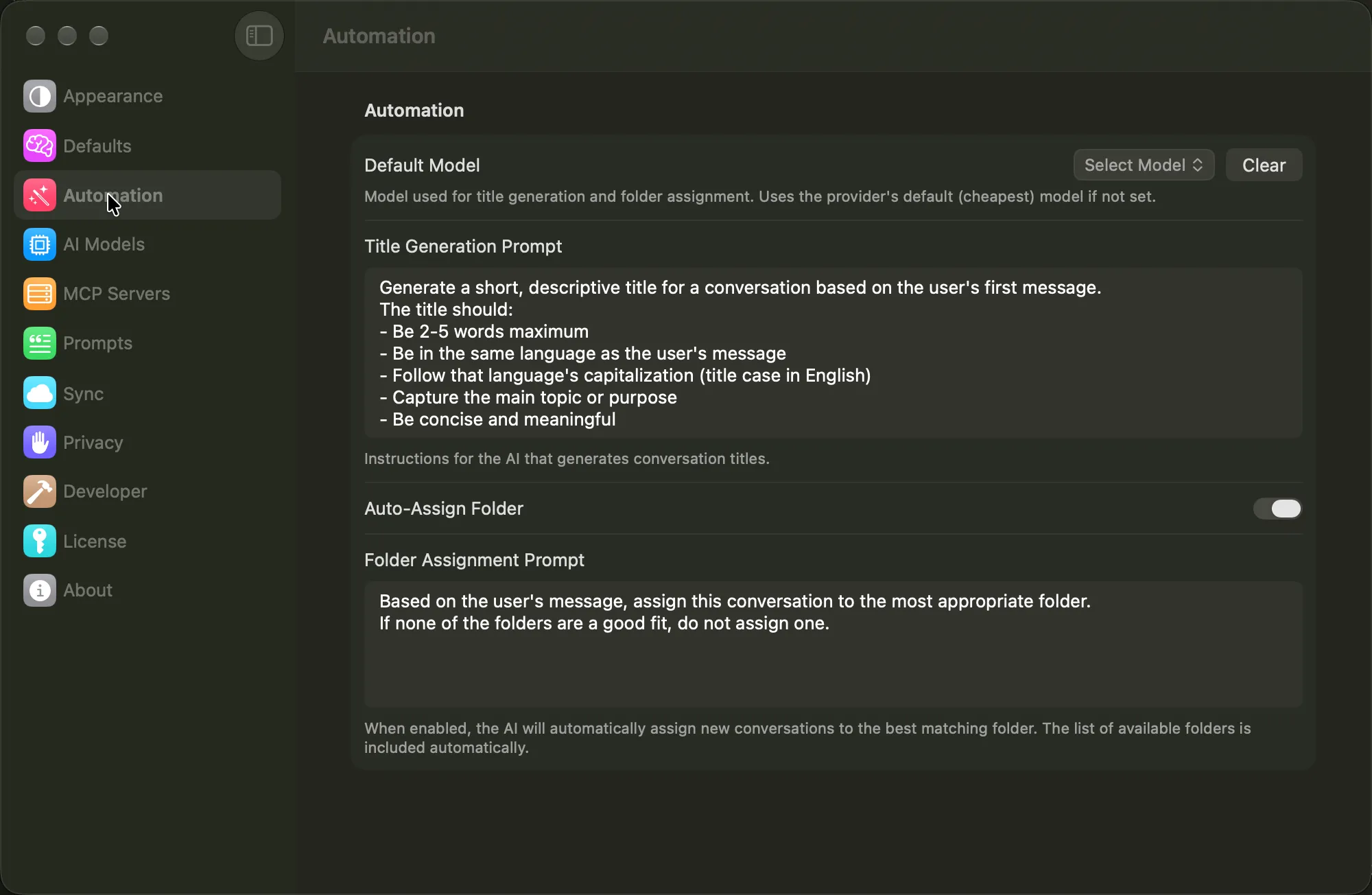
Customize generated titles
In Automation, edit Title Generation Prompt to guide the AI that names conversations. For example, ask for short titles that describe the question.
Changes save automatically. Use Reset to Default when offered to restore the built-in prompt.
Assign new chats to folders
- Create folders in the projects you want to organize automatically.
- In Vinaa → Settings → Automation, turn on Auto-Assign Folder.
- Review Folder Assignment Prompt, which appears when assignment is on.
The app-wide setting is off by default. Vinaa supplies the list of available folders automatically; the AI chooses among them rather than creating folders. Assignment runs alongside title generation after a first message, or later if the chat is still untitled. It applies only to unfiled chats and does not move a chat you have already filed.
Override defaults for a project
Open Project Settings… → Automation to choose that project’s automation model and prompts. For Auto-Assign Folder, choose On, Off, or Inherit (On) / Inherit (Off) to follow the app-wide setting shown.
Project overrides take priority. Use Use App Default where offered to remove an override and follow the app setting again.