
Take a tour of the Vinaa workspace
Find your projects, chats, message controls, search, and optional navigation panels.
Vinaa keeps your conversation at the center of the workspace. Projects and folders organize chats, while extra panels help you navigate long conversations and their files.
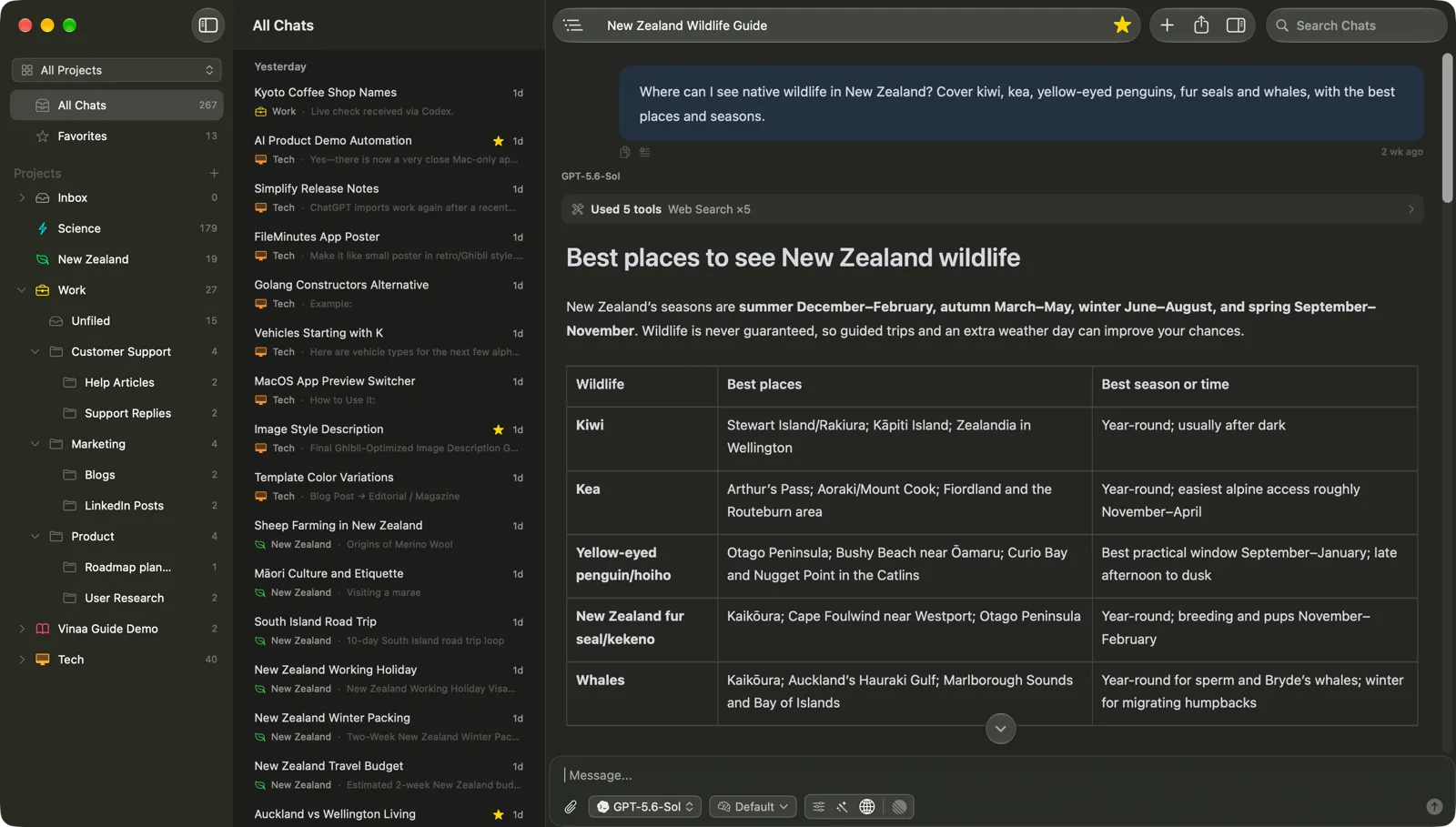
Browse projects in the Folder Panel
The left column is the Folder Panel. The picker at the top chooses which projects this window shows:
- All Projects lists your active projects together. Expand a project to browse its folders.
- Choose a project, such as New Zealand, to focus on its chats and folders. Other windows keep their own project choice.
- Archived Projects appears when you have archived projects. That view keeps older work accessible without mixing it into your active projects. You cannot create new chats there.
Press ⇧⌘P to open the project picker. Or right-click a project and choose Show Only This Project.
The panel includes All Chats and Favorites for the current project view. Unread appears when there are chats needing attention. Unfiled contains chats outside folders and appears when a project has folders. In All Projects, selecting a project’s name shows all its chats.
Choose View → Toggle Project Panel (⇧⌘F) to show or hide the Folder Panel. Use View → Focus Sidebar (⌥⌘1) to move keyboard focus there.
At the bottom of the Folder Panel, a sync activity or problem row opens Settings → Sync. An issue indicator opens the Issues popover; Fix takes you to the affected connection. A trial countdown appears in the last seven days and opens Settings → License.
Open a conversation in the Chat List
The Chat List shows conversations for the project, folder, or built-in view you selected. Chats are grouped by date. Click one to open it in Chat Detail.
Press ⌘O for Go to Chat… to find a conversation quickly, or ⌥⌘O for Go to Project or Folder… to change location.
Work in Chat Detail and Chat Input
Chat Detail is the message thread on the right. Chat Input is the message field and its controls at the bottom.
Use the controls to select a model, choose available reasoning options, attach files, configure tools, and send or stop a response. Some controls appear only when the selected model supports them.
Press ⌘/ to focus Chat Input, ⌘L to choose a model, or ⇧⌘T to open the tools panel.
Use the chat toolbar
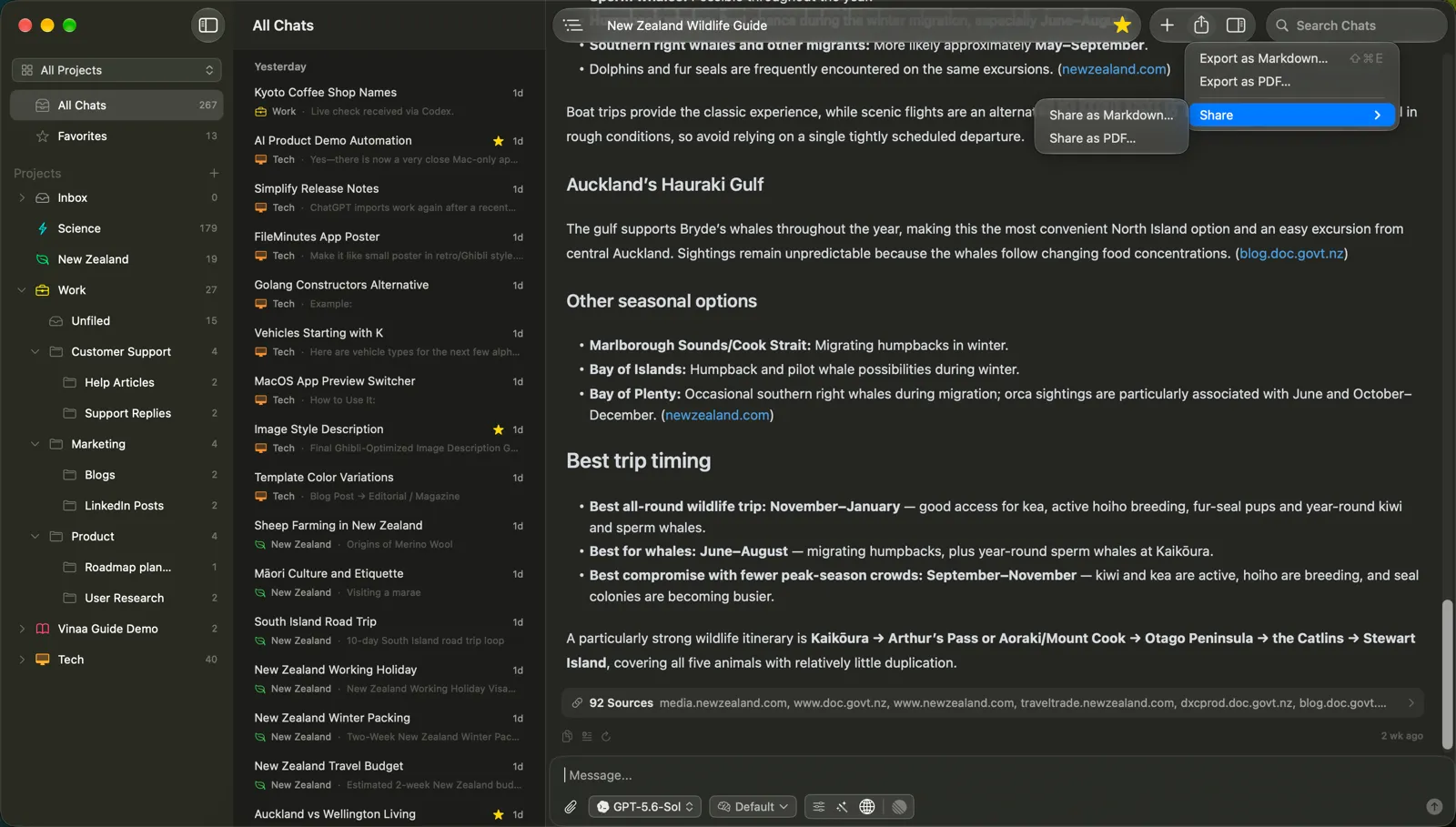
The toolbar includes New Chat, a favorite star, Content Navigation, Attachments, and Share or Export. Actions that need a selected chat may be unavailable on a blank chat.
- Use the star or ⌘D to add or remove the current chat from favorites.
- Open Share or Export and choose Export as Markdown… or Export as PDF… to save the conversation.
- In that menu, Share → Share as Markdown… or Share → Share as PDF… opens macOS sharing options.
Navigate messages and attachments
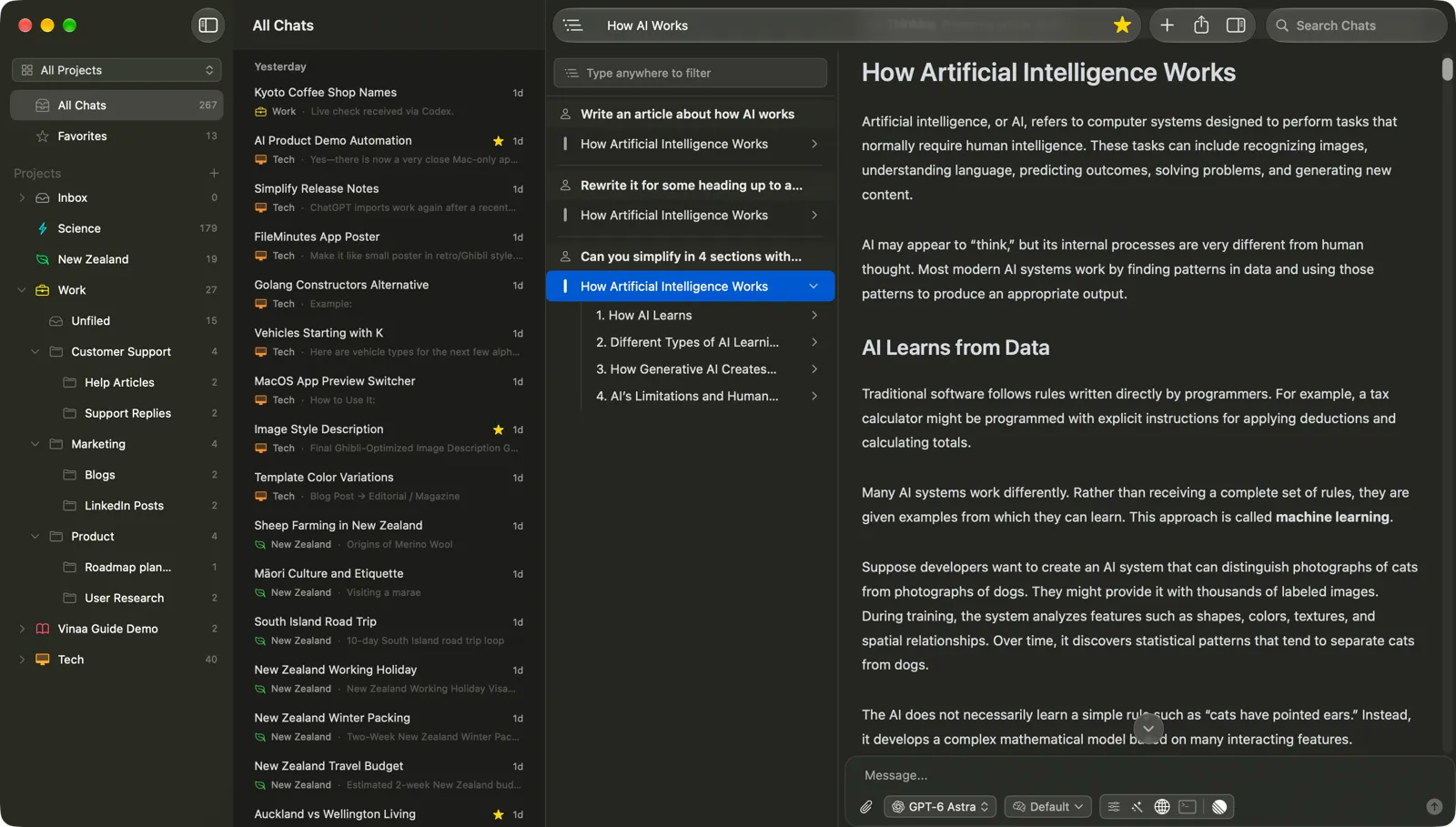
Press ⇧⌘J to show Content Nav, labeled Content Navigation in the toolbar. It lists prompts, responses, and headings so you can jump through a long chat. Press ⌘J for Jump to Message….
Press ⇧⌘R to toggle the Attachments panel and browse files in the current conversation.
Find text or search all chats
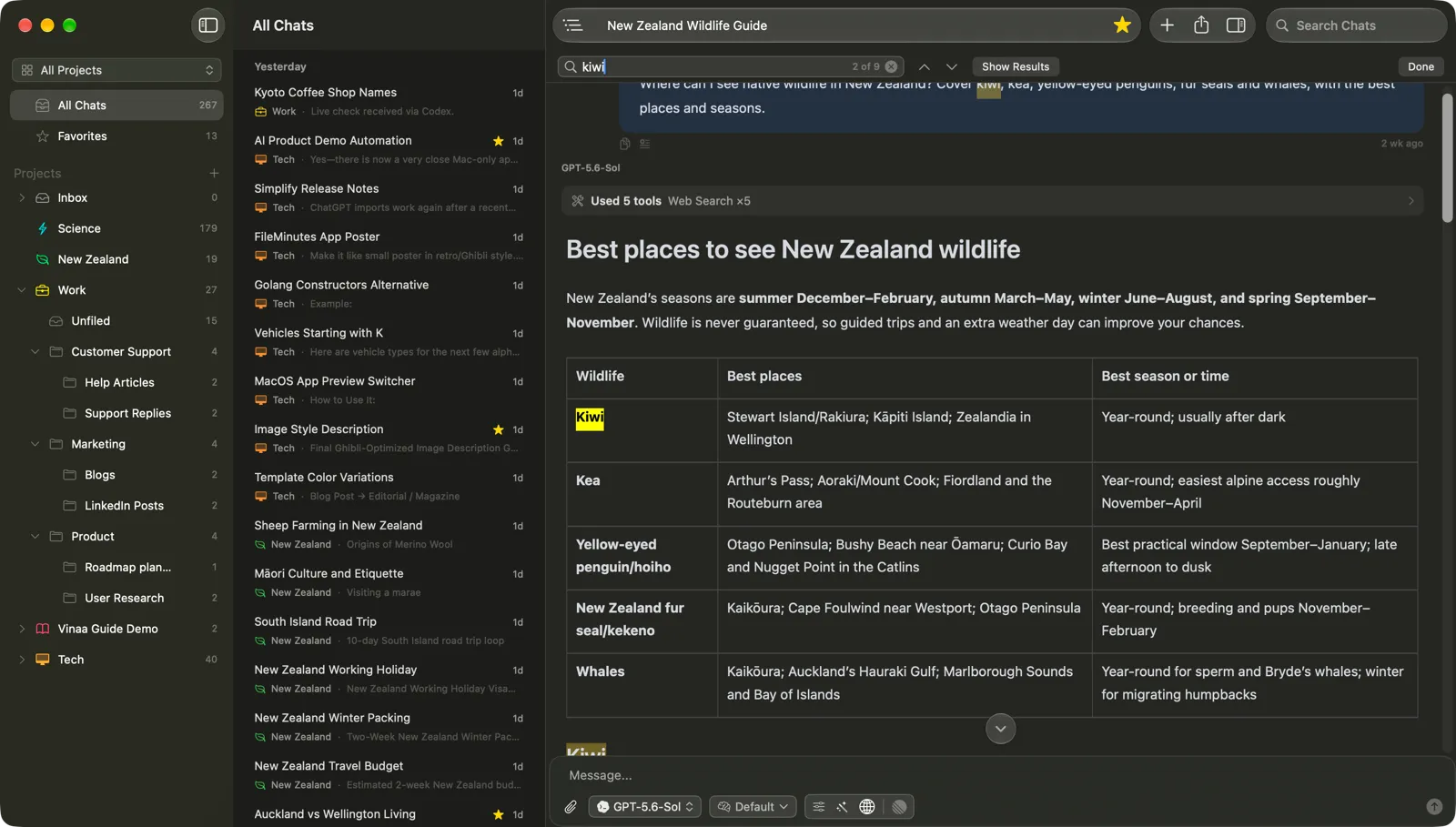
Use ⌘F for Find in Chat… inside the open conversation. The find bar lets you move between matches with ⌘G and ⇧⌘G, show matches in Content Navigation, or click Done to close it.
Use ⌥⌘F for Search Chats, which searches message text across chats. Select a message result to open its conversation at the match.
Drag the dividers between columns to adjust the space available for reading and navigation.